Time clock and payroll
MeridianOS™ has a built-in time clock. Employees clock in and out from the employee portal, and you correct and approve their hours from each employee's page.
Overtime rules, pay periods and paydays live on the Payroll Settings tab of the Employees page. Payroll itself is a file export. You download a CSV file and hand it to whoever runs your payroll.
How employees clock in and out
In the employee portal, the time clock is one large button that reads Clock in or Clock out. An employee can have one open shift at a time. Hours are the real time that passes between clock in and clock out. An overnight shift counts toward the day and week it started in. Employee portal describes the employee's side in full.
The time clock does not record breaks, meal periods or location, and an employee cannot clock in to a specific job. Employees cannot edit their own entries. An admin makes every correction.
See who is working now
On the Employees list, the Clock column shows Clocked in with a running timer in hours, minutes and seconds, or Clocked out. The column refreshes every 30 seconds.
Review and correct time entries
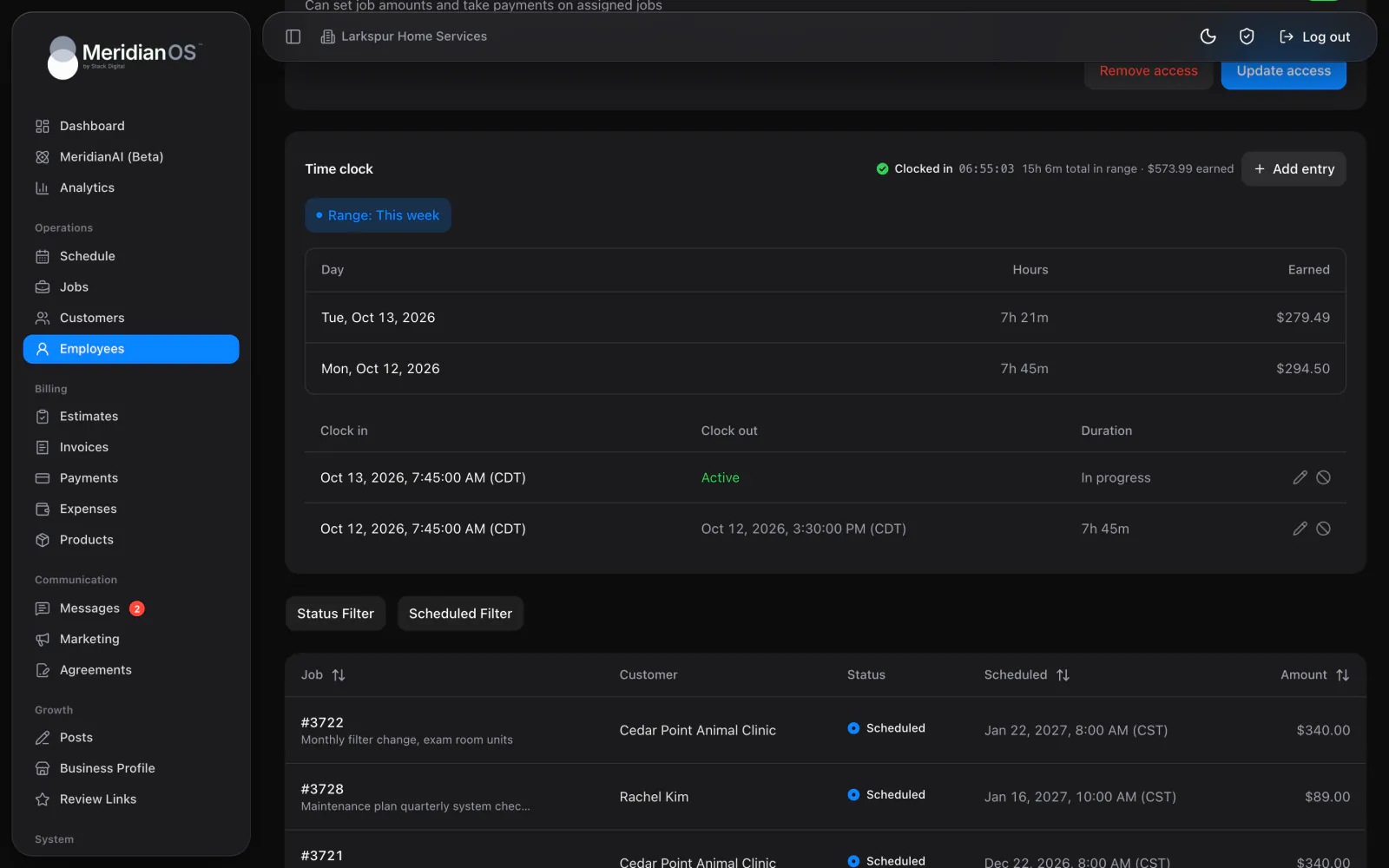
Open an employee's page to see their time. Choose a range: Today, This week, This month or Custom range. The header shows total hours in the range, dollars earned (hours multiplied by the pay rate) and, when tipping is turned on in Settings, tips.
A per-day table shows Day, Hours and Earned. The full entry list shows Clock in, Clock out and Duration, with timestamps to the second.
To add a shift an employee missed:
- Select Add entry.
- Enter the date, the clock in time and the clock out time.
- For an overnight shift, the form shows Ends the next day. on its own. Save the entry.
You can also edit any entry or void it. Each entry carries badges that record what happened to it.
| Badge | Meaning |
|---|---|
| Edited | An admin changed the entry. Hover over the badge to see the original times. The original clock in and clock out are kept permanently, and the employee sees the badge too. |
| Added by admin | An admin created the entry. |
| Voided | The entry stays visible, struck through, and no longer counts toward hours or pay. |
| Approved or Needs approval | Where the shift stands when you use approval. |
Editing an entry without changing a time keeps the exact original moment, so entries near a daylight saving change do not drift.
Approve hours
Approval is optional. To require it, turn on Approve hours before they reach payroll in Payroll Settings.
- Approve one shift at a time, or use the Approve N in range button (N is the number of shifts) to approve them in one click.
- Editing an approved shift sends it back to needing approval.
- Unapproved shifts are left out of the payroll export while approval is required.
- Employees see Needs approval on their own shifts until you approve them.
Overtime rules
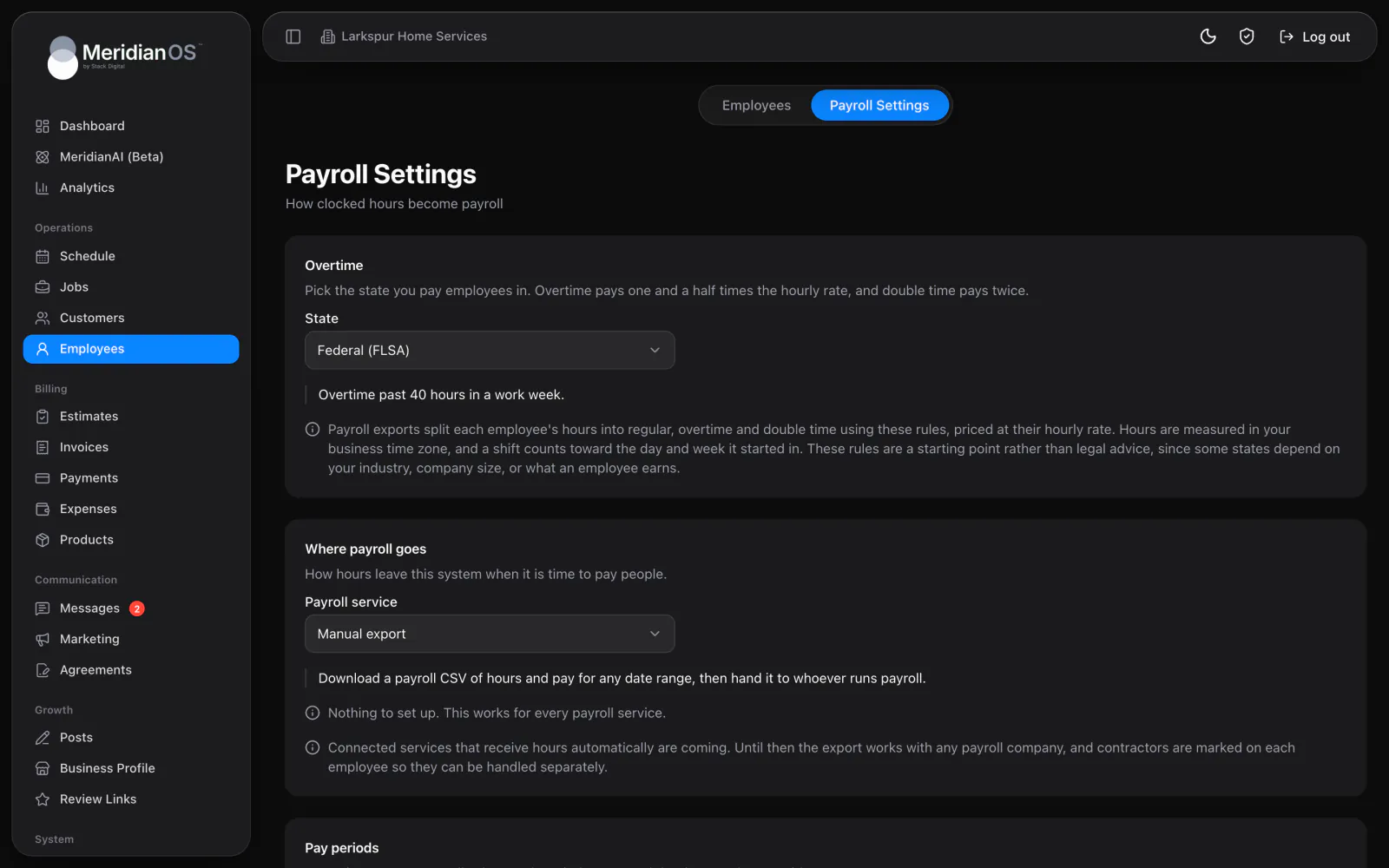
On Payroll Settings, pick the state whose overtime rules you follow. The choices are Federal (FLSA), all 50 states plus DC, and Custom. Overtime pays 1.5 times the hourly rate and double time pays 2 times.
| Choice | Built-in rule |
|---|---|
| Alaska, Nevada | Overtime over 8 hours a day or 40 hours a week. |
| California | Overtime over 8 hours a day and 40 a week, double time over 12 hours a day, plus seventh straight day rules. |
| Colorado | 40 hours a week, 12 hours a day, or 12 hours in a row, whichever pays most. |
| Kentucky | Seventh straight day overtime. |
| Oregon, Kansas, Minnesota | An advisory note appears, because a state rule can depend on company size or wage. |
| All other states | The federal 40-hour week. |
Custom lets you set a weekly threshold, a daily threshold, a daily double-time threshold, an hours-in-a-row threshold and seventh-day overtime. Choose Add them up or Whichever pays most to decide how your rules combine.
- Overtime is charged to the latest hours worked, so earlier shifts stay regular.
- When daily and weekly thresholds both apply, the same hour is never paid twice.
The page states that these rules are a starting point rather than legal advice. Confirm the rules that apply to your business.
Pay periods, paydays and hours
| Setting | Options |
|---|---|
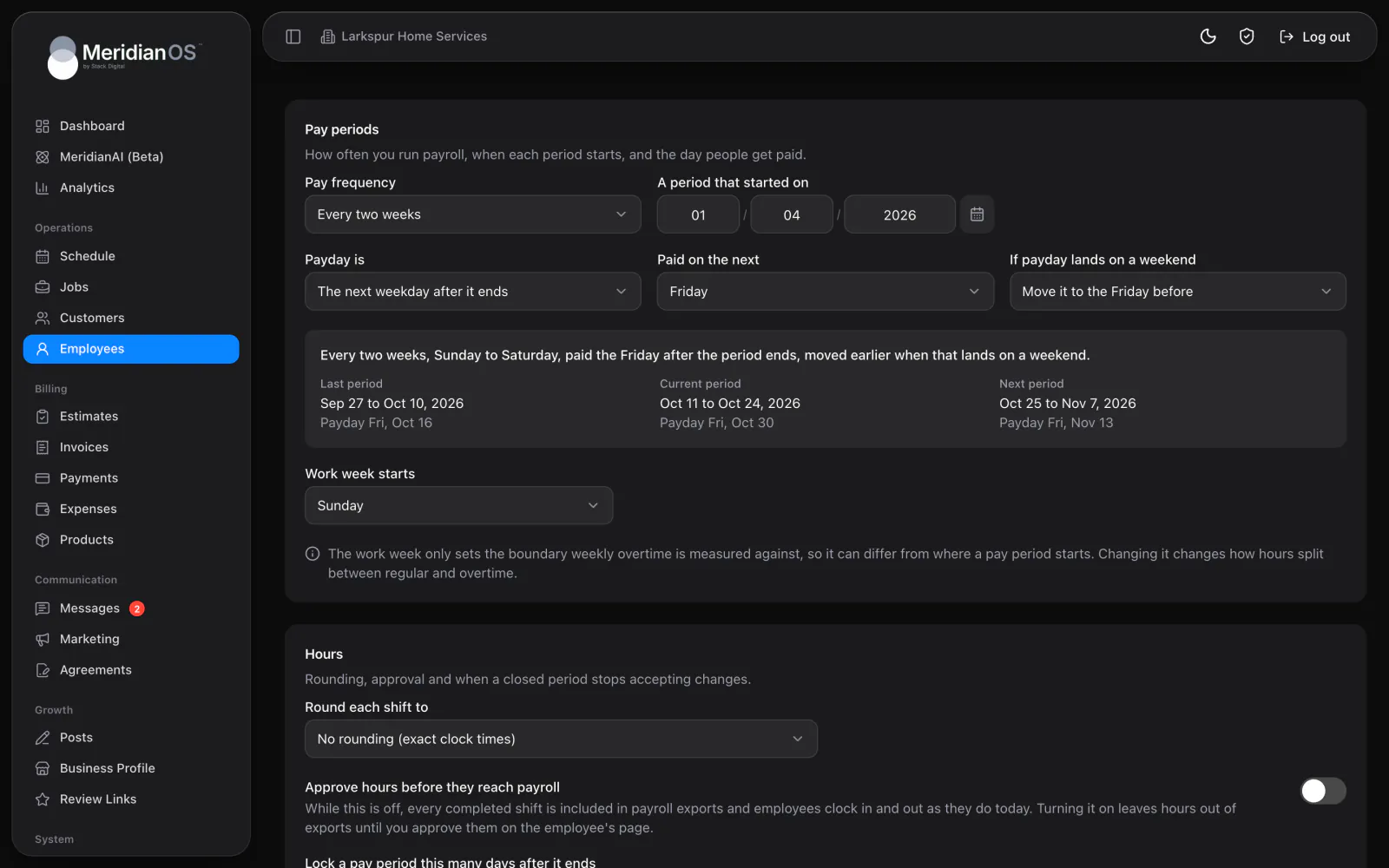
| Pay period | Every week, Every two weeks, Twice a month, Once a month, or Every so many days (2 to 90). |
| Payday | Some days after the period ends, The next weekday after it ends, or A set day of the month. |
| Payday on a weekend | Pay on that day, Move it to the Friday before, or Move it to the Monday after. |
| Work week starts | The day your work week begins. It is separate from the pay period and is used for weekly overtime. |
| Rounding | Round each shift to 5, 6, 10 or 15 minutes, or not at all. Rounding goes to the nearest, always up or always down. |
| Approve hours before they reach payroll | Requires approval before a shift is exported. |
| Lock a pay period this many days after it ends | Once a period locks, its entries cannot be edited or voided, and none can be added. |
A preview shows the last, current and next pay period with their paydays.
The defaults are a pay period every two weeks, paid the following Friday, with federal overtime, no rounding, approval off and locking off.
Under Where payroll goes, the only option is Manual export. MeridianOS™ does not connect directly to a payroll service.
Export hours for payroll
- On the Employees page, select Payroll export.
- Choose everyone or one employee.
- Choose This pay period or Last pay period, or enter any dates up to 92 days apart.
- Read the summary. The dialog restates your overtime, pay period, rounding and approval settings.
- Download the CSV file.
The file has one row per completed shift, followed by an Employee Totals block. The columns are Employee, Email, Type, Date, Clock In, Clock Out, Hours, Regular Hours, Overtime Hours, Double Time Hours, Hourly Rate, Regular Pay, Overtime Pay, Double Time Pay and Total Pay.
The export leaves out open shifts and voided shifts. When approval is required, it also leaves out unapproved shifts.
Related
- Employees and permissionsAdd employees, edit their details, give them a portal login, decide who can take payments, and see each person's tips.
- Employee portalWhat your employees see and can do when they sign in: schedule, jobs, invoices, payments, time clock, earnings and review QR code.
- SettingsEvery card on the Settings page and what each setting controls, plus the Policies page for your terms and privacy policy.
- Time clock overviewYour team clocks in from their phones, and you see who is working right now.
Updated November 10, 2026.