Review requests and QR codes
MeridianOS™ gives you two ways to ask for a review: a text to the customer, and a personal QR code that each employee can show in person. Both lead to your review page, which lists the review sites you choose.
Review requests go by text. MeridianOS™ does not send review requests by email.
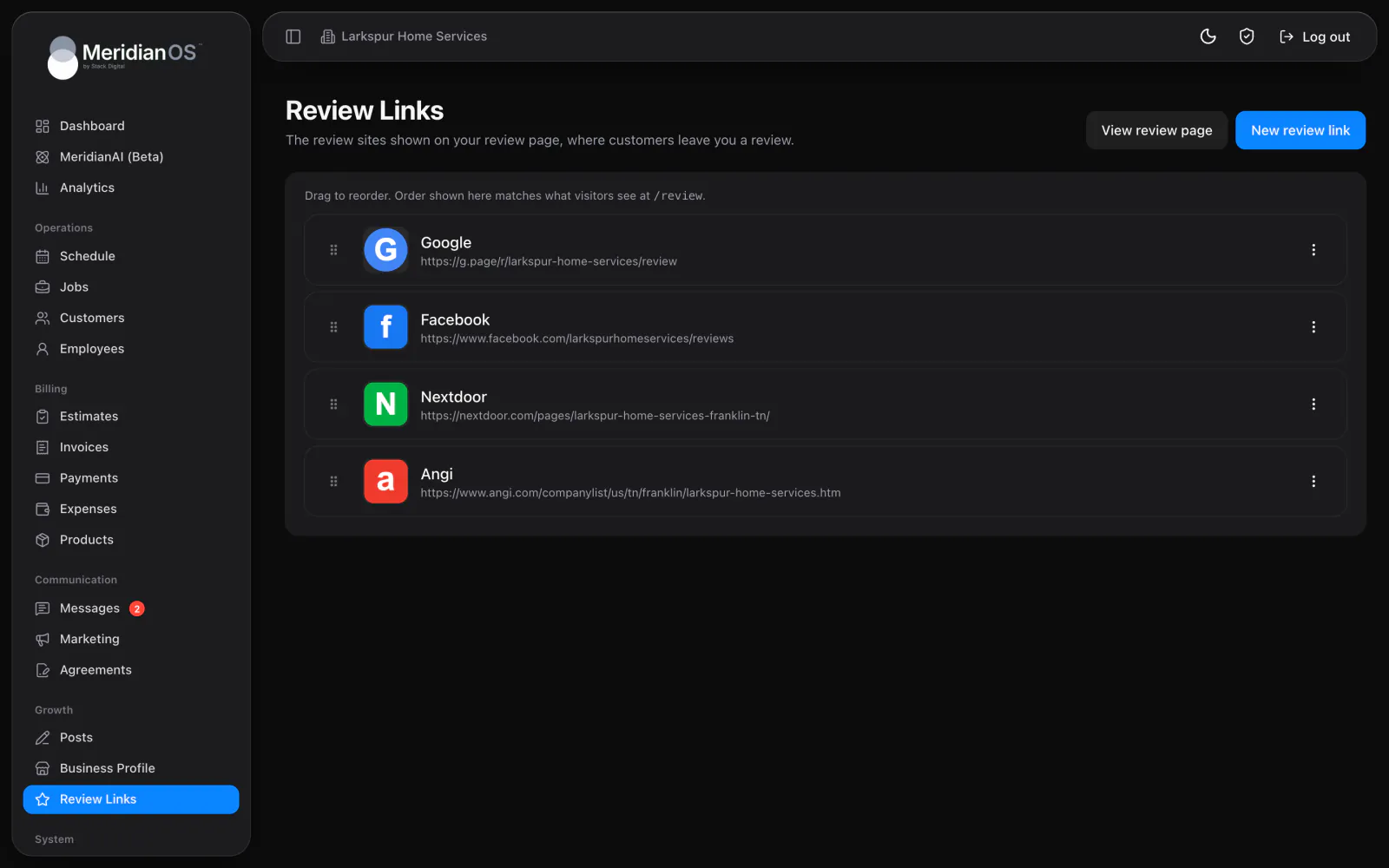
Set up your review links
The Review Links page holds the list of review sites that appear on your review page. You need an admin login to open it. Each site has three parts.
| Part | What it is |
|---|---|
| Label | The label for the review site. |
| URL | The link to that site. |
| Logo | A logo image that you upload. |
- Drag the sites into the order you want.
- Edit or delete any site in the list.
- Select View review page to open the page your customers see.
The review page your customers see
The public review page is headed Leave us a review. Under it is one row for each review site, in the order you set on the Review Links page. The customer taps the row for the site they want to use.
- The page is not indexed by search engines. Customers reach it from your text or from a QR code.
- The intro text on the page is written for your site by Stack Digital.
Automatic review requests
When the automatic review request is on, MeridianOS™ texts the customer when a job is marked completed. This includes a job that is completed because its invoice was paid, so work that closes on payment still gets its request.
- The automatic request is off by default.
- You switch it on in Messages settings. See Customer texts and their wording.
- The text includes your review link.
Review requests need texting set up on your site. Stack Digital turns this on for your site.
Ask one customer by hand
You can also ask a single customer whenever it suits you.
- Open the customer and go to their messages.
- Select Ask for a review. The review request text is filled in for you.
- Send the text.
For more on texting a customer, see Text messaging.
Change the wording
The wording of the review request text is yours to edit. You edit text wording on the Messages page, in the Settings tab.
Placeholders fill in the details for each customer. The review request has placeholders for your company, the customer's name and your review link.
The 90 day limit
A customer gets one review request every 90 days at most. The limit is enforced for automatic and manual sends together.
- A customer who was asked in the last 90 days does not get an automatic request when their next job is completed.
- Ask for a review cannot send a second request to that customer inside the 90 days either.
The limit counts per customer. Your team cannot send a customer a second request by accident.
Employee review QR codes
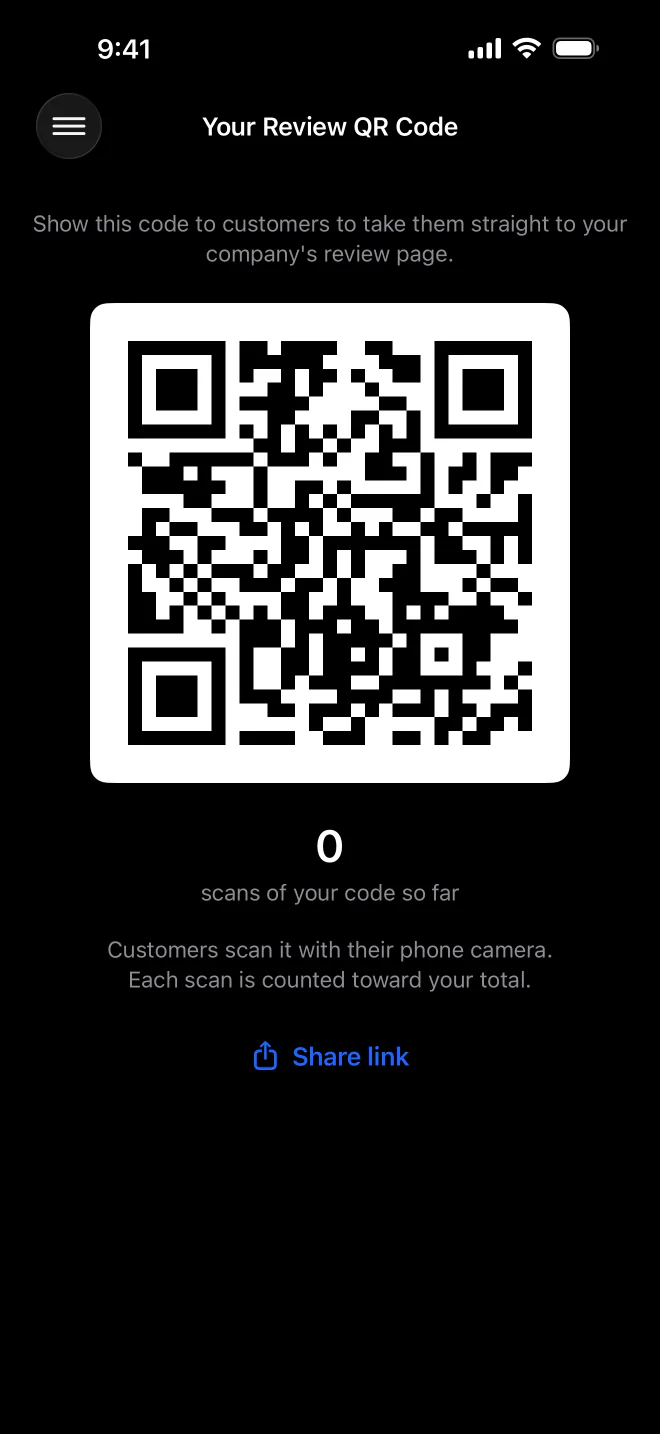
Every employee has a personal Review QR Code. They find it in the employee portal and in the MeridianOS™ app.
- The employee opens their Review QR Code and shows it to the customer.
- The customer scans the code.
- One scan is added to that employee's count, and the customer lands on your review page.
Every employee's code opens the same review page. Scan counts appear in these places.
| Who | Where the count shows |
|---|---|
| The employee | With their own QR code. |
| Admins | On the Employees list and on each employee's detail page. |
See Review QR Code for the employee's side. To read and answer the Google reviews that come in, see The Reviews inbox.
Related
- Text messagingText customers from your business number: the shared inbox, photos, alerts, bulk sends, lists, opt-outs and monthly limits.
- Automatic texts and emailsEvery text and email MeridianOS™ sends on its own, who gets each one, how to switch them on or off, and the Email Log.
- Employee portalWhat your employees see and can do when they sign in: schedule, jobs, invoices, payments, time clock, earnings and review QR code.
- Google Business Profile, reviews and listingsConnect Google, edit your listing, keep other listings matched, reply to reviews and publish Google posts.
- Review requests and QR codes overviewAsk for a review when the work is done, by text or a personal QR code.
Updated November 10, 2026.