Expenses, products and services
This chapter covers two pages. The Expenses page holds your monthly business expenses by category, which feed your profit numbers. The Products & Services page holds the catalog of items you sell.
Catalog items fill in line items on estimates, invoices and jobs, so you do not retype names, descriptions and prices.
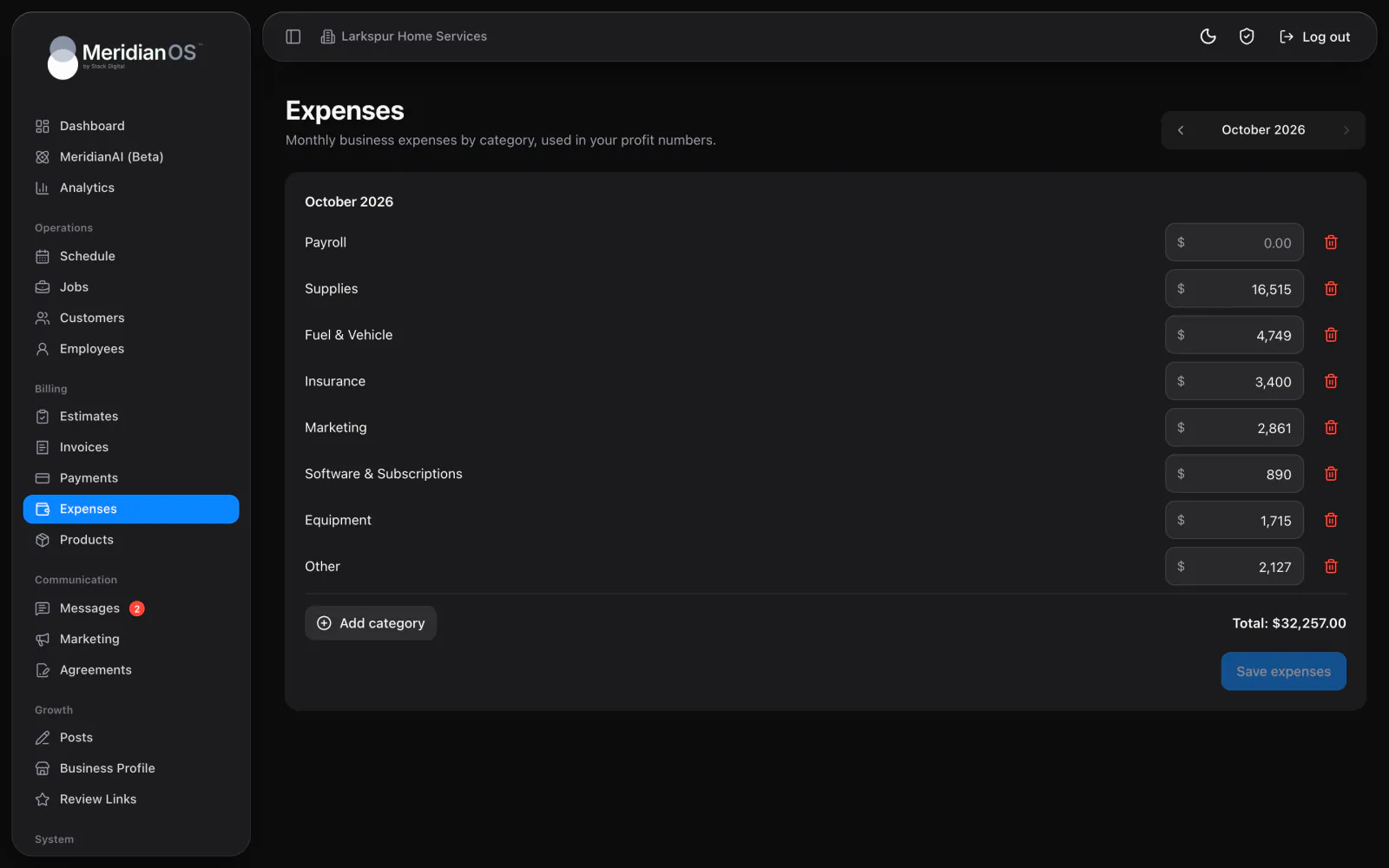
The Expenses page
The Expenses page is a monthly sheet. Its subtitle reads Monthly business expenses by category, used in your profit numbers.
| Part of the page | What it does |
|---|---|
| Month picker | Chooses the month you are viewing or entering. |
| Category rows | One amount per category per month. |
| Total | A running total of the amounts for that month. |
| Save expenses | Saves the month. |
Enter a month's expenses
- Open Expenses.
- Use the month picker to choose the month.
- Enter the amount for each category.
- Check the running Total.
- Select Save expenses.
To see or change another month, choose it in the month picker. In the MeridianOS™ app, the same sheet has a month stepper.
Expenses is a monthly totals sheet. It has no individual expense entries, receipt uploads, vendors or bank feeds. Add up each category for the month and enter one amount.
Expense categories
MeridianOS™ starts you with eight categories:
- Payroll
- Supplies
- Fuel & Vehicle
- Insurance
- Marketing
- Software & Subscriptions
- Equipment
- Other
You can add your own categories and delete the ones you do not use.
How expenses are used
Expenses feed the profit figures on the KPI page. That page also uses each invoice's Revenue month, the payments you collected and your outstanding balances. See KPIs and profit.
The Revenue month is set on each invoice. It is the month that work counts toward on the KPI page.
The Products & Services catalog
The Products & Services page is your catalog. You can search it, and you can add, edit or delete items. Each item has four fields.
| Field | What it holds |
|---|---|
| Name | The item name that fills the line item. |
| Price | The price that fills the line item. |
| Description | Formatted text that fills the line item's description. |
| Active or Inactive | Whether the item appears in the Add from products picker. |
To add a product or service:
- Open Products & Services.
- Add an item and enter its name and price.
- Add a description if you want one. Descriptions keep their formatting.
- Set the item to Active so it appears in the picker, then save.
The MeridianOS™ app has the same catalog. There you can search, add, edit, deactivate and delete products.
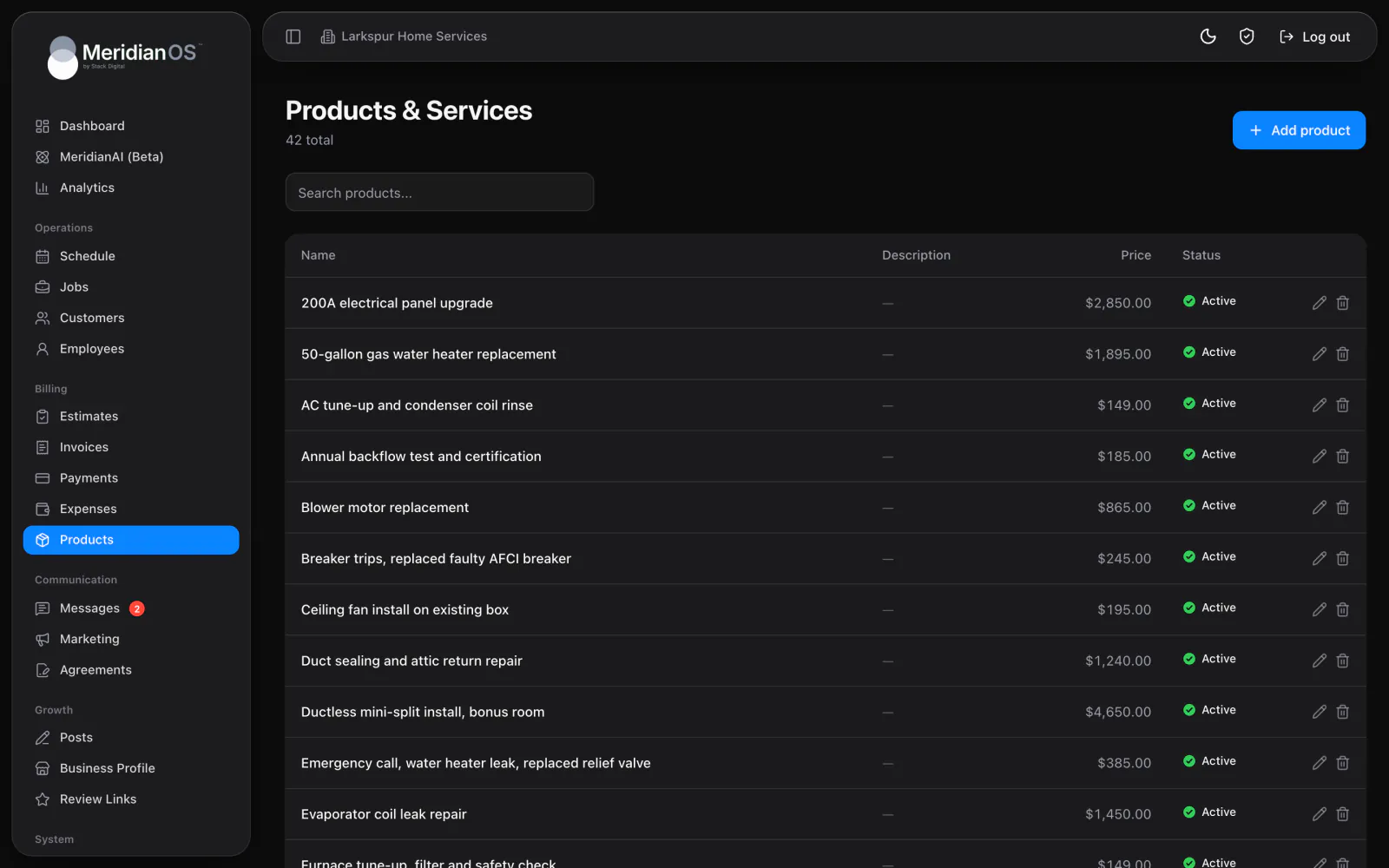
Add products to line items
Add from products appears in the line item editor on estimates, invoices and jobs. It is also in the invoice view your employees use.
- Open the line item editor on an estimate, invoice or job.
- Select Add from products.
- Pick the item. Its name, description and price fill the line.
- Change anything you need. Each of the pre-filled values can be edited for this document.
The picked item is copied onto the document. From then on the line belongs to that estimate, invoice or job, and you edit it there.
A line item has a name, a whole-number quantity, a unit price and an optional formatted description. The description prints on the PDF and on the pages your customer sees.
Delete or deactivate a product
What the catalog does not do
- The catalog is not connected to online booking. Online booking uses its own service list. See Online booking.
- There is no inventory tracking and there are no SKUs.
- There are no tax or discount fields on products or line items.
The total of an estimate or invoice comes from its line items alone.
Related
- KPIs and profitHow to read revenue, collected, outstanding, profit, labor and lead conversion for any period, and how each number is counted.
- EstimatesBuild itemized estimates, send them by email or text, record the customer's answer and turn a yes into a job.
- InvoicesCreate and send invoices, set terms, record payments, and see what reminders and recurring billing do on their own.
- Jobs and recurring jobsHow to find, create and manage jobs, what the job page holds, and how recurring jobs, their billing and tags work.
Updated November 10, 2026.