Email marketing
Email marketing sends a designed email to lists of your customers and leads. You build the email from blocks and send it now or on a schedule. Afterward, MeridianOS™ shows exactly what each person received.
Open Marketing in the Communication group of the sidebar. The page has three tabs: Campaigns, Lists and Templates.
Create a campaign
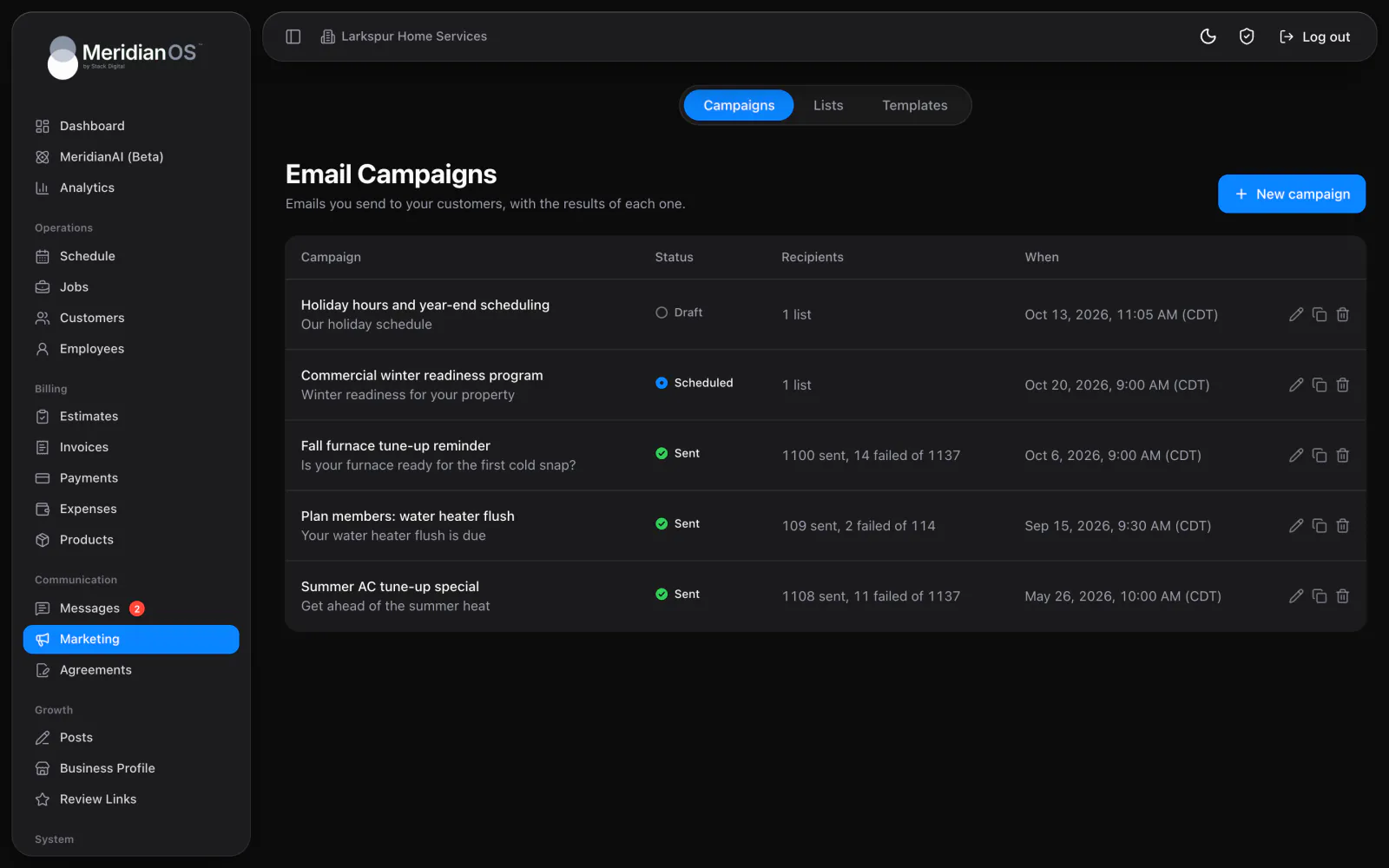
The Campaigns tab lists every campaign with the columns Campaign (its name and subject), Status, Recipients and When. A status is Draft, Scheduled, Sending or Sent. From the list you can edit, duplicate or delete a campaign.
- Select New campaign.
- Enter a name.
- Under Start from, choose Blank campaign or a saved template.
- Choose a theme and check its preview. The themes are Midnight, Crisp, Ember, Editorial and Forest.
- In the composer, fill in Campaign name, Subject line, Preview text, Reply-to email and From name.
- Set the From address. You can edit the name before the @. The domain is fixed for your site.
- Under Send to, choose one or more lists.
Build the email
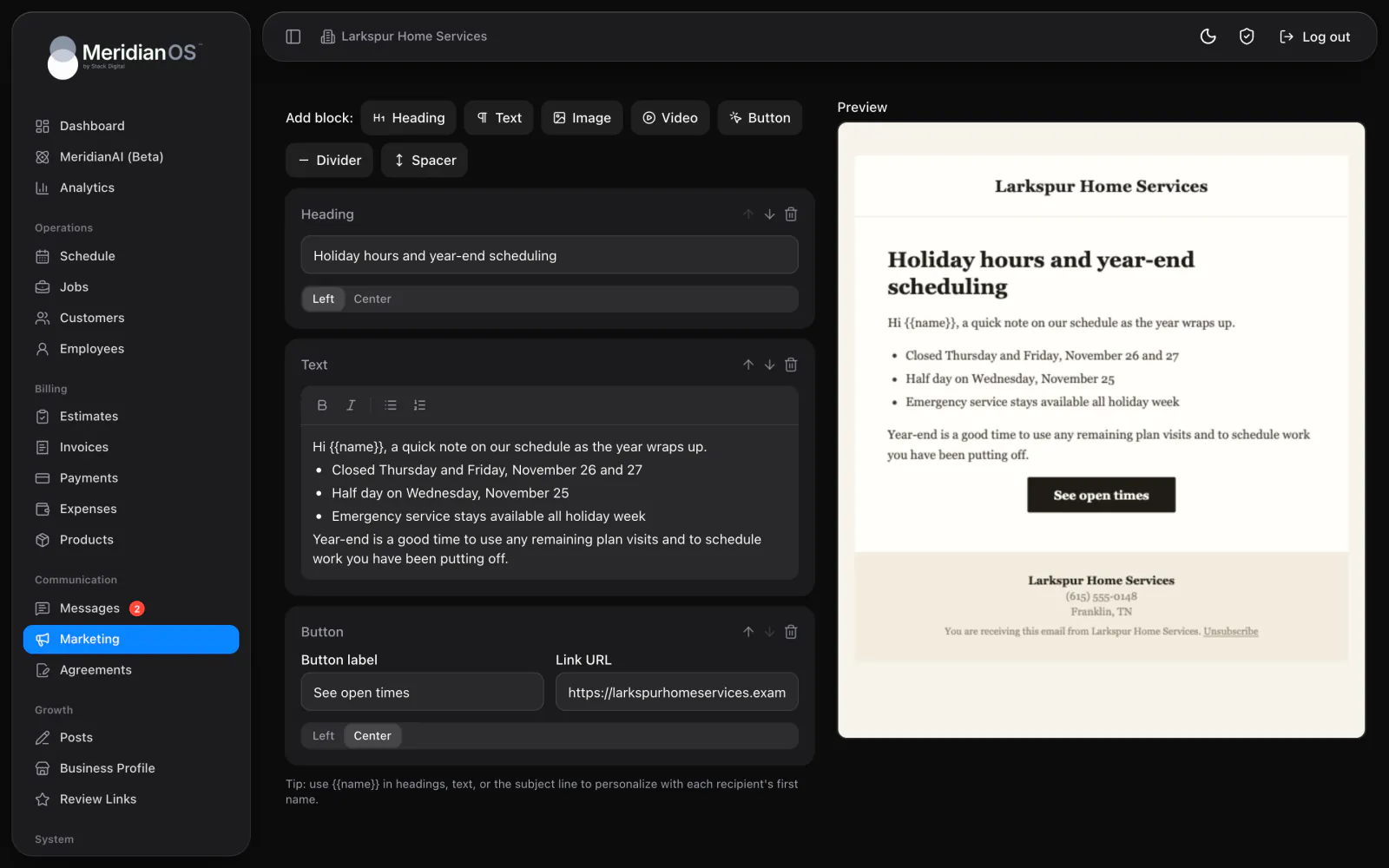
Add blocks to build the body of the email. A live preview sits beside the editor. Move a block with the up and down arrows, or delete it.
| Block | What it holds |
|---|---|
| Heading | A heading. |
| Text | Rich text. |
| Image | An image you upload, with alt text, a size (Full, Medium or Small) and an optional link. |
| Video | A video link you paste. The email shows a thumbnail with a play button that links to the video. A custom thumbnail is optional. |
| Button | A button. |
| Divider | A dividing line. |
| Spacer | Empty space between blocks. |
- The header shows your company name or a logo. Use Upload custom logo and set its size with the slider.
- Type {{name}} in a heading, in text or in the subject to insert the recipient's first name. When no first name is on file, it falls back to there.
- Every campaign ends with a footer that shows your company name, phone and address, and a line that begins You are receiving this email from with an Unsubscribe link.
- A plain-text version of the email is generated automatically.
Test, send or schedule
| Action | What it does |
|---|---|
| Save | Saves the campaign. |
| Send test | Sends the email to any address you enter. The subject starts with [Test]. |
| Save as template | Saves the design so you can start later campaigns from it. |
| Schedule | Sets a date and a half-hour time slot in your business time zone. The campaign starts on its own. |
| Send now | Starts sending right away. |
| Unschedule | Takes a scheduled campaign off the schedule. |
| Duplicate | Makes a copy of the campaign. |
| Delete | Deletes the campaign. |
While a campaign is going out, the page reads Sending... keep this page open or the scheduled job will finish it. If you leave the page, sending is finished for you in the background.
Each recipient is claimed before their email goes out, so nobody receives the same campaign twice.
Results
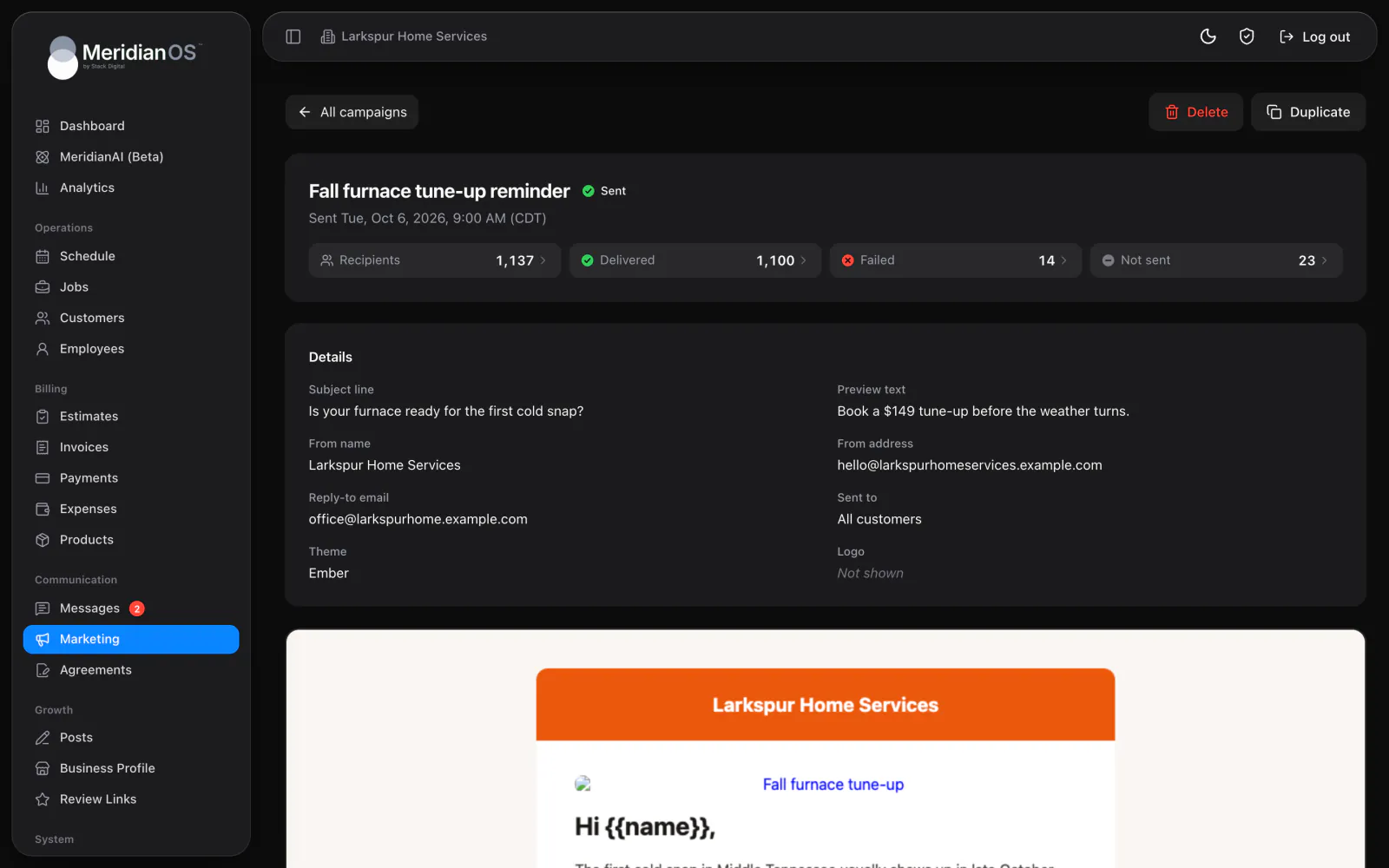
A sent campaign shows four tiles: Recipients, Delivered, Failed and Not sent. Select a tile to open a searchable list of the people in it, each with a status and a reason.
Select a person to see the exact email they received, with its From, Reply-to, To, Subject and sent time. A note tells you when someone unsubscribed before the campaign was sent, or reads They have since unsubscribed.
Delivered means the email was sent successfully. MeridianOS™ does not track opens, clicks or bounces, so the results page has no open rate or click rate.
Lists
A list is a saved group of email addresses that you can reuse for any campaign. On the Lists tab, add people from these sources:
| Source | What it adds |
|---|---|
| Customers | Each customer's primary and additional email addresses. |
| Leads | People who came in as leads. |
| Messages | Texting contacts who have an email address on file. |
| Pasted addresses | Any addresses you paste in. |
You can search, use Select all, rename a list, remove people and delete a list.
Templates
A template is a saved design made of a theme, a default subject and the content. The Templates tab shows each one as a card. Start a campaign from a template, or turn any campaign into one with Save as template.
Monthly sending limit
Each site has a cap on marketing emails per calendar month. The default is 1,000. Stack Digital sets the limit for your site, and only Stack Digital can change it. To ask, text or email Stack Digital (support@stackdigital.com).
- The send and schedule dialogs read You have X of your Y monthly email sends left. with your own numbers.
- A campaign that would go over the limit is blocked.
- A scheduled campaign that would go over the limit returns to Draft. It never sends to only part of a list.
Unsubscribes
MeridianOS™ handles unsubscribes for you.
- Every campaign has an unsubscribe link in its footer. The recipient's mail app can also show its own one-click unsubscribe.
- The footer link opens a page that asks Unsubscribe from marketing emails? with two choices, Unsubscribe and Keep my subscription. The confirming click keeps email security scanners, which open links on their own, from unsubscribing anyone.
- After confirming, the person sees You're unsubscribed and a line saying that emails about their account and invoices still arrive. Those emails are covered in Automatic texts and emails.
- An unsubscribe applies to all future campaigns on every list.
- Unsubscribes are checked again at the moment each email is sent.
There is no screen that lists or edits unsubscribed addresses. You see unsubscribes in the recipient notes of a sent campaign.
Related
- CustomersFind, add and edit customers, read a customer page, and use tags, addresses, notes, texting and the notification switch.
- LeadsHow website form submissions become leads, how to work the Lead Forms page, and how a lead becomes a customer.
- Automatic texts and emailsEvery text and email MeridianOS™ sends on its own, who gets each one, how to switch them on or off, and the Email Log.
- Text messagingText customers from your business number: the shared inbox, photos, alerts, bulk sends, lists, opt-outs and monthly limits.
- Email marketing overviewBuild a campaign from blocks and send it to the lists you choose.
Updated November 10, 2026.