Invoices
An invoice bills a customer for work and tracks what has been paid. You build one from a job or from scratch and send it by email or text. Each payment is recorded against it.
Invoices are on the Invoices page. This chapter also covers automatic reminders and invoices for recurring jobs, and what a paid invoice does to its job. For the customer's side of paying, see Payments, payouts and refunds.
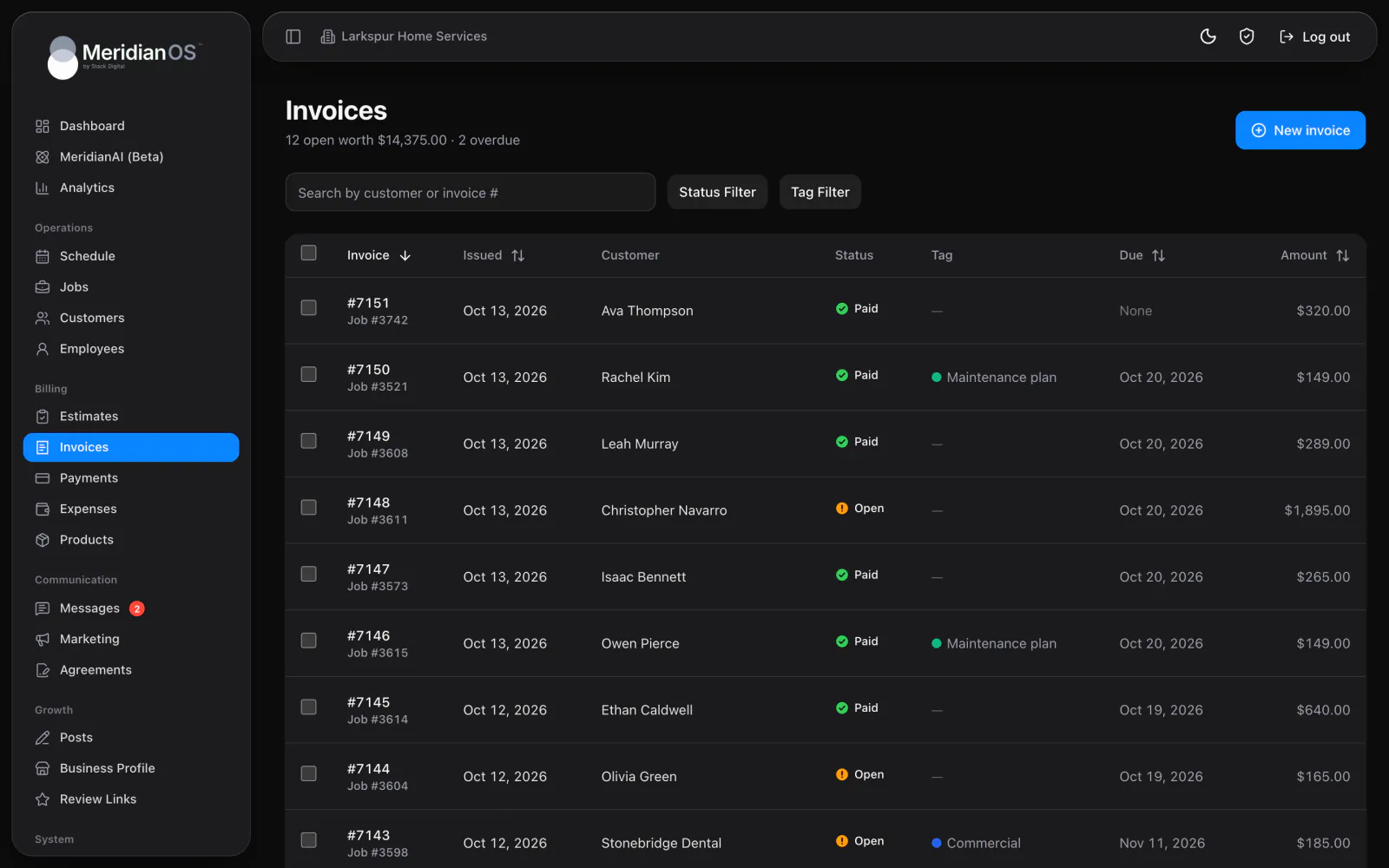
The Invoices list
A subtitle under the page title shows how many invoices are open, what they are worth and how many are overdue.
| Tool | What it does |
|---|---|
| Search | Search by customer or invoice #. |
| Status filter | All, Draft, Open, Paid, Void or Overdue. |
| Tag filter | Narrows the list by tag. |
| Sort | By Invoice, Issued, Due or Amount. |
Each row shows the invoice with its linked job number, the issued date, customer, status, tag, due date and amount. Select rows to change status, add or clear tags, or delete in bulk.
Overdue is automatic. An Open invoice whose due date is before today, in your business time zone, shows an Overdue badge.
An invoice with payments on it cannot be deleted, one at a time or in bulk. Bulk delete skips it and tells you to void it instead.
Create an invoice
- From a job: open the job and select Create invoice. The invoice copies the job's line items and payment terms.
- From scratch: select New invoice, then choose the customer, optional tags, a Due date and line items.
In the line item editor, Add from products fills a line from your saved products. If a job's total changes after its invoice exists, MeridianOS™ asks whether to update that invoice too.
Invoices have no tax, discount or deposit fields. To collect part of the total, record a payment for less than the balance.
The invoice page
| Part of the page | What it shows |
|---|---|
| Buttons | Charge card on file, PDF, Send to customer and delete. |
| Summary cards | Total, Paid and Balance due, with a Record payment button. A paid invoice shows Total and the status Paid. |
| Line items and dates | The line items, the Due date and the Revenue month, which is the month this work counts toward on the KPI page. |
| Payments | Each payment's date, method, note and amount, with any tip shown beside it. Row actions are Edit payment, Refund and Resend receipt. |
| Invoice details | Status (Draft, Open, Paid or Void), tags, the linked job, issued date, payment terms, last sent date and the pay link. |
Payment terms and due dates
Default payment terms in Settings starts as Due upon receipt. The list also offers 7, 15, 30, 45 and 60 days, End of month, End of next month and custom options you add.
- Terms can be set on a job. Invoices created from that job use them.
- Terms can be changed on a single invoice.
- Terms print on the PDF.
The Due date is a separate field that you set yourself. Choosing payment terms does not fill it in.
Send an invoice
Select Send to customer, then choose email, text message or both.
| Channel | What the customer receives |
|---|---|
| An itemized table, the Balance due, a View & Pay Invoice button and the invoice PDF. A fully paid invoice goes out as a paid invoice. | |
| Text message | Your company name, the balance, when it is due and a link to view and pay online. You can edit the template. |
- Sending moves a Draft to Open, sets the issued date and stamps the last sent date.
- A Void invoice cannot be sent.
- Invoice emails and reminders are recorded in the Email Log.
- Invoice emails are on by default and have a switch in Settings.
The PDF shows your company name, address, phone, email and logo, then the invoice number, payment terms, due date, amount due and who it is billed to. A services table lists quantity, unit price and amount, then Subtotal, Paid and Amount Due. A Terms & Conditions link saved in Settings prints as See our Terms & Conditions.
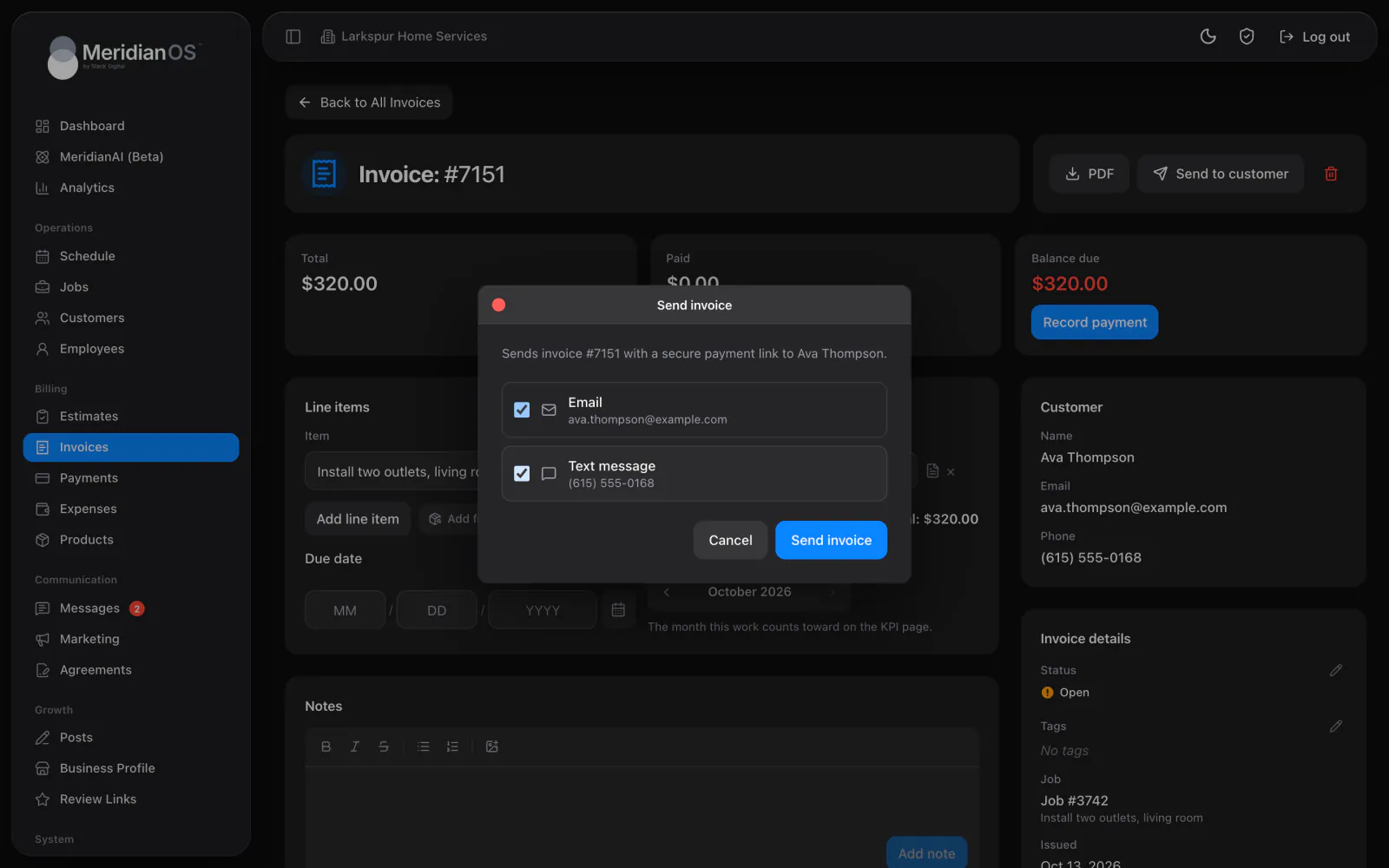
Record a payment or charge a saved card
- Select Record payment on the Balance due card.
- Check the Amount. It is pre-filled with the balance, and you can enter any smaller amount.
- Choose the Method: Card, Cash, Check or Other. Bank (customer pays) also appears when bank payments are on.
- Add an optional Tip and a Note, such as a check number.
- Confirm. For Card, a secure Stripe card form opens to charge the customer.
- Paid and Balance due update after each payment. The invoice turns Paid on its own once payments cover the total.
- Setting the status to Paid by hand adds a balancing Marked paid payment. Changing the status back removes only that entry.
- Edit payment changes the amount, method or note. On a Stripe payment, the edit updates the record here only, with no refund or charge to the card.
- A payment that Stripe reports twice is recorded once.
A customer's card is saved when they pay an invoice online by card. Charge card on file then appears on their invoices while Stripe is connected. It charges the balance, plus an optional tip and fee, and the charge happens immediately.
If the customer's bank requires authentication, MeridianOS™ tells you to send the customer the invoice link so they can pay directly.
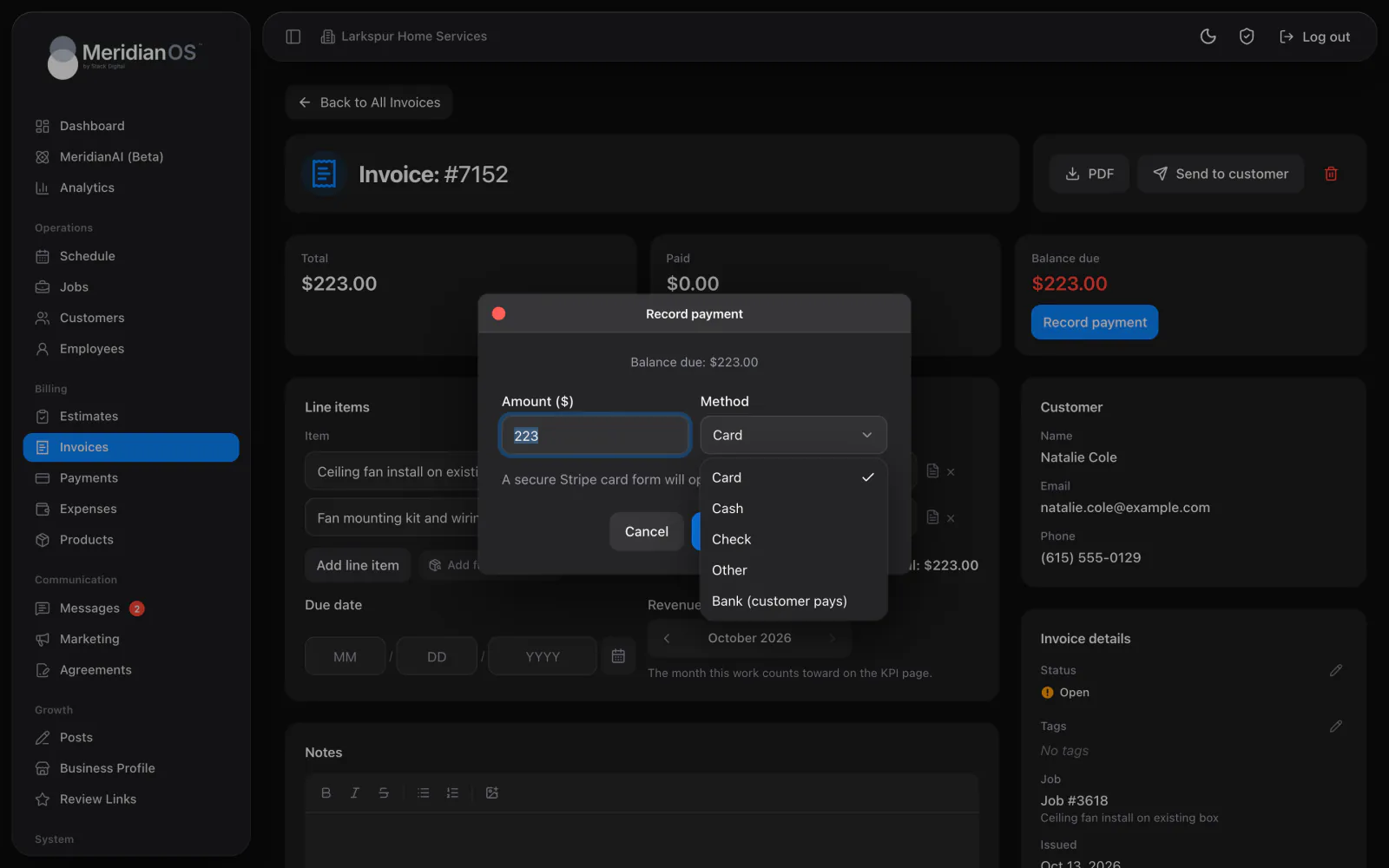
Automatic reminders for unpaid invoices
Reminders are off by default. In Settings, turn on Automatically email customers about unpaid invoices.
| Setting | What it does |
|---|---|
| Remind after (days unpaid) | How many days an open invoice can go unpaid before a reminder. The default is 7. The reminder repeats at the same interval until the invoice is paid. |
| Send at | The time of day, in 30-minute steps. Reminders go out once a day at this time. |
- Each reminder carries the invoice PDF and the payment link.
- Days are counted from when the invoice was sent or issued. The due date does not change the timing.
- The reminder also goes by text when automatic invoice texts are on.
- The customer needs an email address on file.
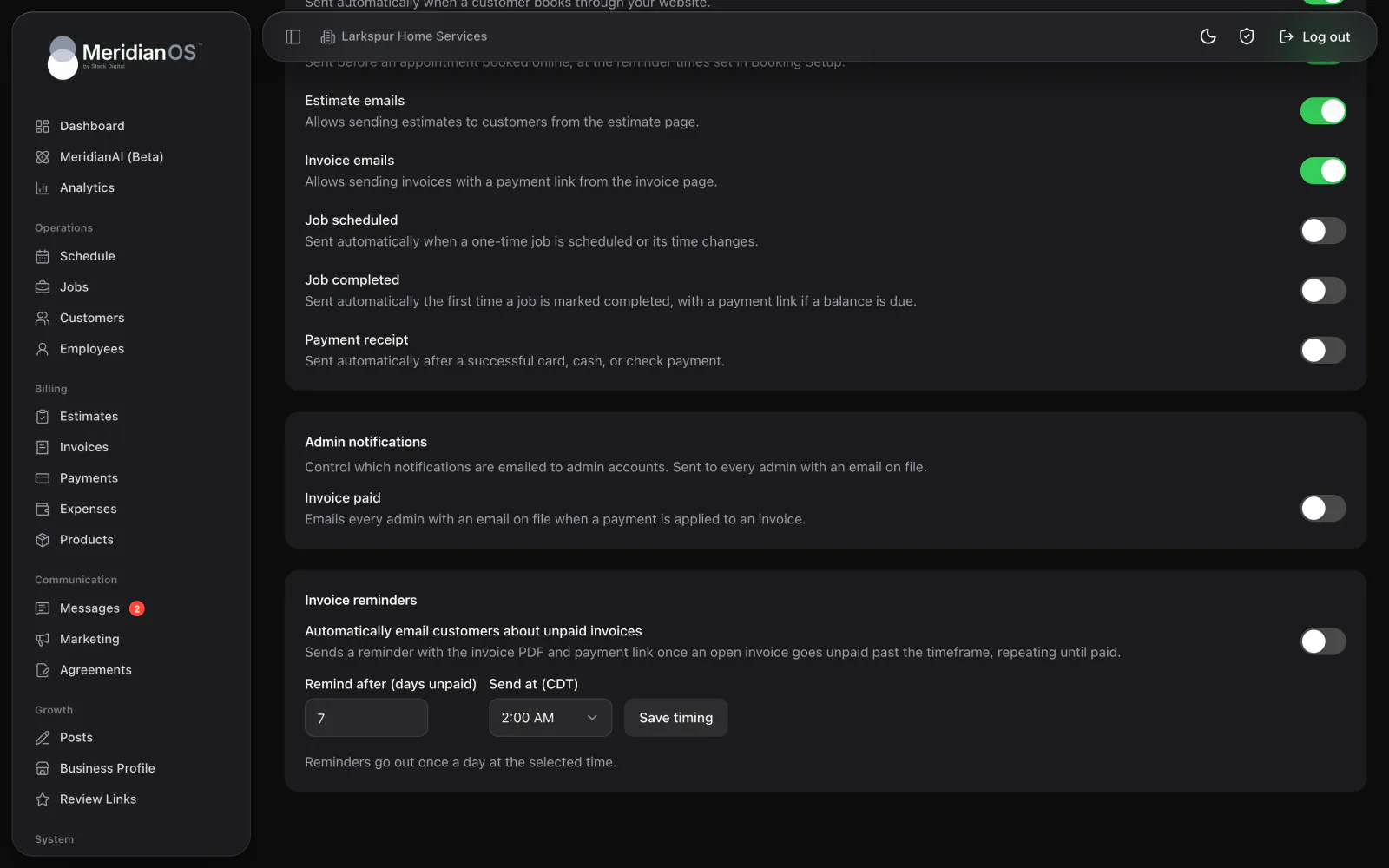
Invoices for recurring jobs
Each recurring job series has a Billing setting. See Jobs.
| Option | What it does |
|---|---|
| Invoice manually | You create each invoice yourself. |
| Monthly - one invoice at month end | One invoice per customer is created after the month ends. |
| Weekly - one invoice at week end | One invoice per customer is created after the week ends. You choose which day ends the week. |
- The invoice covers that period's visits and arrives open and unsent, ready for your review.
- Several series for one customer combine into one invoice.
- Each line shows the visit count, the period, the schedule and every visit date. Cancelled visits are left out.
- Count revenue in chooses between The month the work was done and The month it is billed.
- Each period is billed once, so the same visits never land on two invoices.
Recurring invoices are not sent for you and cards are not charged for you. This is not subscription billing.
When an invoice is paid
Once an invoice is fully paid, MeridianOS™ checks its job.
- The job is marked Completed if it was scheduled for today or earlier and has no other unpaid invoice. Future-dated jobs are left alone, so work paid for in advance stays on the schedule.
- The customer's last service date updates.
- The job-completed message and the review request go out if you have them turned on.
- On a recurring invoice, the visits covered by that billing period are completed.
- A scheduled check also completes past jobs that already have a paid invoice.
Related
- Payments, payouts and refundsConnect Stripe, see how customers pay online, set fees and tips, and handle receipts, refunds, disputes and payouts.
- Jobs and recurring jobsHow to find, create and manage jobs, what the job page holds, and how recurring jobs, their billing and tags work.
- EstimatesBuild itemized estimates, send them by email or text, record the customer's answer and turn a yes into a job.
- What runs automaticallyThe work MeridianOS™ does in the background without anyone clicking: what each automation does, when it runs and its rules.
- Invoicing overviewBuild the invoice from the job and send it by email and text with a link to pay.
Updated November 10, 2026.