Payroll and overtime. Overtime worked out by your state's rules, with a payroll file ready each pay period.
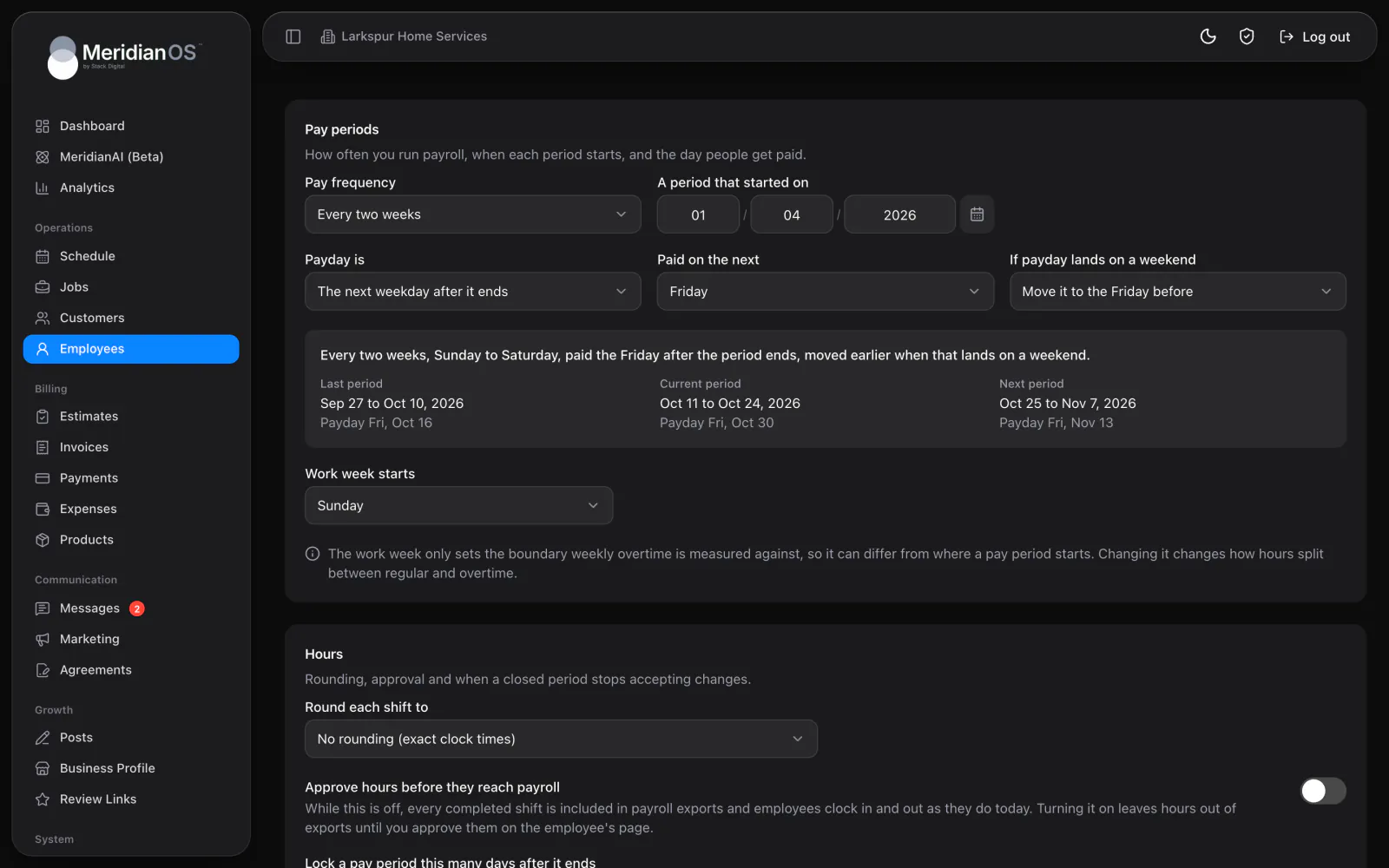
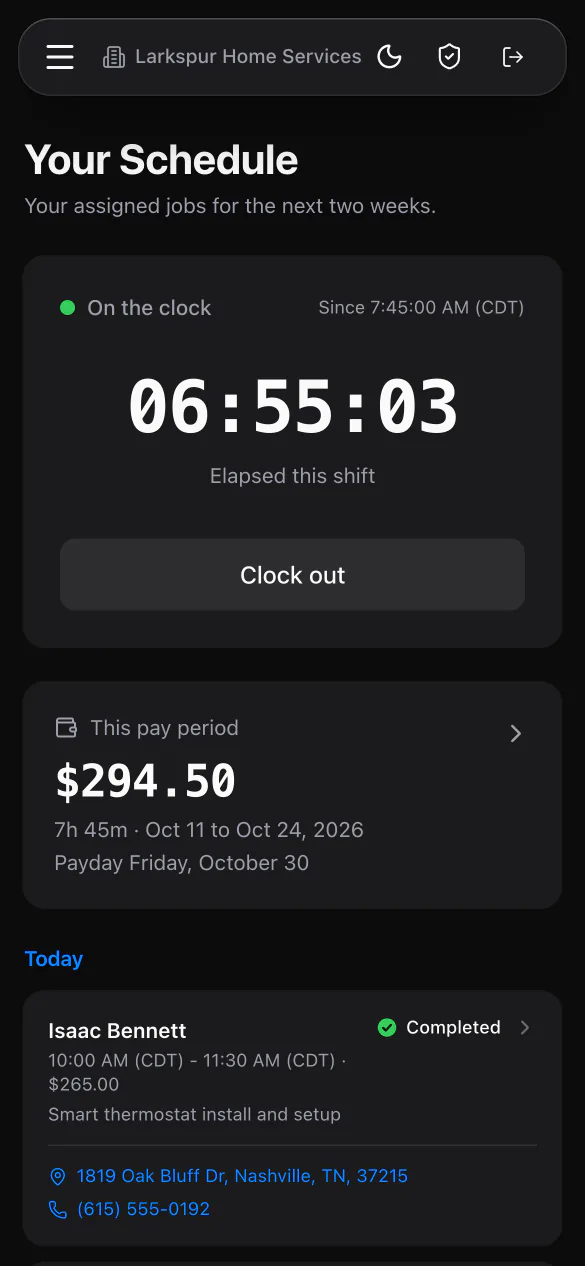
Employees clock in and out from their phone, and MeridianOS™ shows a running timer for everyone working. Hours and earnings add up by day and pay period, and every change you make to a shift stays on the record.
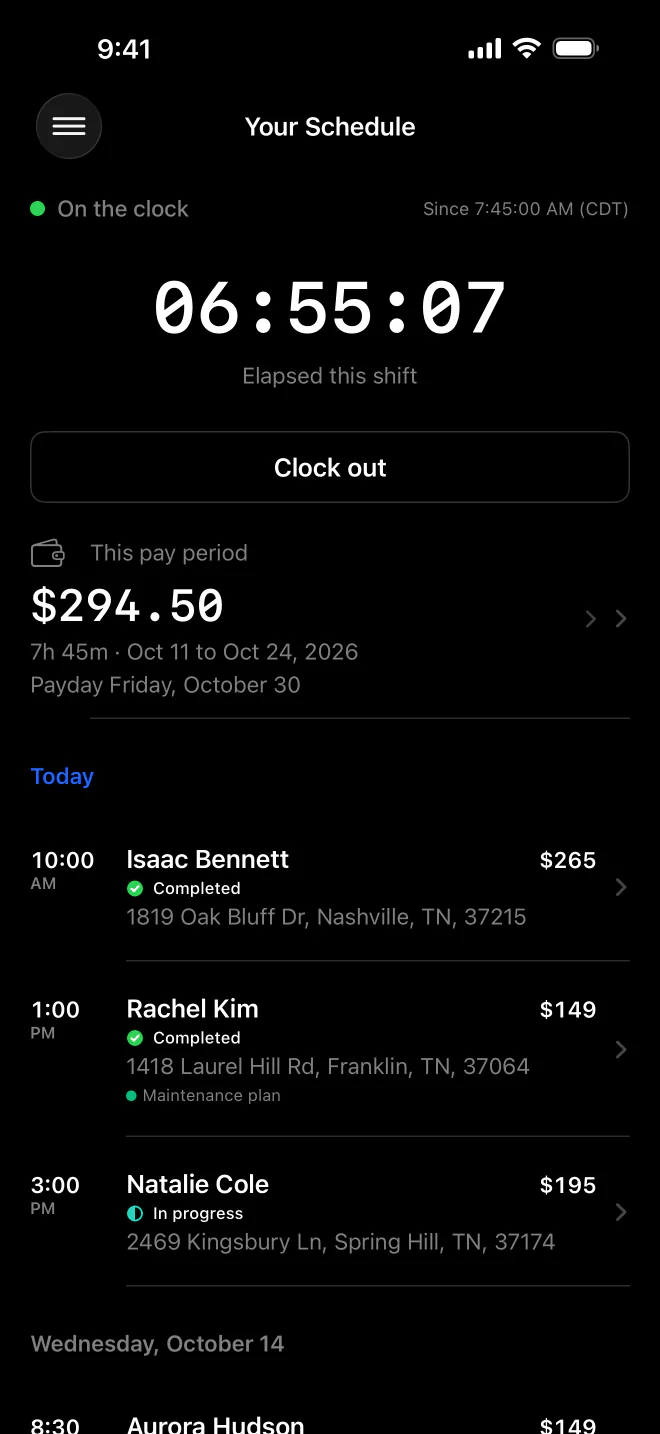
Live timers. See who is clocked in and for how long.
One open shift. An employee cannot clock in twice by mistake.
Overnight shifts. A shift that ends after midnight counts toward the day it started.
Edits on the record. Changed shifts carry an Edited badge with the original times kept.
The Clock column on your employee list shows Clocked in with a timer running to the second, or Clocked out. It refreshes on its own every 30 seconds, so you can leave it open and glance at it through the day.
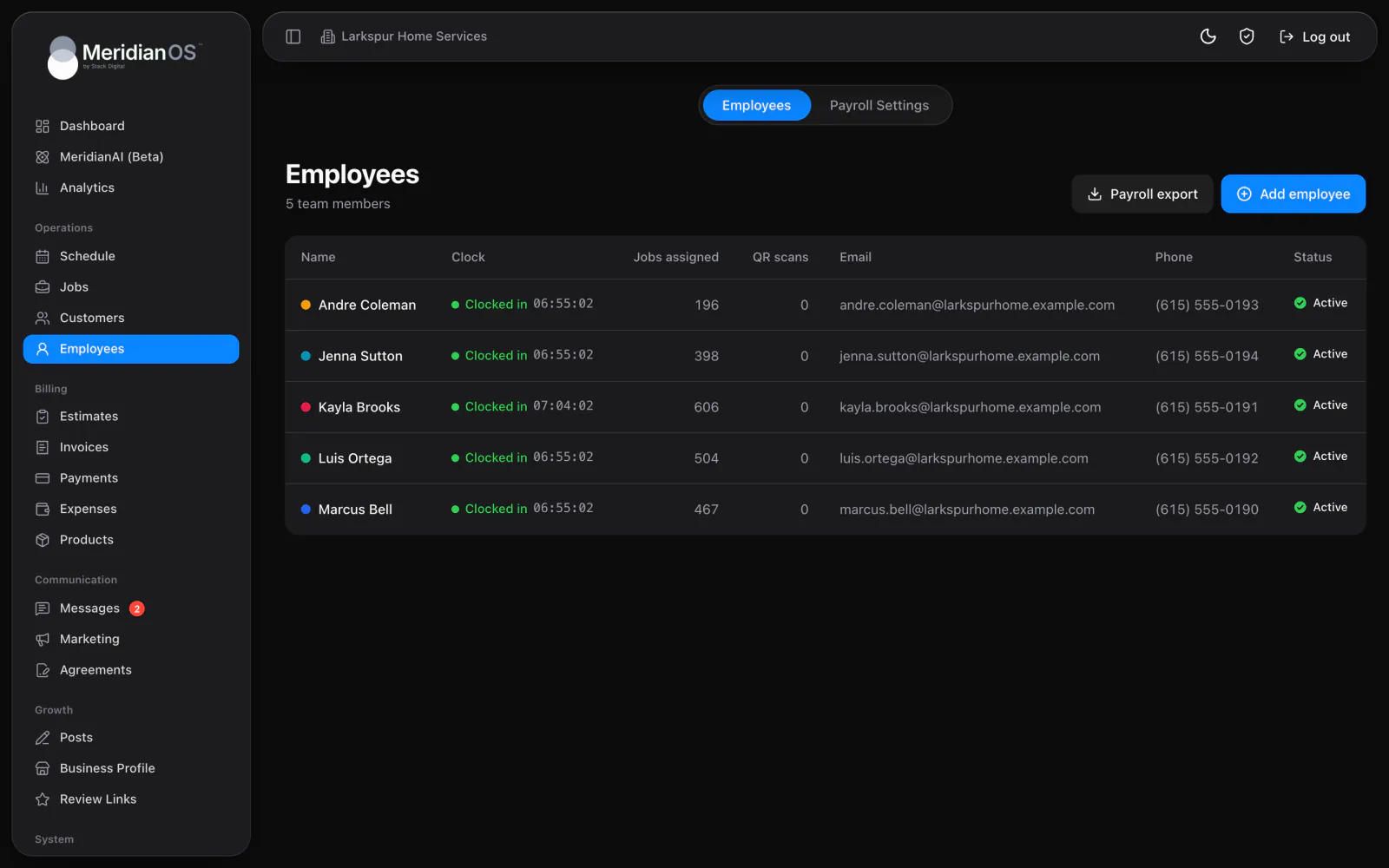
Pick Today, This week, This month or a custom range to see total hours and dollars earned at the employee's rate, by day and entry by entry. Add a missed shift or correct one, and the change is marked for good. A voided shift stays on the list struck through and no longer counts.
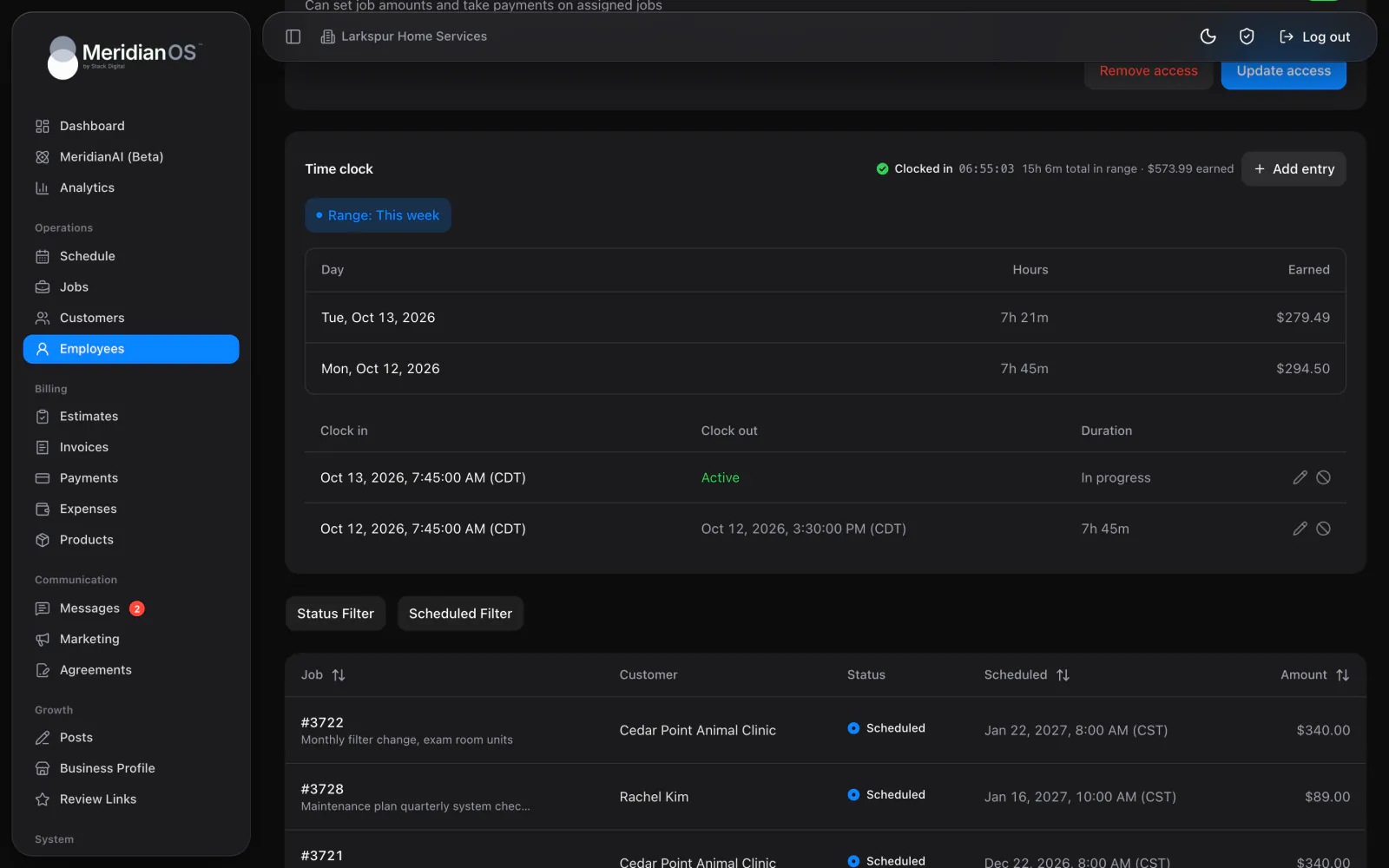
Employees tap Clock in on the MeridianOS™ app or the employee portal and see On the clock with a running timer. They can only have one open shift, and a shift that ends after midnight counts toward the day and week it started. Their own hours and pay sit one tap away.
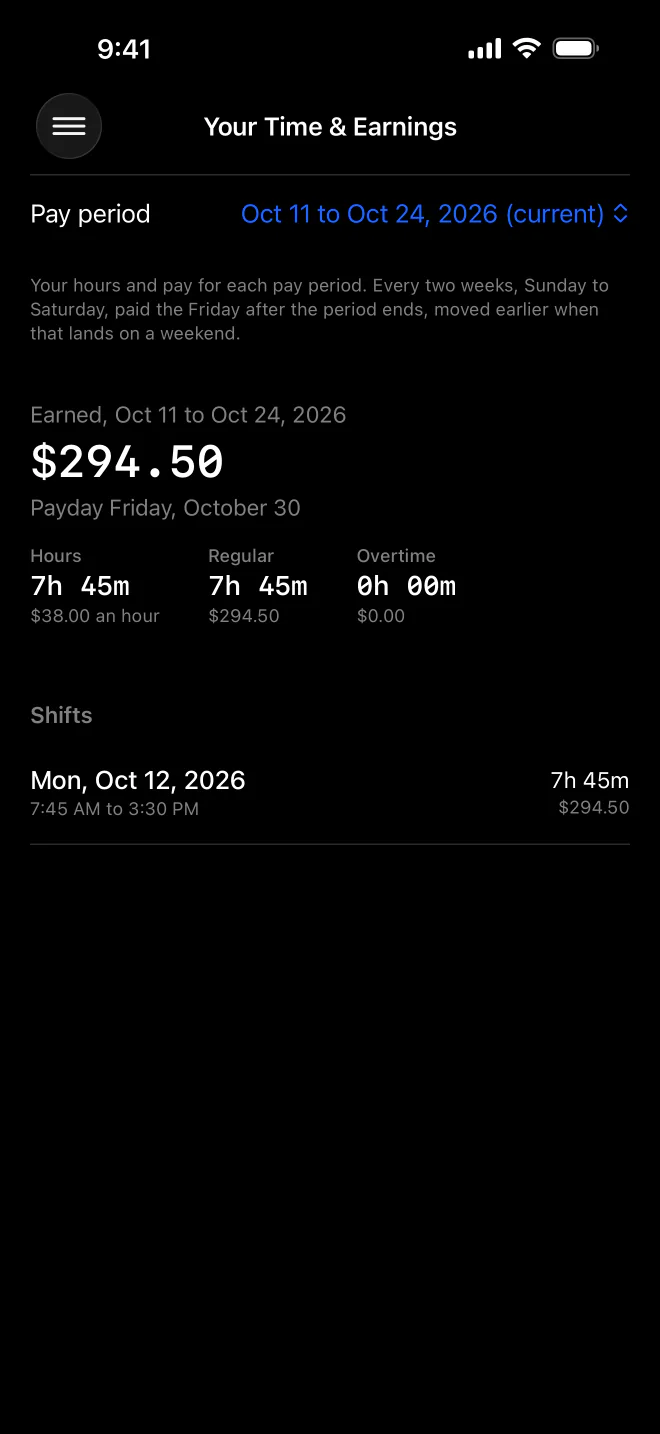
Hours are the real time between clock in and clock out, so a shift across a daylight saving change pays for the hours worked. Editing an entry near the change without touching its times leaves them exactly as they were.
When an admin edits a shift, the original clock in and clock out are saved permanently. Both you and the employee see the Edited badge.
A voided shift stays on the list with a line through it and stops counting toward hours and pay. Anyone reviewing time later can see what was taken out.
If approval is on and you change an approved shift, it goes back to Needs approval. An edited shift never rides into payroll on an older approval.
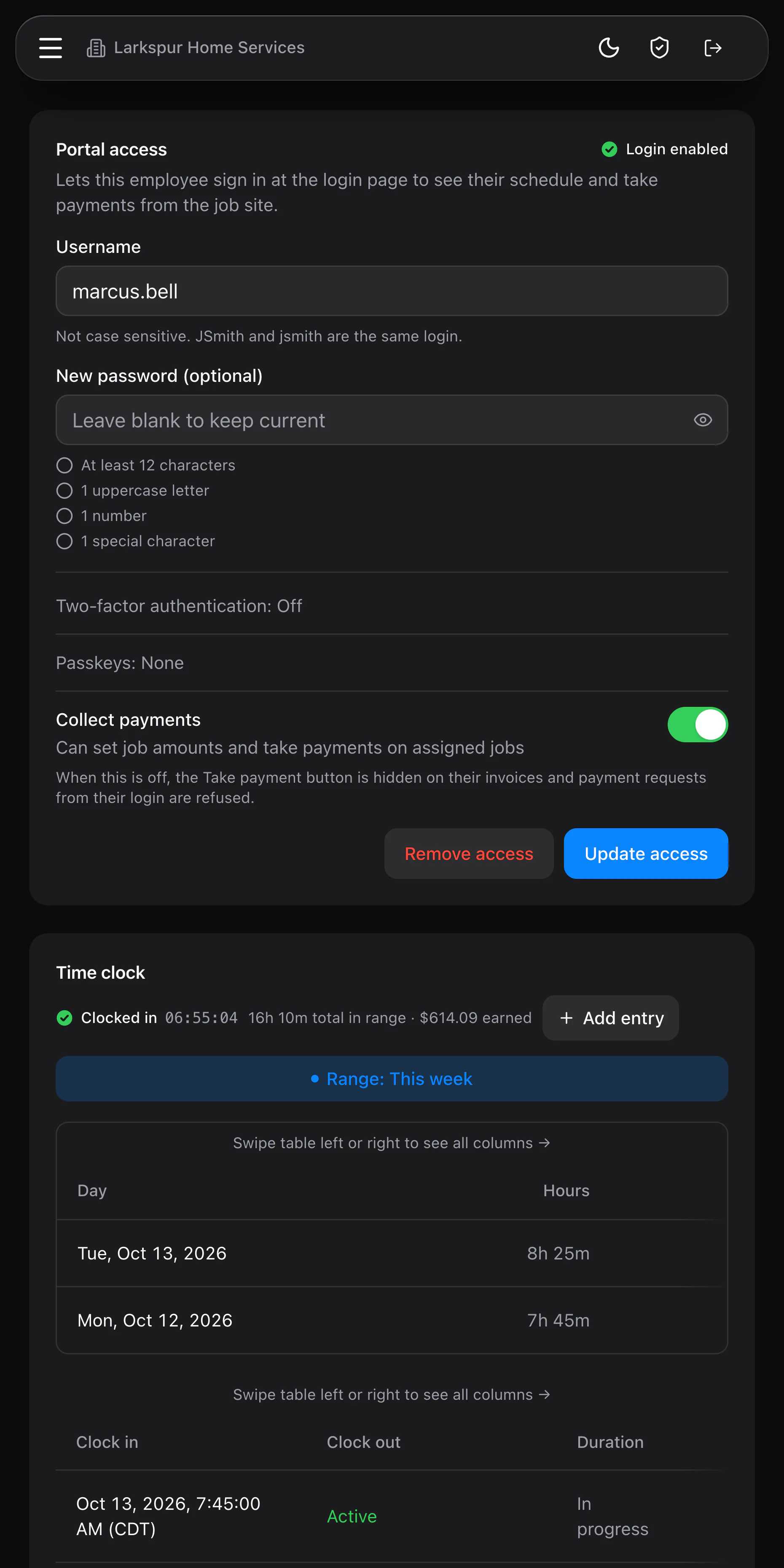
An admin adds or edits the entry from the employee's page. The entry form notices when a shift ends the next day, and the change shows an Edited badge with the original times kept.
No. Each person can have one open shift at a time, and a second Clock in gets the message You are already clocked in.
Yes. Turn on Approve hours before they reach payroll in Payroll Settings. Unapproved shifts show Needs approval to you and the employee, and they stay out of the payroll export.
No. The time clock works in the employee portal on any phone browser and in the MeridianOS app on iPhone. Both show the same running timer.
We will walk you through a full day of clocking in and approving shifts on a live system. Tell us what you do and we will reply within the hour.