Dashboard
The dashboard shows where your business stands. Its Overview tab puts money collected, jobs, open estimates and unpaid invoices at the top. Below them are the day's schedule, a map of the day's jobs, your Stripe balance and recent activity.
Open Dashboard in the sidebar. You need an admin login. The dashboard has two tabs, Overview and KPIs. This chapter covers Overview. For the other tab, see KPIs and profit.
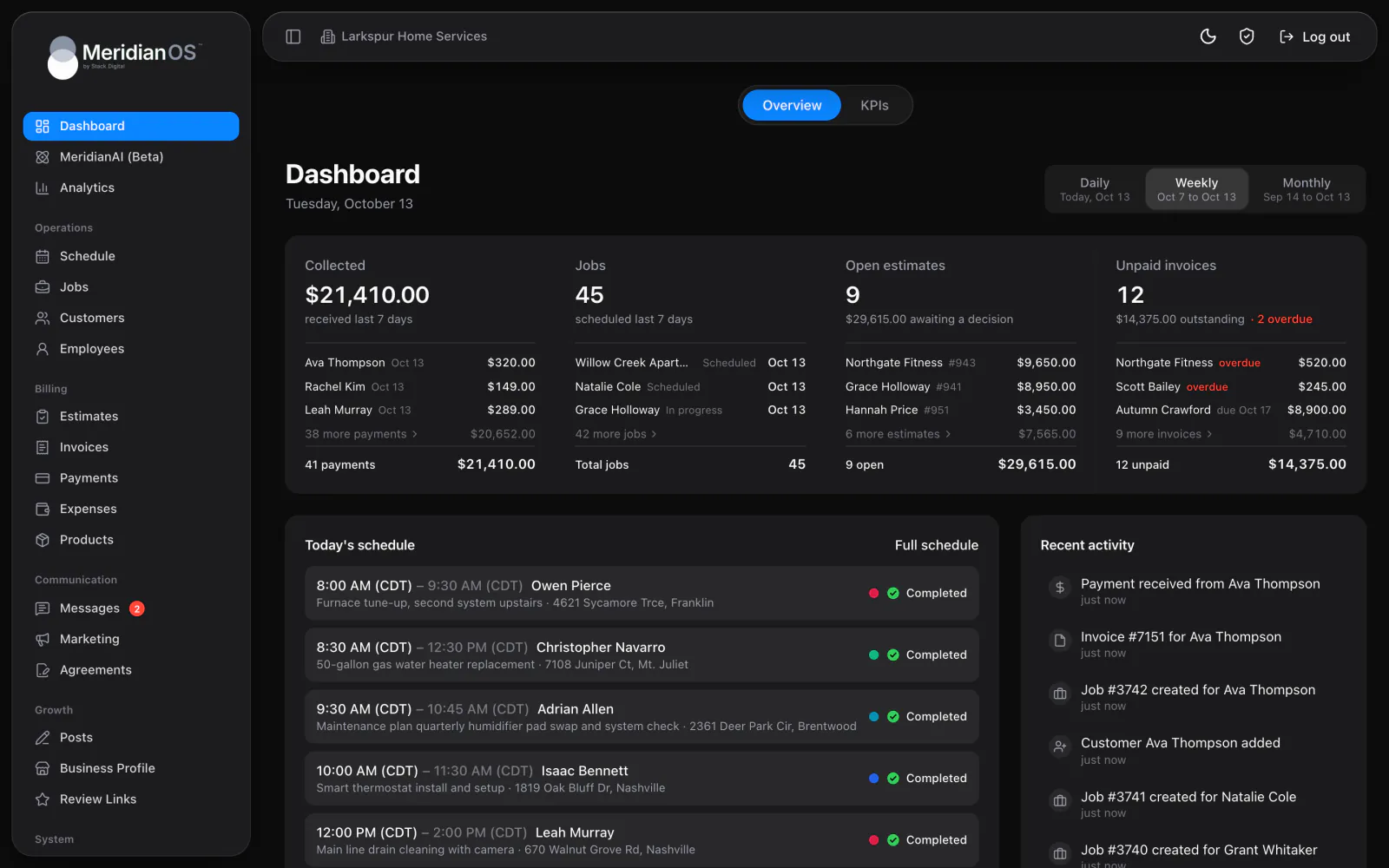
Choose a period
The period toggle has three options. Each one shows its date range, for example Today, Nov 9 or Nov 3 to Nov 9.
| Option | Covers |
|---|---|
| Daily | Today. |
| Weekly | The last 7 days. |
| Monthly | The last 30 days. |
The period changes the first two tiles only, Collected and Jobs. Open estimates and Unpaid invoices stay the same whichever period you pick. To see any day, week, month or year, use the KPIs tab.
The four tiles
Each tile lists its top 3 records, a row that counts the rest (for example 4 more) and a total.
| Tile | What it shows |
|---|---|
| Collected | Successful payments received in the period, newest first. Each row links to its invoice. |
| Jobs | Jobs scheduled in the period, with status and date. Cancelled jobs are left out. |
| Open estimates | The count and dollar value awaiting a decision, largest first. |
| Unpaid invoices | The count and dollars outstanding, soonest due first. A red flag shows how many are overdue. Each row reads overdue or gives its due date, such as due Nov 12. |
- Select the more row on a tile to open the full list in a dialog, with its count and total.
- Select a tile title to open the Invoices, Jobs or Estimates list, already filtered.
Today's schedule and the week strip
The Today's schedule card lists each job with its time range, customer, description, address and status badge, plus a colored dot for each assigned employee. Hover over a job to see a detail card with the job number, recurrence, phone, address, team and amount.
The This week strip has 7 day buttons, starting today. Each button shows that day's job count and dollar value. To look at another day:
- In This week, select a day. The card changes to that day, with a title such as Tomorrow's schedule or Friday the 14th's schedule.
- Select Back to today to return to today's jobs.
The Full schedule link takes you to the Schedule page. Opening the dashboard also tops up upcoming recurring visits, so the card and the week strip include the work that repeats. See Recurring jobs.
The map of the day's jobs
Under the job list, a map shows one pin for each job of the day. Select a pin to see the customer, the time and the street. The customer name links to the job.
- A job address with no map coordinates is located in the background, up to 8 addresses each time the dashboard loads. The coordinates are saved to the job and to the customer's address.
- Address lookup covers United States addresses only.
- The map follows your light or dark theme.
- The map uses Google Maps when Stack Digital turns this on for your site. Otherwise it uses a second map provider. If the first map fails to load, the dashboard switches to the second one on its own.
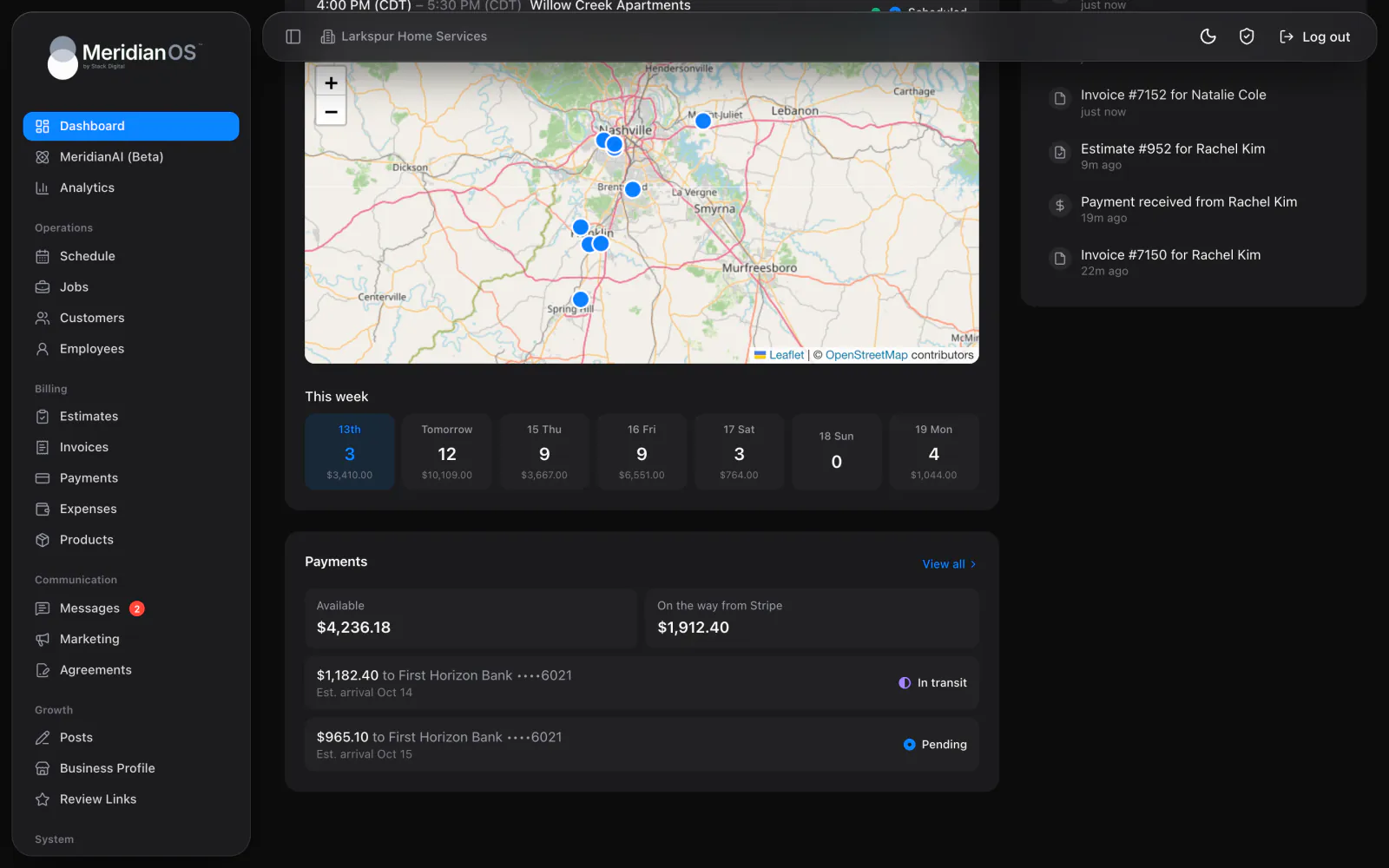
The Payments card
The Payments card shows what is available and what is on the way from Stripe, with your upcoming payouts.
- Available and On the way from Stripe each show an amount.
- A line counts the bank payments that are still clearing, for example 2 bank payments clearing.
- Each upcoming payout is listed with an Est. arrival date and a status of In transit or Pending.
The Payments card appears only when your Stripe account is connected. See Payments.
Recent activity
Recent activity lists the latest 15 events across your business. Each event shows how long ago it happened, such as 5m ago, and links to its record. The feed covers:
- Jobs created. A job that still needs a date is flagged Needs scheduling, and a repeating job shows a recurring icon.
- Invoices and estimates.
- Customers added.
- Payments received.
Related
- KPIs and profitHow to read revenue, collected, outstanding, profit, labor and lead conversion for any period, and how each number is counted.
- ScheduleHow to read the week and month views of the schedule, what the colors mean, and how to reschedule a job.
- Jobs and recurring jobsHow to find, create and manage jobs, what the job page holds, and how recurring jobs, their billing and tags work.
- Payments, payouts and refundsConnect Stripe, see how customers pay online, set fees and tips, and handle receipts, refunds, disputes and payouts.
- Dashboard overviewWhat you collected and what still needs you, the moment you sign in.
Updated November 10, 2026.