Payments, payouts and refunds
With your own Stripe account connected, customers pay invoices online from a private pay page and the money goes straight to your Stripe account. Cash, check and other payments can be recorded with or without Stripe.
The Payments area has four tabs: Payments, Disputes, Payouts and Settings. The switches for fees, tipping and receipts are on the main Settings page.
Connect your Stripe account
In Settings, select Connect with Stripe to link your business's own Stripe account. Payments then go straight to your Stripe account, and you can still record cash and check payments either way.
The card shows whether you are Connected, whether the account is in Test mode, and a warning if Stripe has not enabled charges. Disconnecting asks you to confirm.
Stripe is required for card, bank and wallet payments, saved cards, Tap to Pay on iPhone, refunds, disputes and payouts. Cash, check and other payments work without it.
The customer pay page
Every invoice has a private pay link. The page shows the invoice number, Billed to, the due date, the line items, Total, Paid and Balance due.
Under How would you like to pay? the customer picks Card, Bank transfer (ACH) or More ways to pay, which lists the extra methods you turned on. The payment form is on the page itself, and the footer says payments are processed securely by Stripe.
- With tipping on, the page shows Add a tip (optional).
- With fees passed on, each option shows its processing fee and total before the customer picks, and a Total due line updates.
- After paying, the page says the invoice has been paid and thanks the customer.
- After a bank payment, the page instead says the payment was submitted and is processing, that it can take a few business days to clear, and that no further action is needed.
- Without Stripe, the page says online payment is not available and asks the customer to contact you.
A bank payment stays pending until it clears, and only then counts toward the balance. If the bank returns it, the payment is marked failed with a plain reason and you get an email.
The pay page always charges the full remaining balance. A customer cannot choose a partial amount there. To collect part of the balance, record the payment yourself. See Invoices.
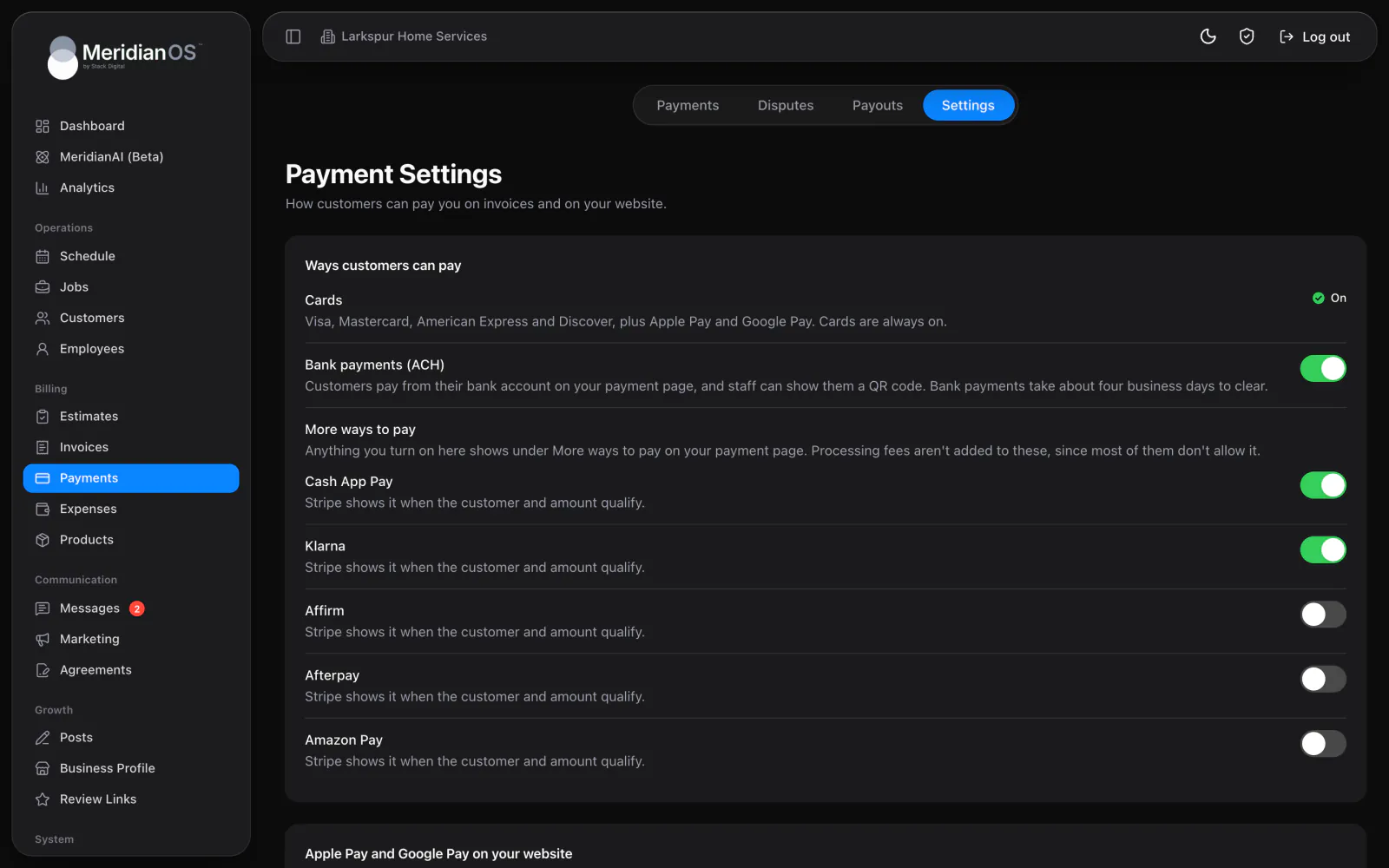
Choose how customers can pay
Open Payments, then the Settings tab.
| Setting | What it does |
|---|---|
| Cards | The major card brands, plus Apple Pay and Google Pay. Cards are always on. |
| Bank payments (ACH) | A switch for bank payments, which take about four business days to clear. |
| More ways to pay | Switches for extra methods, such as pay-later options, shown only where Stripe allows them on your account. Some need Stripe approval, and the page walks you through it. |
| Apple Pay and Google Pay on your website | One Set up button, with a badge that shows ready or not set up. |
The tab also links to Stripe for your payout schedule, fraud rules, Stripe's own emails and the full method list.
Processing fees and tips
| Setting | What it does |
|---|---|
| Pass Stripe processing fees to customers | On by default. Checkout totals include the processing fee so you receive the full invoice amount. When off, your business absorbs the fee. |
| Tipping on invoices | Off by default. Customers can tip when paying online, and your team can add a tip when collecting. |
| Apply processing fee to tips | Decides whether the fee covers the tip too. |
- The fee depends on the method: card, bank transfer or in person. No fee is added to More ways to pay methods.
- The fee appears on the pay page, in the dialogs your team uses to take a payment, and on receipts.
- Tips are tracked separately and do not reduce the invoice balance.
- A tip is split evenly across the employees assigned to the job.
Receipts and alerts
The Payment receipt email is off by default. When on, it is sent automatically after a successful card, cash or check payment. A matching text switch exists.
- A receipt shows the amount, tip, processing fee, total paid, method and date. It ends with the remaining balance and a View Invoice button, or a message that the invoice is paid in full.
- Automatic receipts go out once per payment and respect each customer's notification preference.
- Resend receipt sends to any email address. The dialog shows where the receipt was last emailed and last texted.
- Receipt emails are recorded in the Email Log.
| Alert to you | How it arrives |
|---|---|
| Invoice paid | An optional email to every admin. Off by default. |
| Payment received | A push notification in the MeridianOS™ app. |
| Bank payment failed, Payment disputed, Dispute won, Dispute lost | Emails. |
| Dispute banner | The dashboard says a customer disputed a payment and gives the date to respond by. |
The Payments list
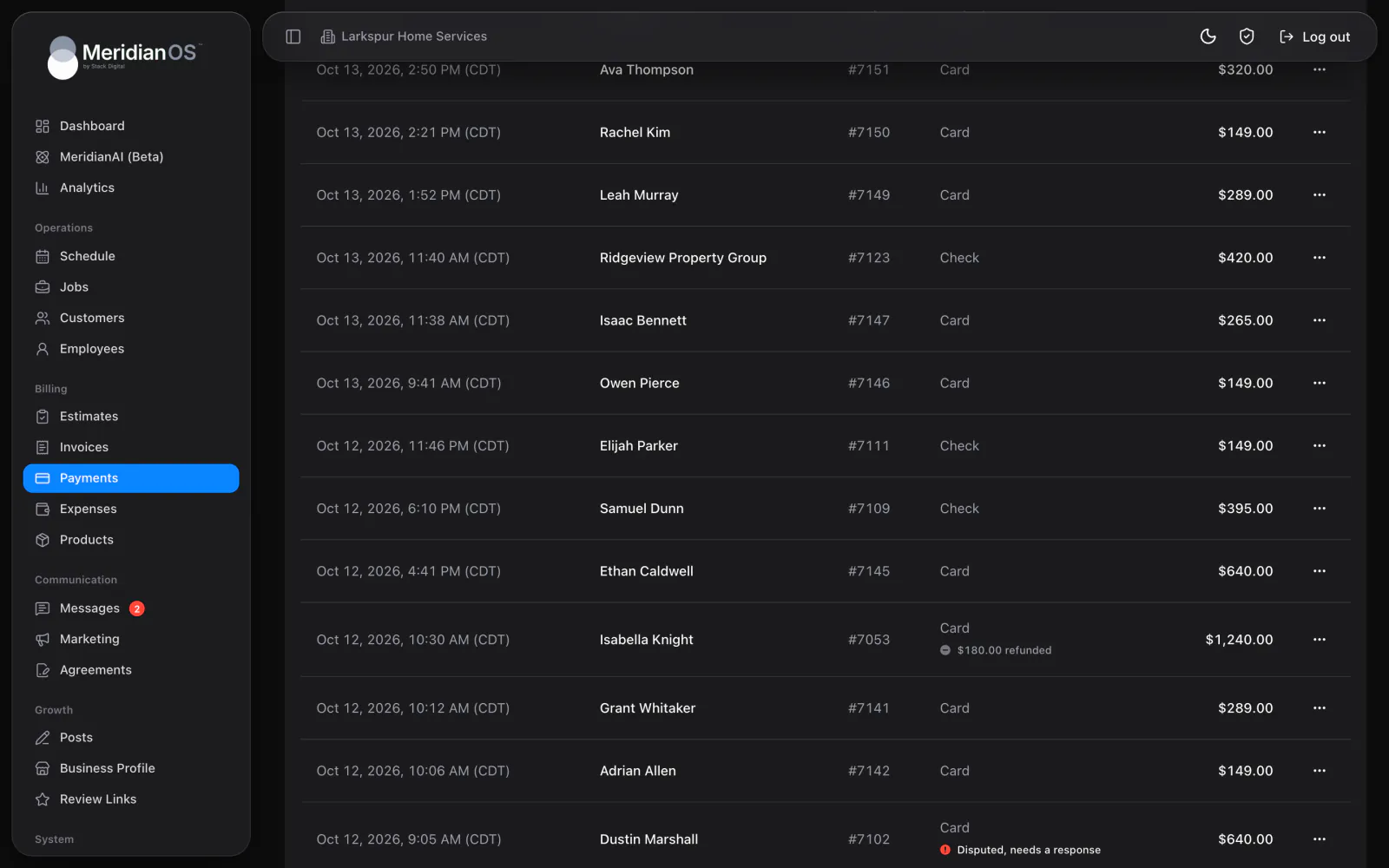
The Payments tab lists the payments your customers have made. It shows the most recent 200.
- Search by customer or invoice number.
- Filter by All payments, Online and card, Pending, Refunded, Disputed or Failed.
- Badges mark Bank payment pending, Failed (with the bank's reason in plain English), Refunded, a partly refunded amount, and dispute states.
- Row actions are Respond to dispute, Refund, Resend receipt and View invoice.
Refund a payment
- Find the payment on the Payments tab or in the payments table on the invoice.
- Select Refund.
- Enter the full amount or part of it.
- Choose a reason: Customer asked for a refund, Duplicate payment or Fraudulent payment.
- Online and card payments can be refunded.
- The money goes back to the card or bank account the customer paid with, usually within 5 to 10 business days.
- Stripe keeps its processing fee on refunds.
- A partial refund is split in proportion across the invoice amount, tip and fee, so the customer's Lifetime value stays accurate.
- Refunds issued directly in Stripe sync back on their own.
- A payment taken through a previously connected Stripe account is never refunded against the account you use now.
Respond to a dispute
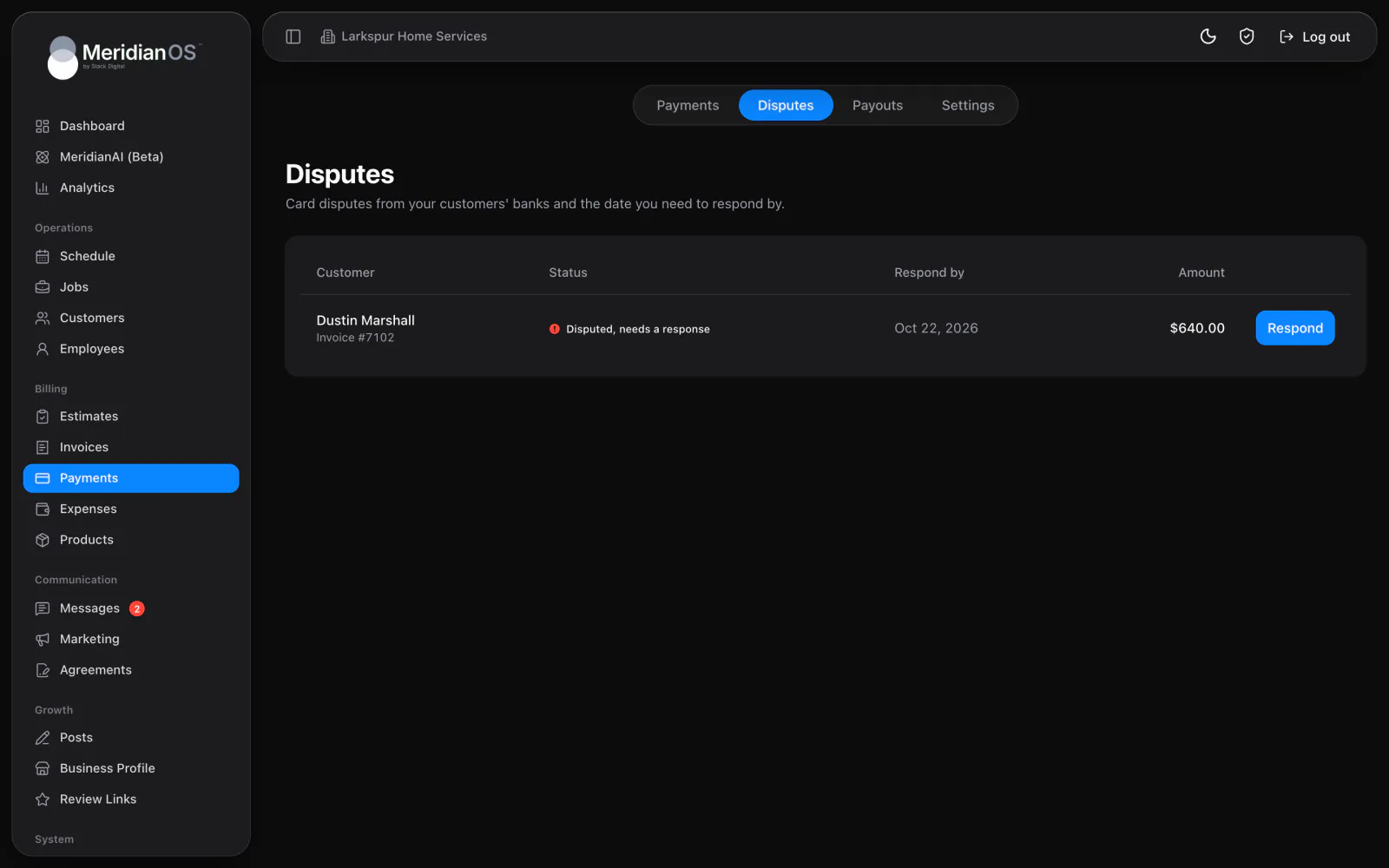
The Disputes tab lists each dispute with the customer, status, Respond by date and amount. The reason is written in plain English, for example that the customer says the service wasn't provided.
- Select Respond.
- Check what MeridianOS™ filled in from the invoice and job: the customer's name and email, the date of service and what was provided.
- Fill in How the customer was told your refund policy and Anything else the bank should know.
- Add files (PDF, JPG or PNG, 4.5 MB maximum) under Receipt or invoice, Proof the work was done, Messages with the customer, Signed agreement or approval and Other file.
- Select Save draft, Submit evidence or Accept dispute.
Evidence can be submitted only once, so MeridianOS™ asks you to confirm before it goes.
A lost dispute marks the payment refunded and removes it from your totals. A win keeps it. If an outcome is later reversed, the money is put back.
Payouts
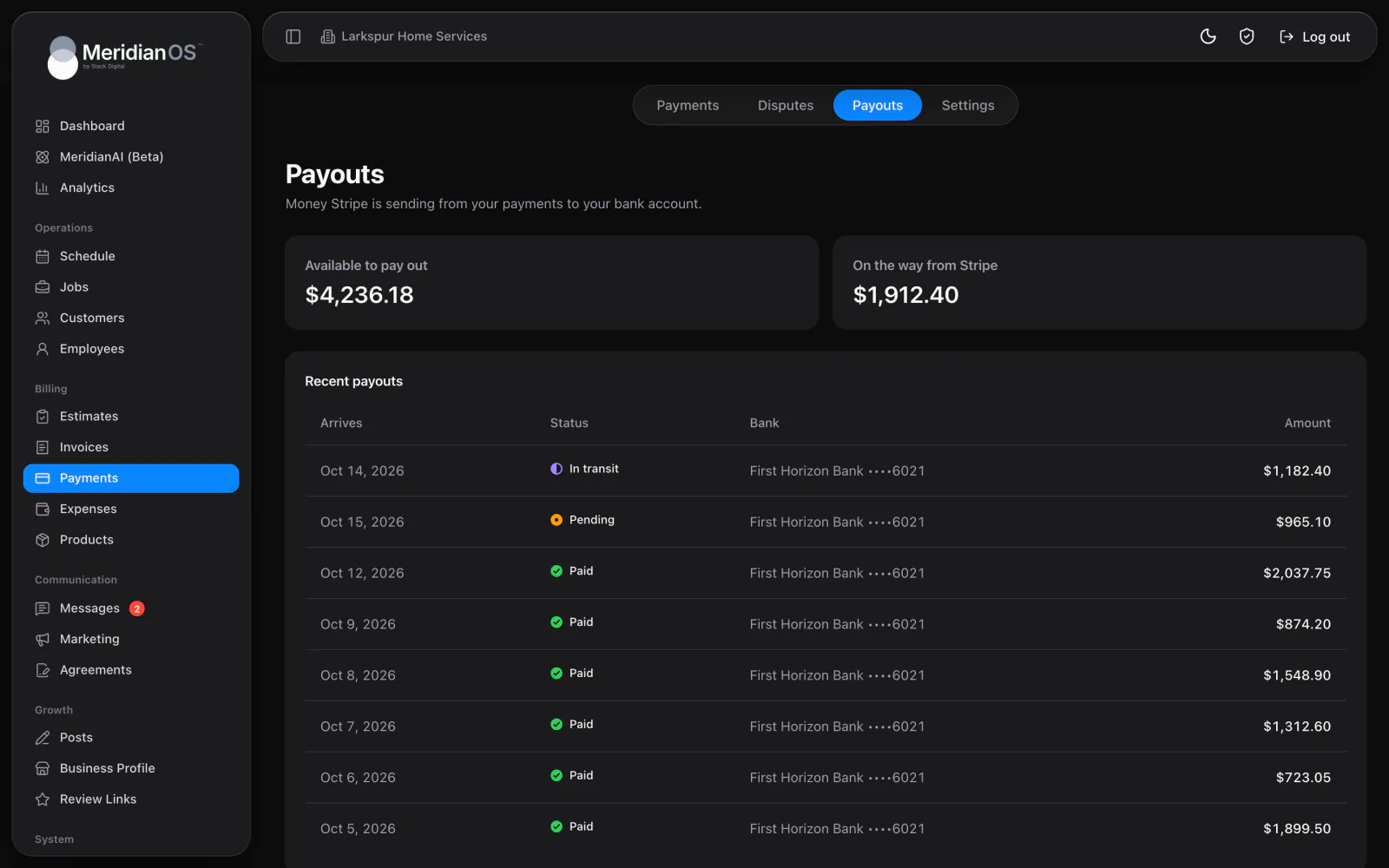
The Payouts tab shows Available to pay out, On the way from Stripe and Recent payouts. Each recent payout lists its arrival date, status, bank name with the last four digits, and amount.
- The dashboard Payments card repeats these figures and adds a count of bank payments that are clearing.
- Your payout schedule and bank account are changed in the Stripe Dashboard, which the page links to.
Each customer record shows Lifetime value and Open balance. Lifetime value adjusts on payments, payment edits, refunds and lost disputes. Collected payments and outstanding balances also feed the KPI page. See KPIs and profit.
Related
- InvoicesCreate and send invoices, set terms, record payments, and see what reminders and recurring billing do on their own.
- In-person paymentsCollect on an invoice while you are with the customer, including Tap to Pay on iPhone, bank QR codes, cash and check.
- KPIs and profitHow to read revenue, collected, outstanding, profit, labor and lead conversion for any period, and how each number is counted.
- SettingsEvery card on the Settings page and what each setting controls, plus the Policies page for your terms and privacy policy.
- Online payments overviewCustomers pay by card, bank transfer, Apple Pay, or Google Pay on your own website.
Updated November 10, 2026.