Agreements and e-signatures
Agreements let you send your own documents for electronic signature. You upload a PDF and place fields on it, then send it to a customer to sign on any device. MeridianOS™ keeps the signed copy with a certificate of each step.
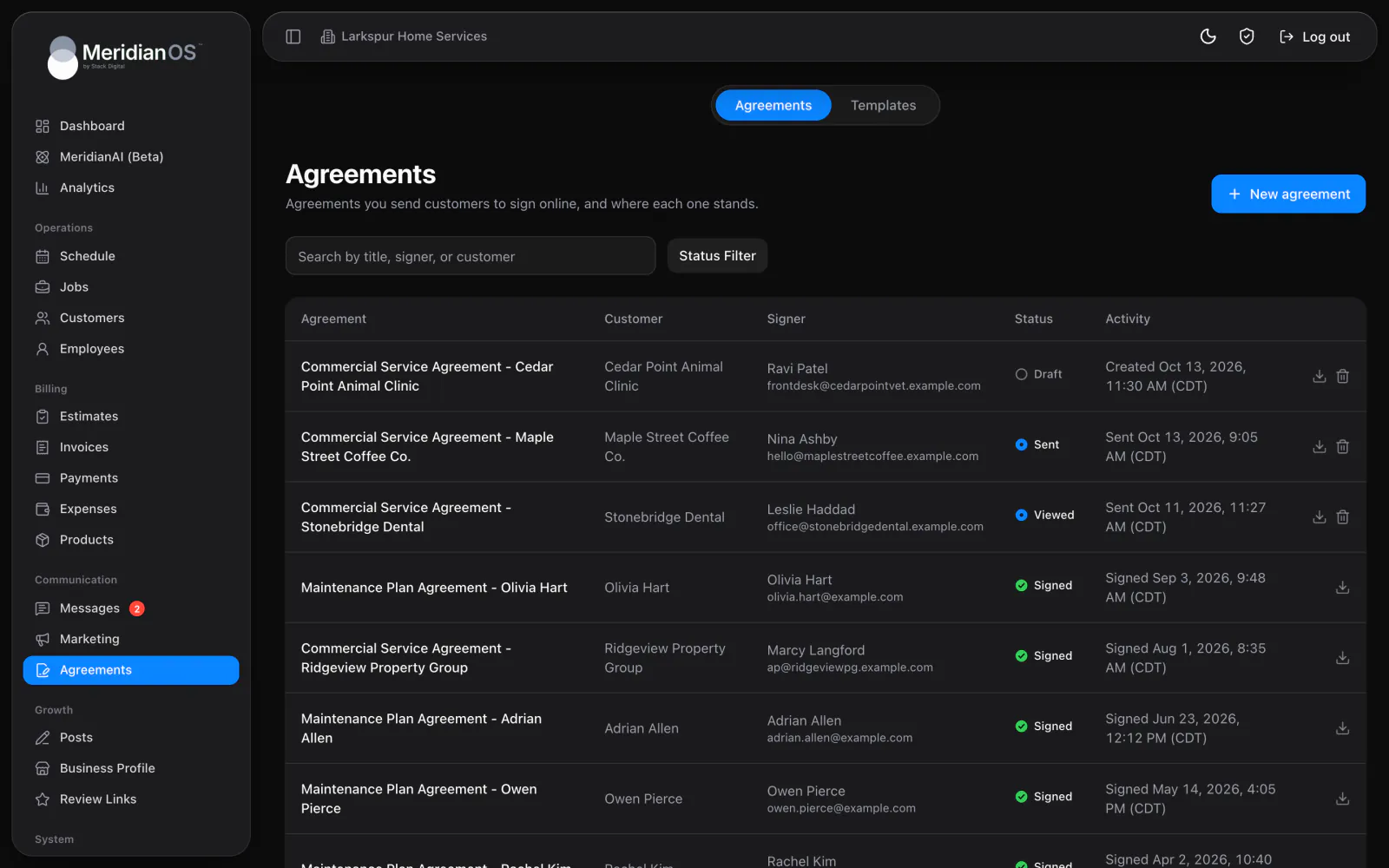
Open Agreements in the Communication group of the sidebar. The page has two tabs: Agreements and Templates.
Build a template
Every agreement is created from a template. A template is a PDF you upload plus a layout of fields on its pages. There is no editor for typing an agreement, so prepare your document as a PDF first.
A template file must be a PDF of 10 MB or less.
- On the Templates tab, start a template and upload your PDF.
- Choose a field type and click the page to place it.
- Drag the field into position and resize it.
- Give the field a label and turn Required on or off.
- Zoom between 50% and 200% to check your placement.
| Field | Who fills it in |
|---|---|
| Signature | The signer. |
| Initials | The signer. |
| Text | The signer. |
| Date | The signer. It starts filled in with the current date. |
| Checkbox | The signer. |
| Your text | Your business, before you send. |
- Each field's text can be styled with one of five fonts (one is a script font), a size, bold, italic, underline, alignment and color.
- You can download a template's PDF or replace it.
- Any agreement can be saved back as a template.
Create an agreement
- On the Agreements tab, select New agreement.
- Enter a Title and choose a Template.
- Optionally choose a Customer. Their name, email and phone fill in as the signer's details.
- In the editor, check the signer's name, email and phone.
- Add a note in Message to signer (optional) if you want one.
- Under Your details, fill in the fields your business completes. You get a warning at send time if any are blank.
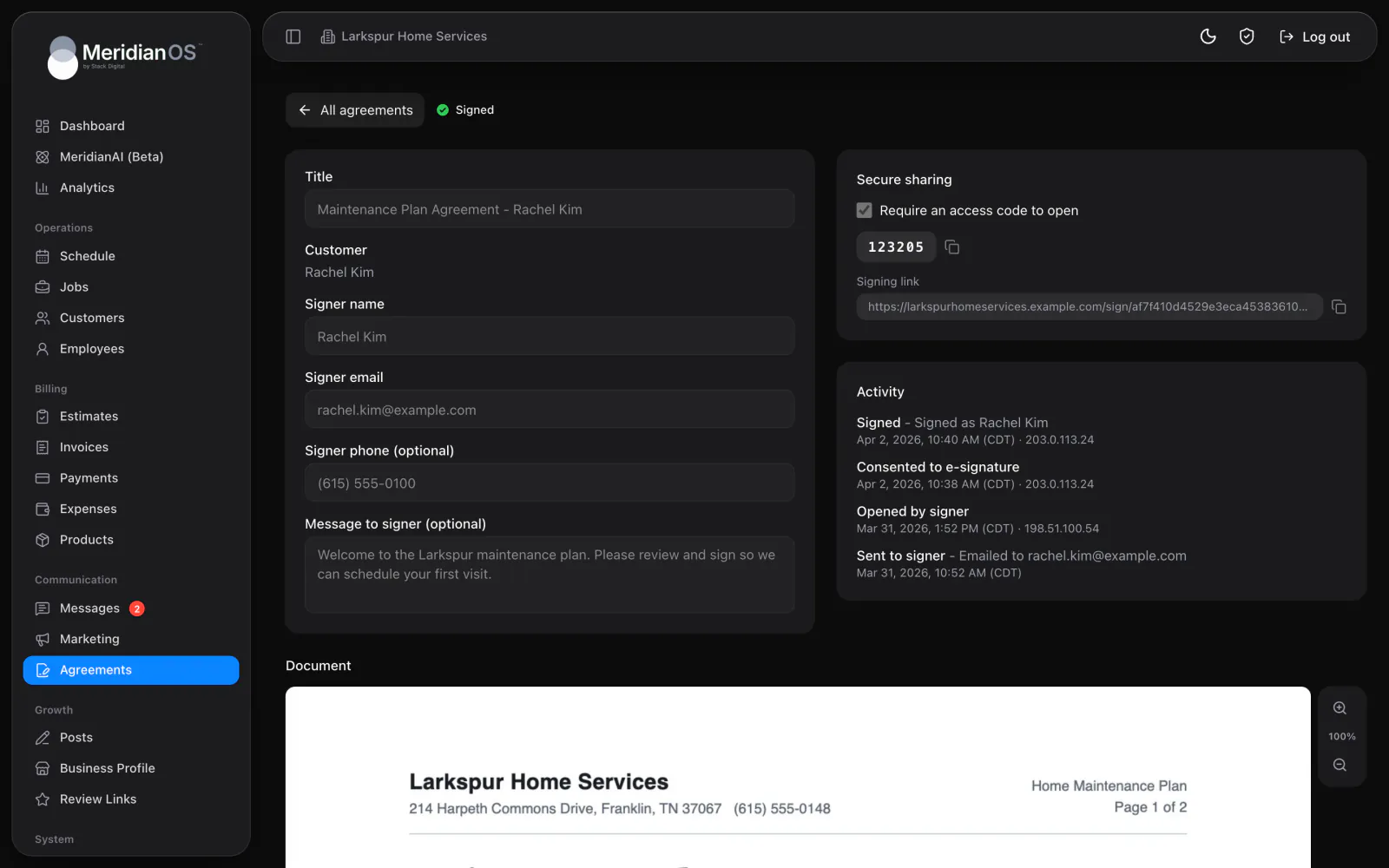
- Under Secure sharing, decide whether to keep Require an access code to open on.
Require an access code to open is on by default. The code is 6 characters long, and you can copy it or regenerate it. Secure sharing also gives you a signing link you can copy.
The access code is never included in the email or text. Share it with the signer separately.
Send, resend and void
- Send delivers the agreement by Email, by Text message or by both. Resend sends it again.
- An agreement needs at least one signature field before it can be sent.
- Void turns the signing link off. Anyone who opens a voided link sees This document is no longer available.
- There are no automatic reminders for an unsigned agreement. Use Resend to remind the signer.
- An agreement has one signer. It can be linked to a customer, and there is no link to a job.
- Your business does not countersign. Your own details go in the Your text fields before you send.
- The agreement text carries a secure link to review and sign, and you can edit its wording. See Automatic texts and emails.
Track agreements
The Agreements tab lists every agreement with the columns Agreement, Customer, Signer, Status and Activity. Find one with Search by title, signer, or customer, filter the list by status, or download an agreement's PDF. A status is Draft, Sent, Viewed, Signed or Voided.
Agreements are not listed on the customer page. To find a customer's agreements, search for the customer here.
Each agreement keeps an Activity log. Every entry has its time and IP address. The entries are:
- Sent to signer and Resent to signer
- Opened by signer
- Incorrect access code attempt and Access code regenerated
- Consented to e-signature
- Signed and Signing attempt failed
- Voided
What the signer sees
- The signer gets an email with a Review and sign button, or a text with the link. The email subject says your company sent them a document to sign and gives its title.
- If an access code is required, they enter it first.
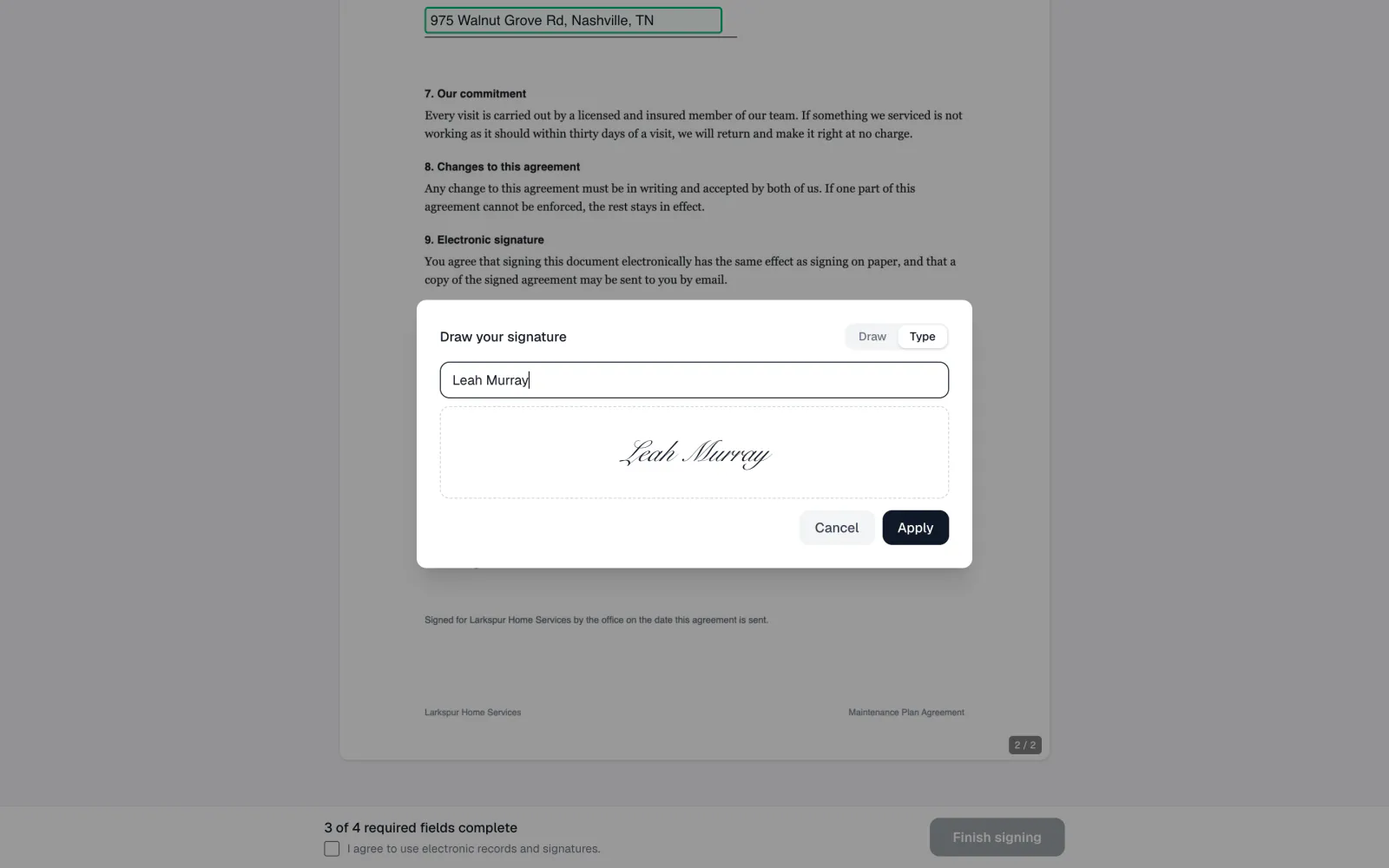
- The document opens with the fields to fill highlighted. Date fields are prefilled with today's date.
- They draw or type a signature and initials. Both are reused across the fields that need them.
- A progress line reads X of Y required fields complete with the real counts.
- They check I agree to use electronic records and signatures. and select Finish signing.
- A confirmation page offers Download signed PDF. A copy is also emailed to them with the PDF attached.
A signer on an outdated browser sees a clear explanation in place of a blank document.
The signed record
The signed PDF has every field stamped in place, plus an added Signature Certificate page. The certificate shows:
- The document title and agreement number.
- The sender and the signer.
- Whether an access code was verified.
- The signer's IP address and the completion time.
- A fingerprint of the original document.
- The event history.
A signed agreement cannot be edited or deleted. If you try, you see Signed agreements are kept permanently so the signature record stays intact.
- If the signed PDF cannot be produced, the signature is rolled back and logged. An agreement is never marked signed without its document.
- Two submissions that arrive at the same moment cannot both sign the same agreement.
Alerts when an agreement is signed
- Every admin gets an email. Its subject begins Signed: followed by the title and agreement number, and it has a View in dashboard button.
- The MeridianOS™ app sends an Agreement signed push notification. See Notifications.
- The signer gets their own copy by email with the signed PDF attached.
Related
- CustomersFind, add and edit customers, read a customer page, and use tags, addresses, notes, texting and the notification switch.
- Automatic texts and emailsEvery text and email MeridianOS™ sends on its own, who gets each one, how to switch them on or off, and the Email Log.
- Text messagingText customers from your business number: the shared inbox, photos, alerts, bulk sends, lists, opt-outs and monthly limits.
- Notifications and alertsEvery alert MeridianOS™ sends your business: dashboard badges and sounds, push notifications in the app, and alert emails.
- Agreements and e-signatures overviewSend your own document for signature and keep a certificate of who signed.
Updated November 10, 2026.