Employee portal
The employee portal is what an employee sees when they sign in to MeridianOS™. It shows the jobs assigned to them, the time clock, and their own hours and pay. This chapter walks through each screen so you know exactly what your employees can see and do.
An employee signs in with the username and password you set on their employee page. See Give an employee a portal login. This chapter describes the portal in a web browser. For the MeridianOS™ app, see Apps.
Signing in and account security
Employees sign in on the same login page as admins. The login has these protections.
- A bot check runs on the login page. Stack Digital turns this on for your site.
- The login locks after 8 failed tries for one username, or 20 from one network, within 15 minutes.
- Two-factor with an authenticator app is optional. So are passkeys.
- A session lasts 7 days.
The first time an employee signs in without a second factor, they see Secure your account with the choices Set up a passkey, Use an authenticator app and Not now.
The security page is where an employee changes their password and manages two-factor and passkeys. If someone is locked out, you can reset their two-factor or remove their passkeys from the Portal access card on their employee page.
The menu and the schedule
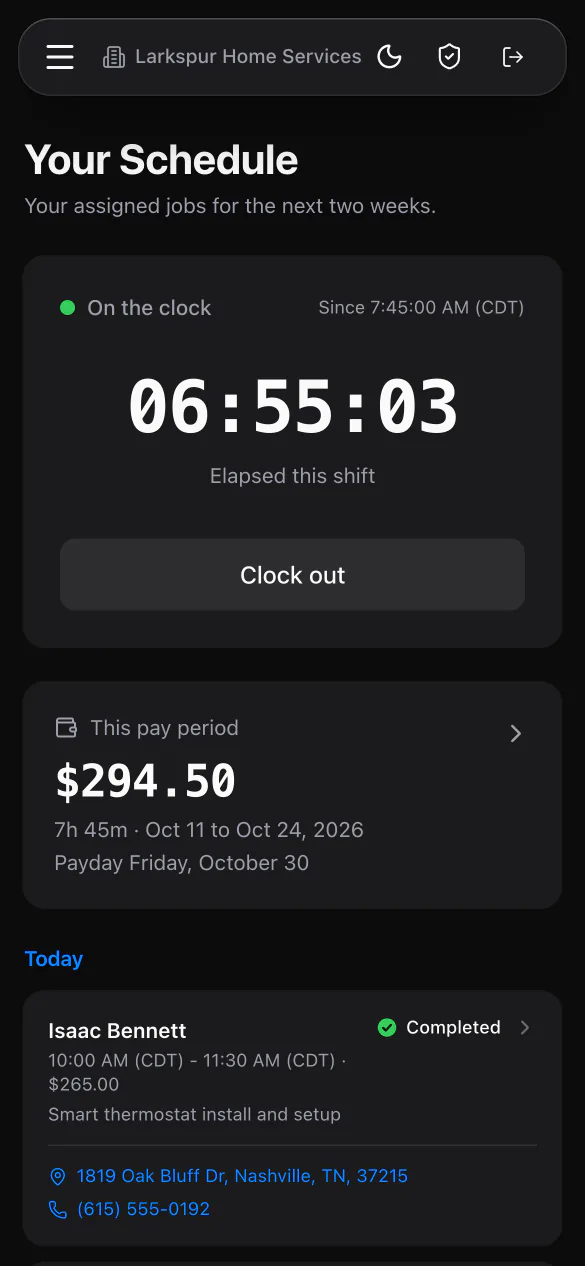
The menu has Dashboard, Time & earnings and Review QR Code. The top bar shows your company name, a light and dark toggle, a security link and log out.
Your Schedule lists only the jobs assigned to that employee for the next two weeks. Jobs are grouped under Today first and then by day. Cancelled jobs are hidden.
| On each job card | Details |
|---|---|
| Customer and time | The customer's name and the time window. |
| Job | The job amount, description, status and tag colors. |
| Address | Tap to open directions. It opens Apple Maps on iPhone and iPad, and Google Maps elsewhere. |
| Phone | Tap to call the customer. |
Employees can only open jobs, invoices and customer text threads tied to jobs they are assigned to.
The job page
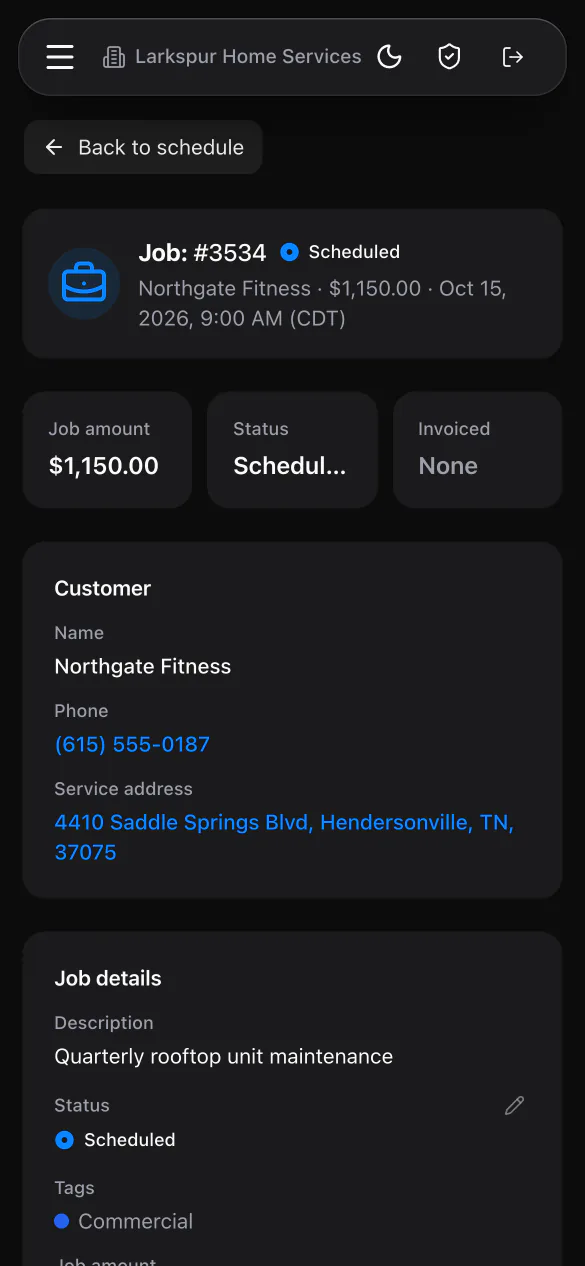
The job page shows Job amount, Status and Invoiced. It also shows the customer's name, phone and service address, Property notes, the description, tags and the scheduled time. Property notes are the notes you saved on the customer's address.
| Part of the page | What the employee can do |
|---|---|
| Status | Change the job to any status. Marking it Completed sends the customer their completion notice, if that notice is enabled, and sends a Job completed push notification to admins. |
| Customer notes | Read every note on the customer record. These are read only. |
| Job notes | Add notes with photos. An employee can edit or delete only their own notes. |
| Messages | Text the customer from the job. Each message is stamped with the employee's name. Employees have no Ask for a review button. |
| Create invoice | Build an Open invoice from the job's line items. |
Messages appears only when texting is enabled. Stack Digital turns this on for your site.
Invoices and payments
The invoice page shows Total, Paid and Balance. Send to customer sends the invoice with a payment link by email, by text or both.
The rest depends on the Collect payments switch on the employee's page. With it on, the employee sees Take payment and these methods.
| Method | How it works |
|---|---|
| Card (charge now) | The customer enters their card on the employee's device. Your Stripe account must be connected. |
| Cash | Records a cash payment. |
| Check | Records a check payment. |
| Other | Records any other payment, with a note. |
| Bank (customer pays) | Appears when bank payments are enabled for your business. It shows a QR code, and the link can be copied, texted or emailed. |
- An optional Tip field appears when tipping is turned on in Settings.
- A card processing fee notice appears when fees are passed on.
- Each payment is attributed to the employee who collected it.
- The employee can also edit line items on Draft or Open invoices, picking from your product catalog.
With Collect payments off, the Take payment button is hidden and any payment request from that login is refused. The employee cannot change invoice or job amounts.
Time clock
The time clock is one large button that reads Clock in or Clock out. Beside it the employee sees On the clock or Off the clock, the start time (for example Since 8:02:11 AM) and a running timer.
- An employee can have one open shift at a time. A second try shows You are already clocked in.
- Overnight shifts are supported. A shift counts toward the day and week it started in.
- Hours are the real time that passes between clock in and clock out, so a shift across a daylight saving change is paid for the hours actually worked.
The time clock has no breaks or meal periods, no location capture and no clocking in to a specific job. Employees cannot edit their own time. An admin makes corrections, as described in Time clock and payroll.
Time and earnings
The home screen has a This pay period card. It shows dollars earned, hours, the period dates and the payday. If you have not set an hourly rate for the employee, the card shows hours in place of dollars.
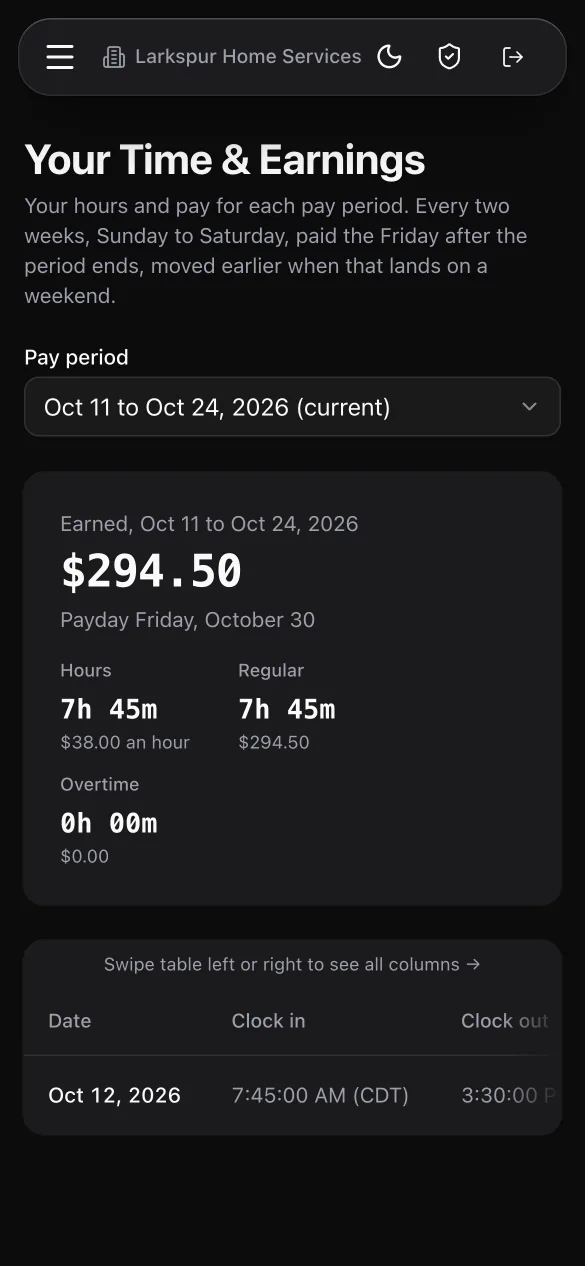
Your Time & Earnings goes further. The employee picks the current pay period, any of the previous 12, or Custom dates.
- Totals for Earned, Hours, Regular, Overtime and Double time, with the pay for each.
- Every shift, with its clock in and clock out, hours, overtime portion and pay.
- An Edited badge on any shift an admin changed.
- Needs approval on unapproved shifts, with a line such as 3h 30m of these hours are still waiting on approval.
Pay periods, paydays and overtime follow what you set in Payroll Settings.
Review QR Code
Each employee has a personal QR code on the Review QR Code page. A customer who scans it lands on your company's review page.
Scans are counted per employee. The employee sees their own count, and you see it in the QR scans column of the employee list, so you know who is asking customers for reviews.
Related
- Employees and permissionsAdd employees, edit their details, give them a portal login, decide who can take payments, and see each person's tips.
- Time clock and payrollHow employees clock in and out, how you correct and approve hours, and how to set overtime, pay periods and the payroll export.
- In-person paymentsCollect on an invoice while you are with the customer, including Tap to Pay on iPhone, bank QR codes, cash and check.
- The MeridianOS™ apps for iPhone, iPad and MacThe MeridianOS™ app on each device, signing in, what admins and employees can do, and what stays in the browser.
- Employee portal overviewEach employee sees their own schedule and what they have earned this pay period.
Updated November 10, 2026.