Online booking
Online booking lets customers pick a service and a time on your own website. Each confirmed booking becomes a job on your schedule with the customer attached.
Open Schedule and select the Booking Setup tab. Here you set up your services, hours, rules, and the emails and texts customers get.
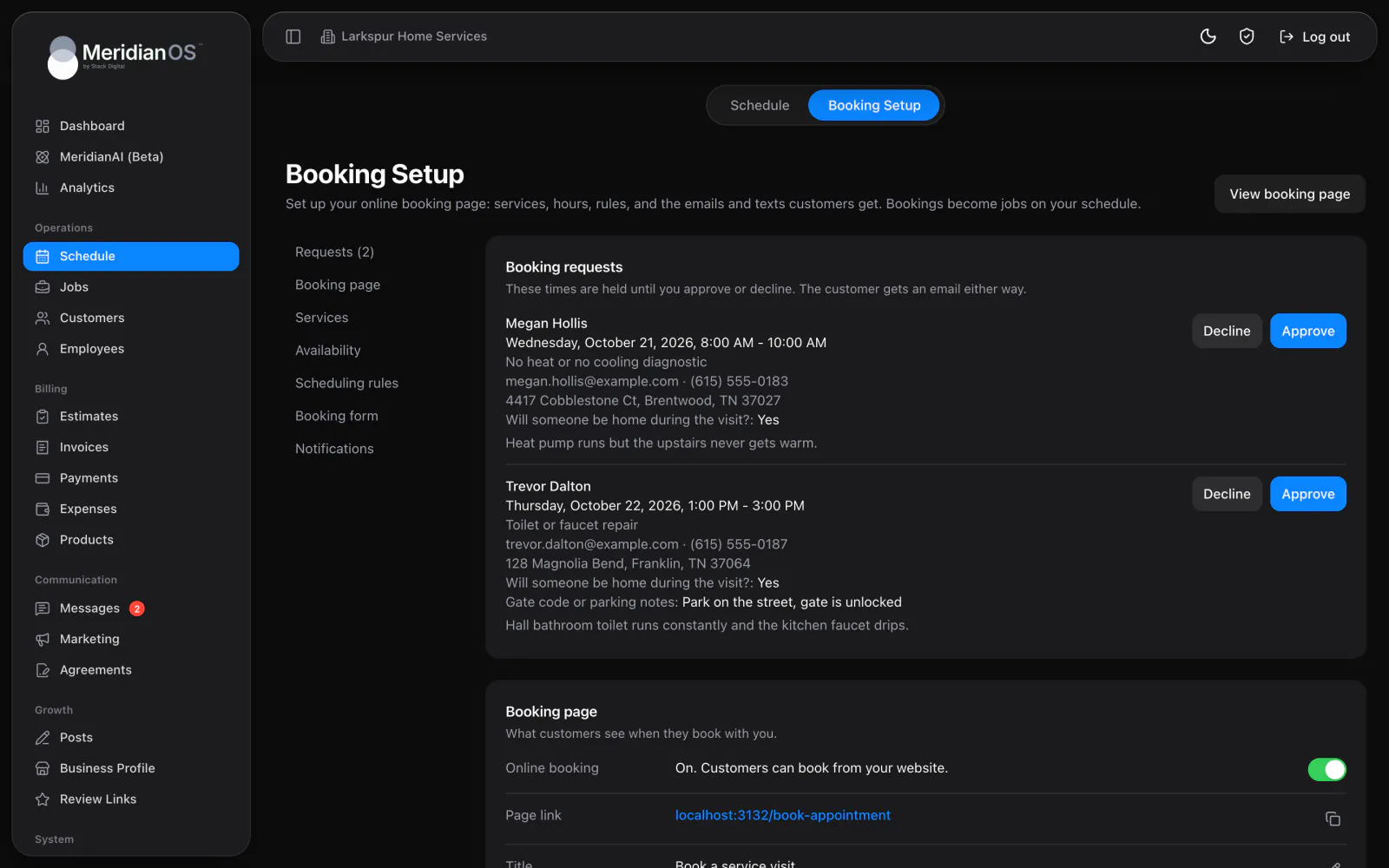
Booking page and booking type
| Setting | What it does |
|---|---|
| Accept online bookings | A switch that turns online booking on or off. |
| Page link | The link to your public booking page, ready to copy. |
| Title | The title of your booking page, up to 80 characters. |
| Description | A description of up to 600 characters. |
Then choose the booking type.
| Booking type | How customers book |
|---|---|
| Appointment | The customer picks an exact start time. |
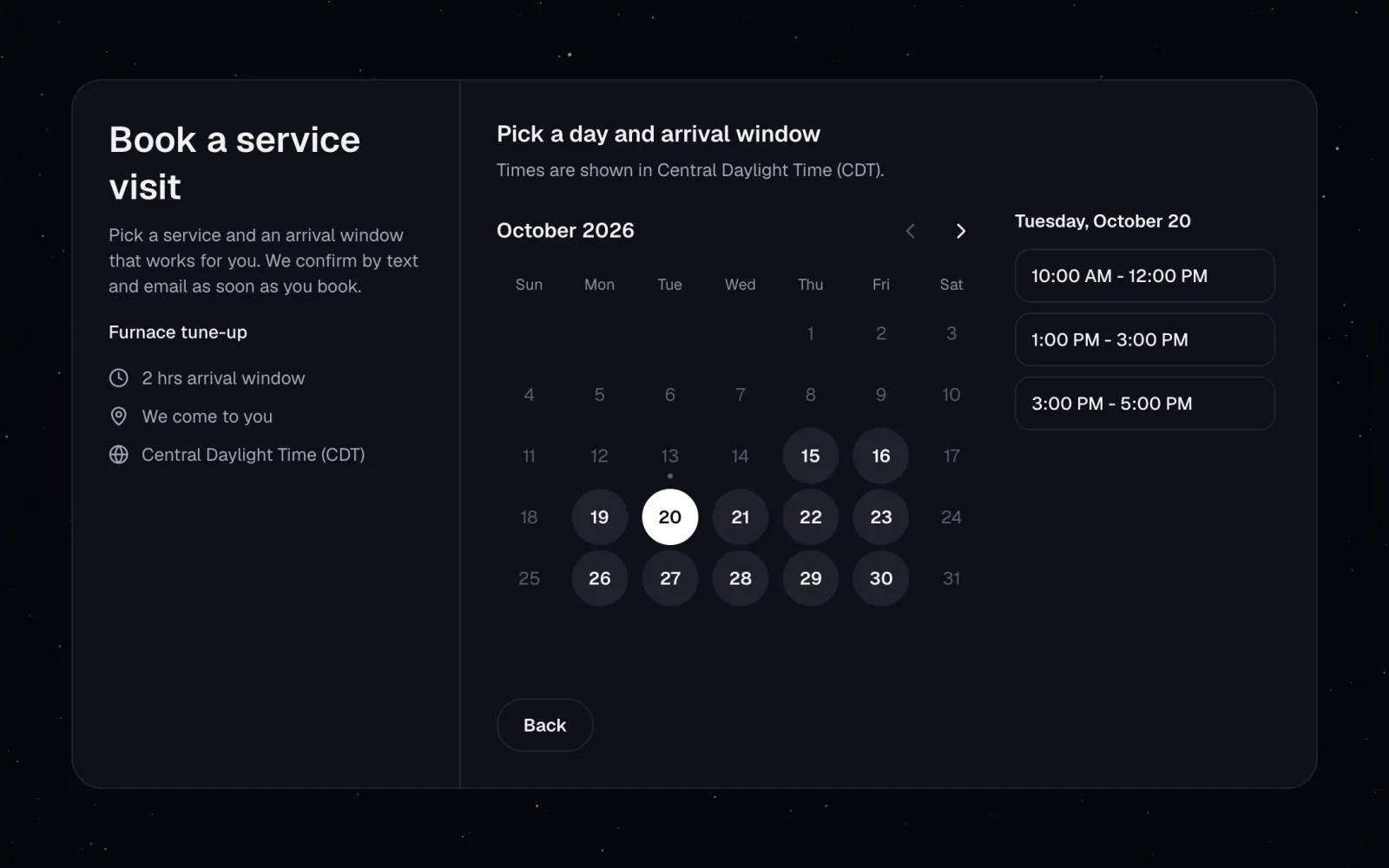
| We come to you | The customer picks an arrival window and gives the address. |
For appointments, Where it happens has four choices: At your business address, Phone call, Video call and Somewhere else, where you type the place.
Video call is a label only. MeridianOS™ does not create a meeting link.
Confirmation and services
Choose Confirm bookings right away, or I approve each request first to handle every booking as a request.
- Switch on Customers can pick more than one service and the lengths of the chosen services are added up.
- You can write an optional confirmation message. It shows after booking and in the confirmation email.
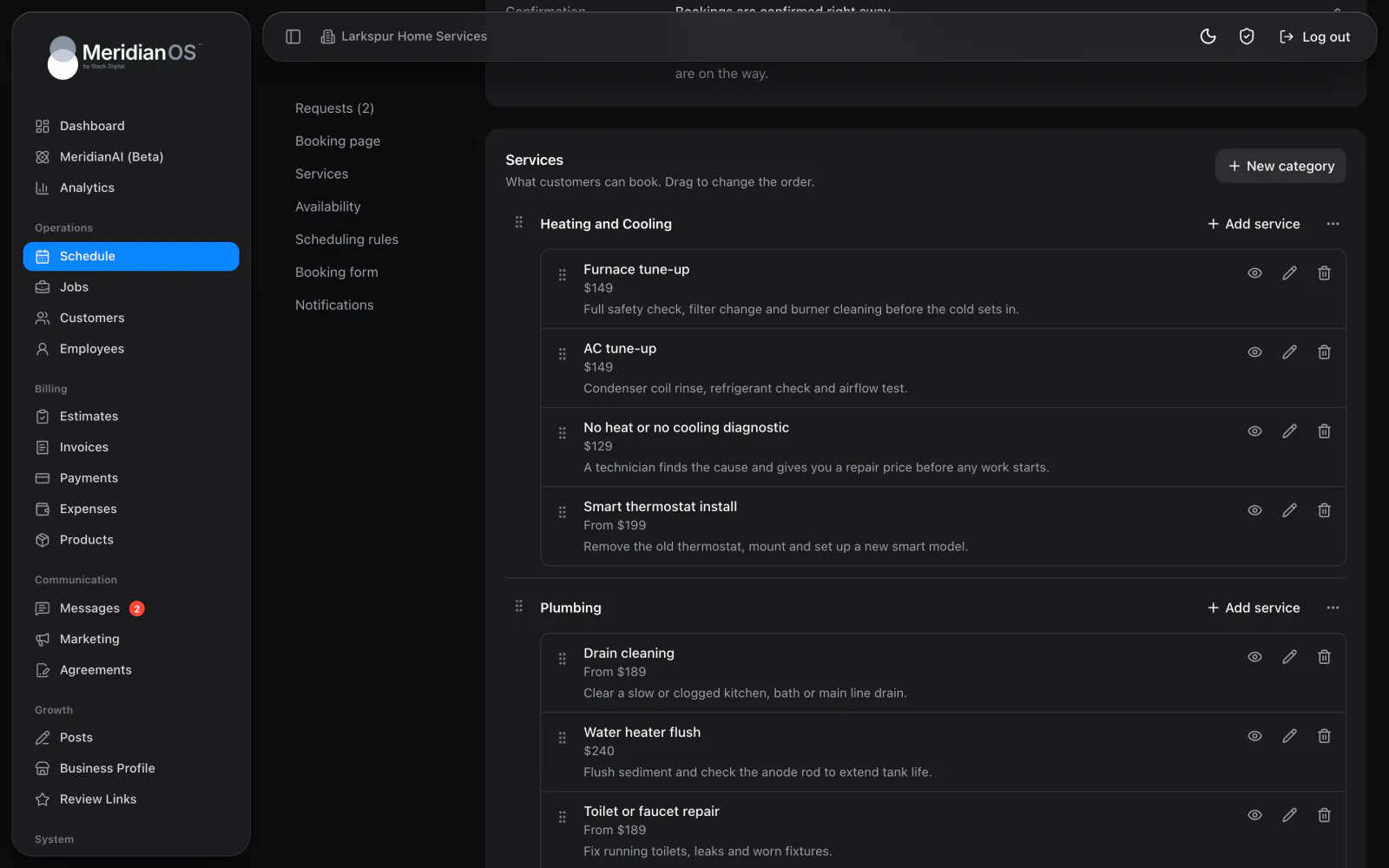
Services sit inside categories. Each service has a name, a description and two settings.
| Setting | Choices |
|---|---|
| Length | 15 minutes to 8 hours, or Use the default. |
| Price display | Don't show a price, Free, Set price or Starting at. |
Drag services to reorder them. You can hide a service from the booking page, show it again or delete it.
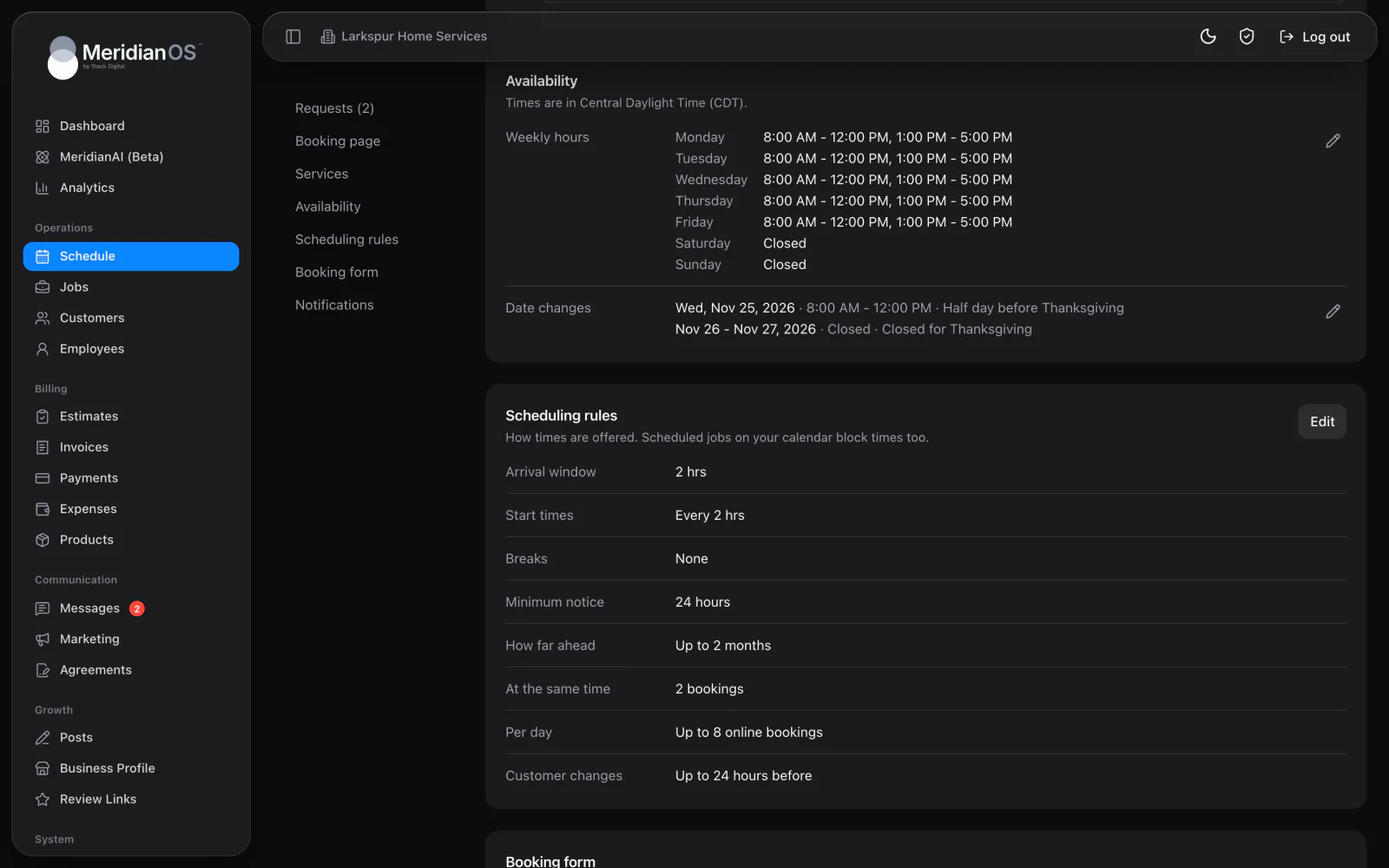
Availability and scheduling rules
Availability is your weekly hours. A day can have several time ranges, so you can leave a gap for a break. Use Date changes for holidays, time off or special hours over a date range. Each date change can carry a private note, and past dates clear themselves.
The scheduling rules decide which times are offered.
| Rule | Choices |
|---|---|
| Appointment length or arrival window | The length of an appointment, or the arrival window for We come to you. |
| Start times | Right after each other, or every 15 to 120 minutes. |
| Break before and after each booking | None, or up to 2 hours. |
| Minimum notice | None, or up to 1 week. The default is 24 hours. |
| How far ahead | 1 week to 1 year. The default is 30 days. |
| Bookings at the same time | 1 to 10, or no limit. |
| Online bookings per day | A cap on how many online bookings one day can take. |
| Customers can reschedule or cancel | Not online, any time, or up to 1 to 72 hours before. The default is 24 hours. |
Open times subtract the jobs already on your schedule as well as other bookings, then apply your breaks. An online booking cannot land on top of work you scheduled yourself.
The booking form
The booking form always asks for a name and an email. You choose the rest.
| Field | Options |
|---|---|
| Phone | Required, Optional or Don't ask. |
| Address | Required, Optional or Don't ask. It is always required for We come to you. |
| Notes | A notes box with a label you write. |
| Photos | Up to 10 photos, 5 MB each. |
| Custom questions | Up to 10 questions. The types are Short answer, Paragraph, Dropdown and Checkbox. Each can be required, and you can reorder them. |
Notifications and reminders
| Message | Details |
|---|---|
| New booking emails | Go to up to 10 addresses you choose, for every new booking, request, reschedule and cancellation. |
| Confirmation email | Goes to the customer. |
| Confirmation text | Goes to the customer, if they checked the box to get texts. |
| Reminders | Up to two. Each is sent from 1 hour to 3 days before, by email, by text or both. |
- Customer emails cover a booking, a request received, a request approved, a request declined (with your message), a move, a cancellation and a reminder. Each one carries the date, length, place with a Google Maps link, services and a button to manage the booking.
- Emails to your business cover a new appointment, a new request, a move and a cancellation. They include the customer's phone, email, text consent, answers, notes and photo links, plus a button that opens the booking in MeridianOS™.
- Texts cover the confirmation, a request received and the reminder. They go only to customers who checked the box.
- A new booking also sends a push notification to the MeridianOS™ app.
- When a customer moves a booking, reminders already sent are cleared, so the customer is reminded again for the new time. A booking made inside the reminder window does not get an instant reminder.
You edit the wording of the texts on the Messages page, in the Settings tab. See Text messaging.
Emails are on by default and the text switches are off by default. Texts need texting set up on your site. Stack Digital turns this on for your site.
What your customer sees
- The customer chooses a service. Each one shows its length and price. This step is skipped when you have only one service, and the customer can choose several when you allow it.
- They pick a day on a month calendar where only open days can be selected, then a time or an arrival window. Times are worked out in your business time zone, including daylight saving changes, and labeled with the zone name.
- They enter their details, answer your questions and add photos. They can check a consent box to get texts.
- The confirmation screen says You're booked or Request sent.
The confirmation screen has Add to Google Calendar, a second button that downloads a calendar file for other calendar apps, and Reschedule or cancel.
Two customers cannot take the same slot. If two try at once, the second sees a message asking them to pick another time.
Rescheduling and canceling
Each booking has a private manage link. On that page the customer can Reschedule to any open time, or Cancel appointment with an optional reason, inside the cutoff you set. The page shows a clear status for pending, canceled and past appointments.
When a customer reschedules or cancels, the linked job is updated. When you cancel or restore the job in MeridianOS™, the booking is updated.
How a booking becomes a job
- A confirmed booking looks for an existing customer by email or by any of the customer's phone numbers. If there is no match, it creates a new customer marked as a lead with the source Online booking.
- It saves the address. An address the customer has used before is reused.
- It creates a scheduled job with the services as the description. The customer's notes and answers are attached.
The job shows a Booked online badge and the customer's photos under Photos from booking.
With I approve each request first, the time is held and the job is created only when you select Approve. Decline emails the customer, with an optional message from you. MeridianAI can also read and change your booking setup and approve or decline requests. See MeridianAI.
Limits and what is set for your site
- One contact can make up to 20 bookings per day.
- Confirmation sends are limited per contact and per hour.
- Photo uploads are rate limited, and each file is checked to be a real image.
- Every booking submission passes an automated spam check.
- Stack Digital sets the booking page's colors, fonts and starting settings for your site. Colors and fonts are not changed in Booking Setup.
Related
- ScheduleHow to read the week and month views of the schedule, what the colors mean, and how to reschedule a job.
- Jobs and recurring jobsHow to find, create and manage jobs, what the job page holds, and how recurring jobs, their billing and tags work.
- LeadsHow website form submissions become leads, how to work the Lead Forms page, and how a lead becomes a customer.
- Text messagingText customers from your business number: the shared inbox, photos, alerts, bulk sends, lists, opt-outs and monthly limits.
- Online booking overviewCustomers pick a real open time on your website, and it lands on your schedule.
Updated November 10, 2026.