MeridianAI
MeridianAI is the assistant built into MeridianOS™. Ask it about your business out loud or in writing, and it answers from your own records with charts and maps on screen. It can also make changes for you, and it asks before it acts.
It has 157 built-in abilities: 67 kinds of look-up and 90 kinds of action.
Where it is and who can use it
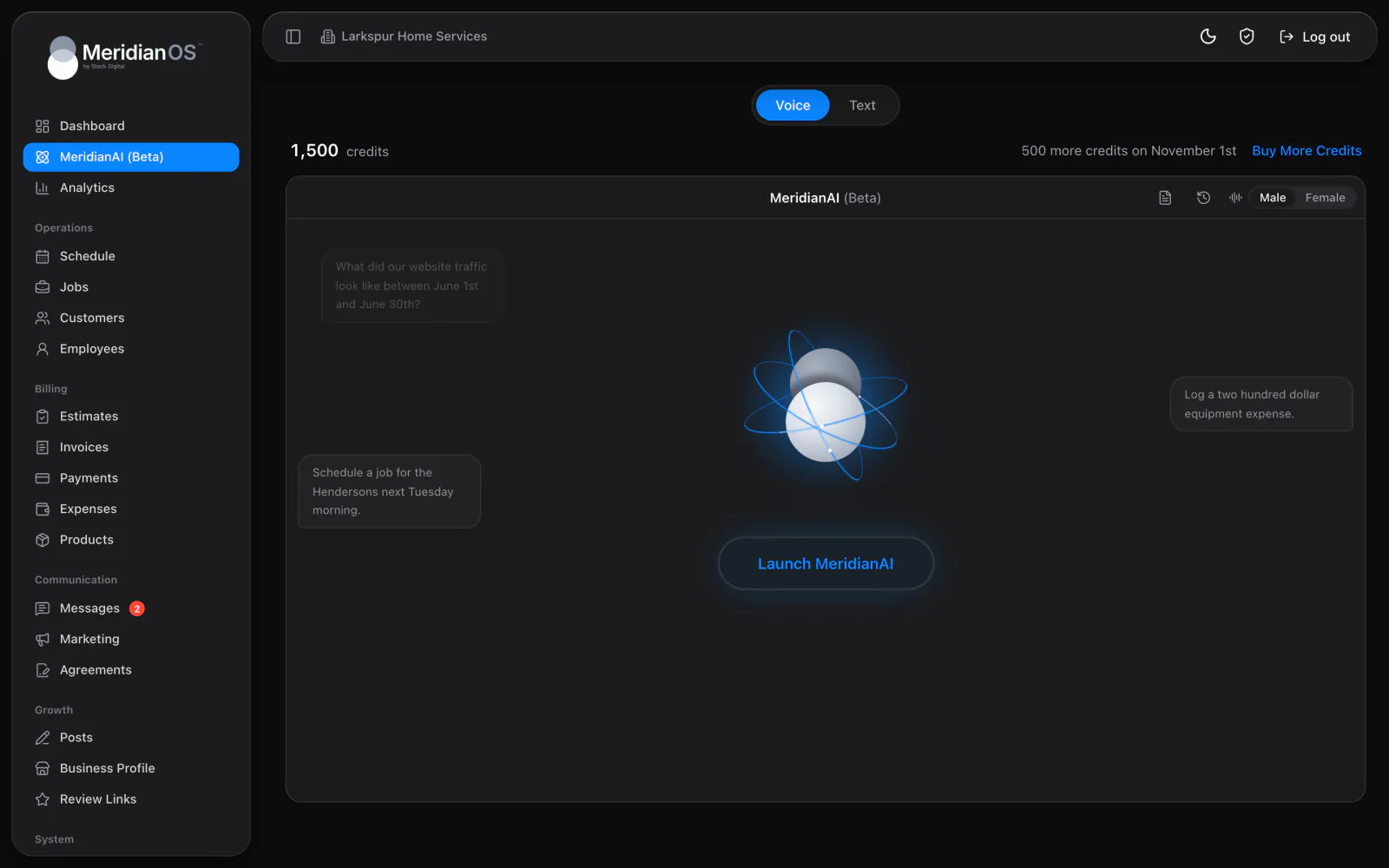
Open MeridianAI (Beta), the second item in the sidebar. Switch modes with the Voice and Text pills. Voice is selected first.
- MeridianAI is for admin accounts only. The employee portal does not include it.
- Stack Digital turns this on for your site. Until then the page says "MeridianAI is not enabled on your website yet."
- It is in beta. The page says it "will occasionally get something wrong or miss what you meant".
Voice mode
- On the Voice tab, select Launch MeridianAI under the orb. Microphone access is required.
- MeridianAI greets you with "Welcome back. What can I do for you?" Say your request.
- Stop talking. After about one second of silence it plays a short chime, thinks, and speaks the answer back.
- Select the End session power button to stop everything.
- The status line shows Listening, a thinking phrase such as Looking that up, or Speaking.
- Choose a voice in the header: Male ("Deep, confident") or Female ("Natural, clear"). The choice is saved for your whole site.
- One spoken request can be up to 45 seconds. Speech recognition is English (US).
- Up to three panels stack beside the orb while it talks.
- Voice keeps the thread of your conversation for 6 hours.
- If the microphone fails, the page explains why and links to help for common browsers.
Text mode
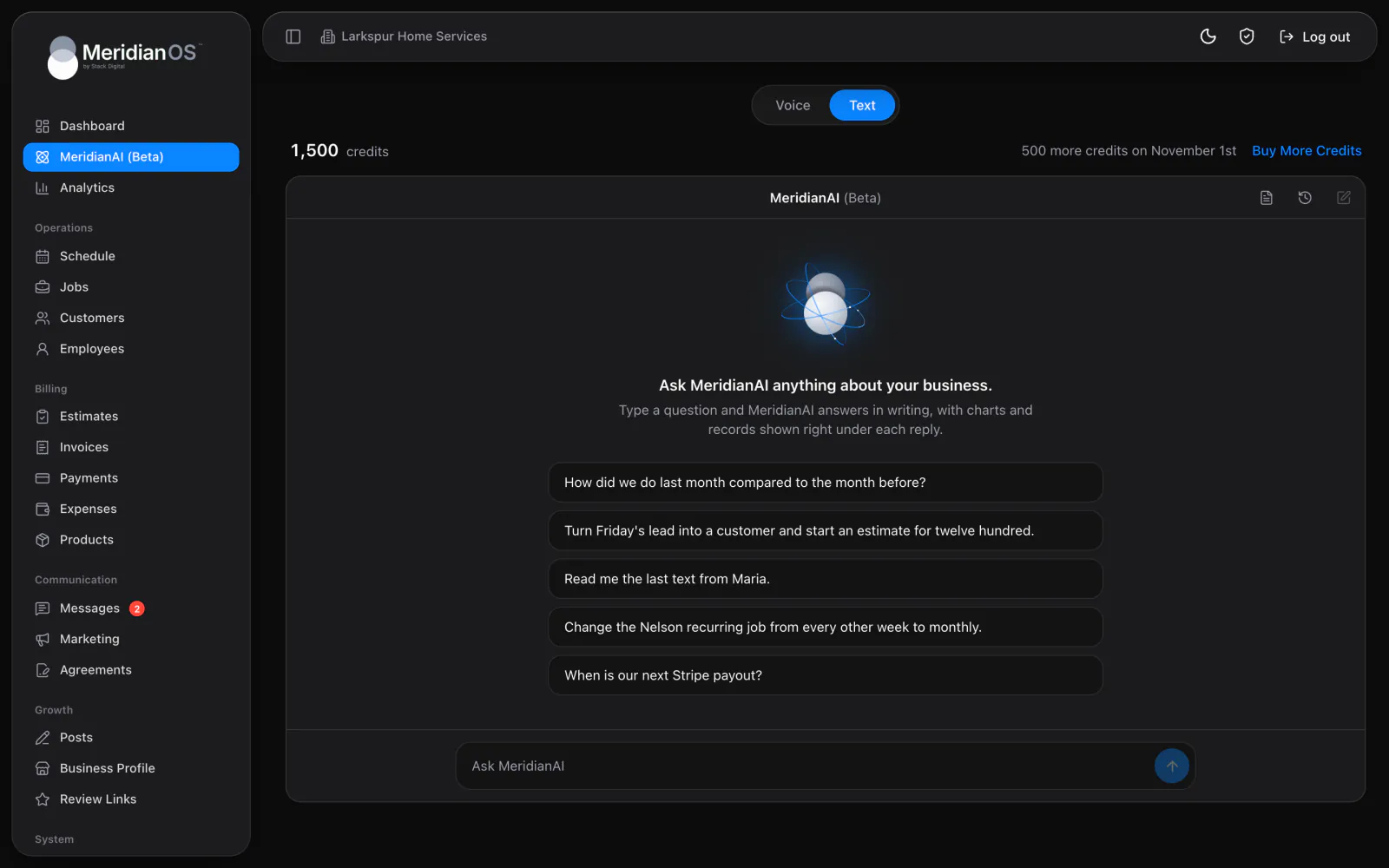
Select Text to type instead. The empty page offers one-tap starter questions.
- Type in the Ask MeridianAI box. A message can be up to 8,000 characters.
- Replies stream in as they are written, in plain sentences, with charts and records under each reply.
- Stop cancels a reply. New chat starts fresh.
What it shows on screen
| Panel | What it shows |
|---|---|
| Label and value rows | Totals, record details and before and after comparisons. |
| Charts | Bars for period comparisons and lines for trends, in dollars or counts, with the peak value labeled. |
| Job map | Jobs for a day or a span of days, each pinned at its address above a color-matched list of time, customer and address. Tap a row to zoom to that job. Pins link to the job page. |
| Text conversations | Chat bubbles, with Photo attached markers. |
| Sent emails | The email exactly as it was delivered, in a locked-down preview frame. |
| Text blocks | Drafts, notes and policy text. |
What you can ask it to do
Ask in your own words. One request can take up to 8 steps.
| Area | What it can do | Example request |
|---|---|---|
| Your numbers | Revenue earned, money collected, tips, processing fees, outstanding balances, expenses, labor, profit, average ticket and lead conversion for any date range. Also goal progress, money by tag, Google Analytics traffic and Google Ads results. | "Are we on track for the revenue goal?" |
| Customers and leads | Find anyone by name, company, email or phone across customers, lead forms and text contacts. Create and update customers, addresses, notes and tags. Add or convert a lead. | "Turn Friday's lead into a customer and start an estimate for twelve hundred." |
| Jobs and schedule | List, create and reschedule jobs. Change status, line items, address or assigned employees. Change a recurring series. Show the schedule on a map. | "Show me today's jobs on the map." |
| Estimates, invoices and products | Create, edit and send estimates and invoices by email (PDF plus link), text (link) or both. Convert an estimate to a job. Sync an invoice to a changed job. Edit the price list. | "Send the estimate we built this morning." |
| Payments and money | Record or correct a cash, check or card payment. Charge a saved card, refund in full or part, resend a receipt. View a bank dispute, submit evidence or accept it. See payouts. Set up Apple Pay and Google Pay. Set monthly expenses and the revenue goal. | "When is our next Stripe payout?" |
| Text messaging | Read conversations. Send one text to a customer, lead or number. Mark read, mute, block or name a thread. See monthly usage. Edit each automatic customer text and switch it on or off. | "Read me the last text from Maria." |
| Email and marketing | Search the email log and show any sent email. Build or edit a draft campaign and send one test copy. Create and edit templates. | "Send me a test copy of that campaign." |
| Agreements | Open agreements with their timeline. Create one from a template, edit or void it, and send or resend it for signature by email, text or both. | "Create an agreement for Linda from our standard template." |
| Team, time and payroll | Show, add or edit employees and shifts. Approve hours. Show tips per employee and what each person is owed for a pay period. Change payroll rules. | "How many hours did each employee log in July?" |
| Online booking | Approve, decline, confirm or cancel a request. Change hours and rules, close dates, edit the booking page, and add or edit services. | "Block off next Friday for online bookings." |
| Website, posts and reputation | Edit, publish and unpublish blog posts, or write a draft. Create and publish Google Business Profile posts. Change post schedules. Reply to Google reviews and change auto-reply hours. Edit the Terms of Service and Privacy Policy. | "Reply to yesterday's five star review." |
| Settings | Read every Settings value and change one at a time, such as time zone, tipping, invoice reminders or an email switch. | "Turn on tipping for invoices." |
- Every number comes from a fresh look-up, with the exact dates counted and whether it is revenue earned or money collected.
- Revenue numbers use the same calculations as the KPI page. See KPIs and profit.
- It offers the one obvious next step, and asks one short question when a request could mean two things.
- If tipping or passing fees to customers is off, it says so and tells you where to turn it on.
Texting abilities need texting on. Stack Digital turns this on for your site.
Confirmation, previews and History
- 64 of the 90 actions cannot change anything on the first step. They show a preview with the line "Nothing has changed yet. Say yes to go ahead." and act after your yes. This covers every money and publishing action, such as card charges, refunds, texts, posts and settings changes.
- The other 26, such as creating a customer, job, estimate or invoice, have no separate preview step. MeridianAI's standing rules require it to state the change and get your yes first.
- A saved card charge preview spells out the balance, tip, fee and total, and says "The charge happens immediately".
- A text preview shows the exact wording, recipient and length. A text is capped at one message, and numbers that opted out are refused.
- For money, it names the exact amount and the customer. A yes given for something else does not count.
Select History to see "Everything MeridianAI has created or changed, newest first." All 90 actions are logged with a plain summary, the time and the admin who asked. The last 100 are shown.
What MeridianAI will not do
The What MeridianAI will not do panel lists these built-in limits:
- "Delete anything. Not records, not messages, not history, ever."
- "Make bulk changes. MeridianAI works one record at a time, on purpose."
- "Send a campaign or a text to a whole list. Those go out from the Marketing and Messages pages."
- "Create admins, change passwords, two-factor, or passkeys, or change what employees can access."
- "Connect or disconnect accounts like Stripe or Google, or upload files and photos."
- "Change your website's design or code."
MeridianAI can void an agreement or an invoice. The one bulk exception is closing out every job that already has a paid invoice, after it reports the count and you say yes.
Credits
Your balance appears above the assistant, for example 1,234 credits, with a line such as "500 more credits on June 1st" and a Buy More Credits link.
- Every site gets 1,000 welcome credits on first use. On the 1st of each month, free credits are topped back up to 500. They do not stack.
- Monthly credits are spent first, and "Purchased credits never expire."
- Longer or multi-step requests cost more than a quick look-up, and voice costs more than typing.
- Blog posts written from the Posts page and automatic blog posts do not spend credits.
- Buy More Credits opens the MeridianAI Credits dialog, with Buy Credits and Purchase History tabs. Packs hold 1,000, 5,000, 10,000 or 50,000 credits. The card form shows the charge and your new balance.
At zero, the button reads Out of credits. Buying credits needs card processing set up for your website. Stack Digital turns this on for your site.
Saved conversations, privacy and safety
- Conversations are saved per admin. There is no list of past text chats to reopen, and reloading the page starts a new chat.
- Text inside your records, such as a customer's message or a note, is read as information. MeridianAI does not take instructions from it.
- Each admin has limits on how fast questions and voice requests can be sent.
- The MeridianAI Prompt you write for posts is capped at 4,000 characters. Wording that tries to change how MeridianAI works is rejected.
Related
- KPIs and profitHow to read revenue, collected, outstanding, profit, labor and lead conversion for any period, and how each number is counted.
- What runs automaticallyThe work MeridianOS™ does in the background without anyone clicking: what each automation does, when it runs and its rules.
- Text messagingText customers from your business number: the shared inbox, photos, alerts, bulk sends, lists, opt-outs and monthly limits.
- SettingsEvery card on the Settings page and what each setting controls, plus the Policies page for your terms and privacy policy.
- MeridianAI overviewAsk a question out loud or in writing and get the answer with the records behind it.
Updated November 10, 2026.