Schedule
The Schedule page shows your booked jobs by week or by month, color coded by tag and by employee. Open Schedule in the sidebar. You need an admin login.
The page has two tabs, Schedule and Booking Setup. This chapter covers the Schedule tab. For Booking Setup, see Online booking.
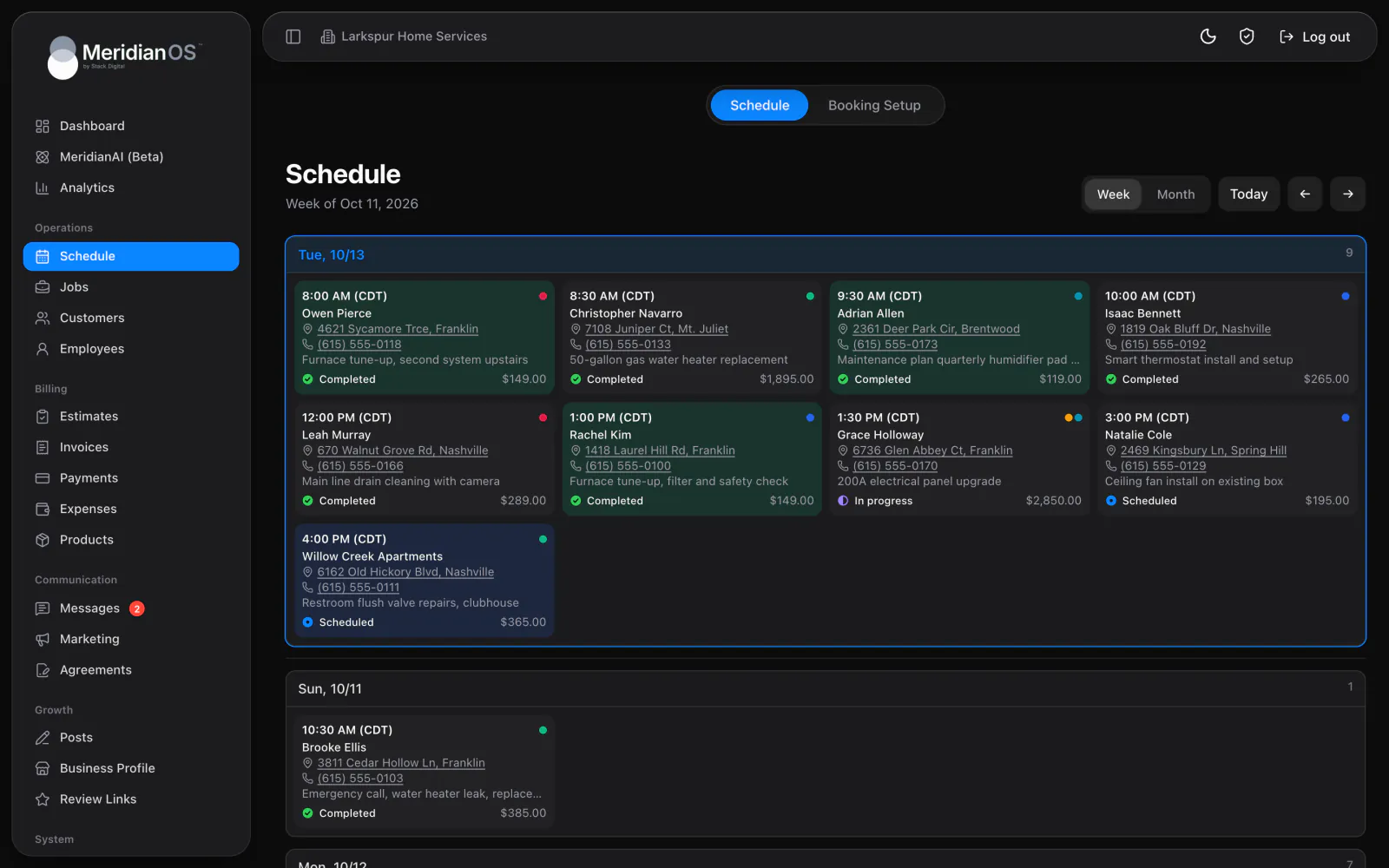
Week view
Week view gives every day its own card, Sunday to Saturday, with a job count. Today is highlighted and pinned to the top.
Each job card shows the start time, a colored dot for each assigned employee, the customer, address, phone, description, a status badge and the amount.
- Tap the address to open maps. It opens Apple Maps on iPhone and iPad, and Google Maps elsewhere.
- Tap the phone number to start a call to the customer.
Month view
Month view lays out six weeks at once. Each day lists up to 3 jobs by time and customer. When a day has more, a count such as +2 more shows the rest.
Select a day to open that week in week view.
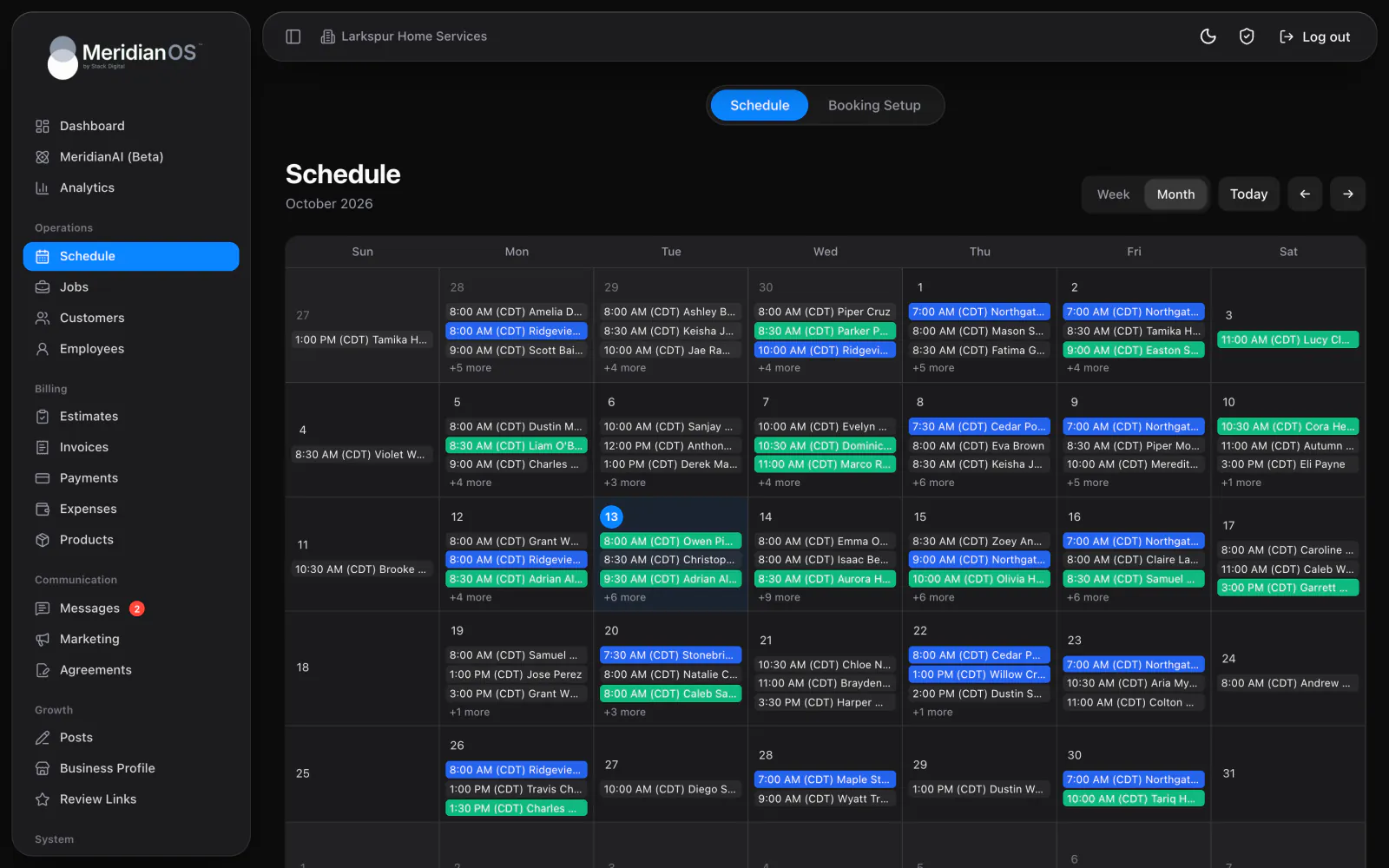
Color coding
- Each job is tinted with the color of its first tag.
- Each employee has their own color dot, shown on the jobs they are assigned to.
You create tags in Settings, each with a name and one of 20 colors. See Tags.
Job details on hover
Hover over a job to see a card with the full details of that job.
- The job number, the date and time range, and the status.
- The repeat pattern of a repeating job, for example Weekly until followed by a date.
- A link to the customer, with the address and phone.
- The team, the description and the amount.
What appears on the schedule
- Cancelled jobs are hidden.
- Jobs with no date are hidden. Find them on the jobs list by setting the Status filter to Needs scheduling.
- Repeating visits appear like any other job. When you look ahead, MeridianOS™ creates the recurring visits for that range automatically.
- Repeating visits keep the same clock time when daylight saving starts or ends, in your business's own time zone. The time zones offered are United States zones.
Reschedule a job
The schedule has no drag and drop. You change a job's date and time on the job page.
- Open the job. See The job page.
- Select Schedule job or Edit schedule, whichever the job shows.
- Set the date, start time, end time and service address, then save.
In the same place you can turn a one-time job into a repeating one. See Recurring jobs. These updates happen on their own when a job is scheduled, moved or cancelled:
- Adding a date to a Needs scheduling job changes its status to Scheduled.
- Scheduling or rescheduling a one-time job sends the customer a job scheduled email and text, when those messages are turned on. They start switched off. See Automatic messages.
- Assigned employees get a notification in the MeridianOS™ app: New job assigned, Job rescheduled or Job cancelled. Admins get Job completed when an employee finishes a job. See Notifications.
- Cancelling a job that came from an online booking cancels the booking. Restoring the job confirms the booking again.
Limits of the schedule page
- There is no hour-by-hour day grid. Week view lists each day's jobs on that day's card.
- There is no employee filter on this page. To see one employee's jobs, use the Employee filter on the jobs list.
Related
- Jobs and recurring jobsHow to find, create and manage jobs, what the job page holds, and how recurring jobs, their billing and tags work.
- DashboardWhat the Overview tab shows: money collected, jobs, estimates, unpaid invoices, the day's schedule, a map and recent activity.
- Online bookingSet up your booking page, see what customers do on it, and learn how each booking becomes a job on your schedule.
- Scheduling overviewThe whole week on one calendar, with every job and who is on it.
Updated November 10, 2026.