Jobs and recurring jobs
Each job has its own page with the schedule, line items, invoices, notes, photos and the text conversation with the customer. Open Jobs in the sidebar. You need an admin login.
The page has two tabs: Jobs for every job and Recurring for every repeating series.
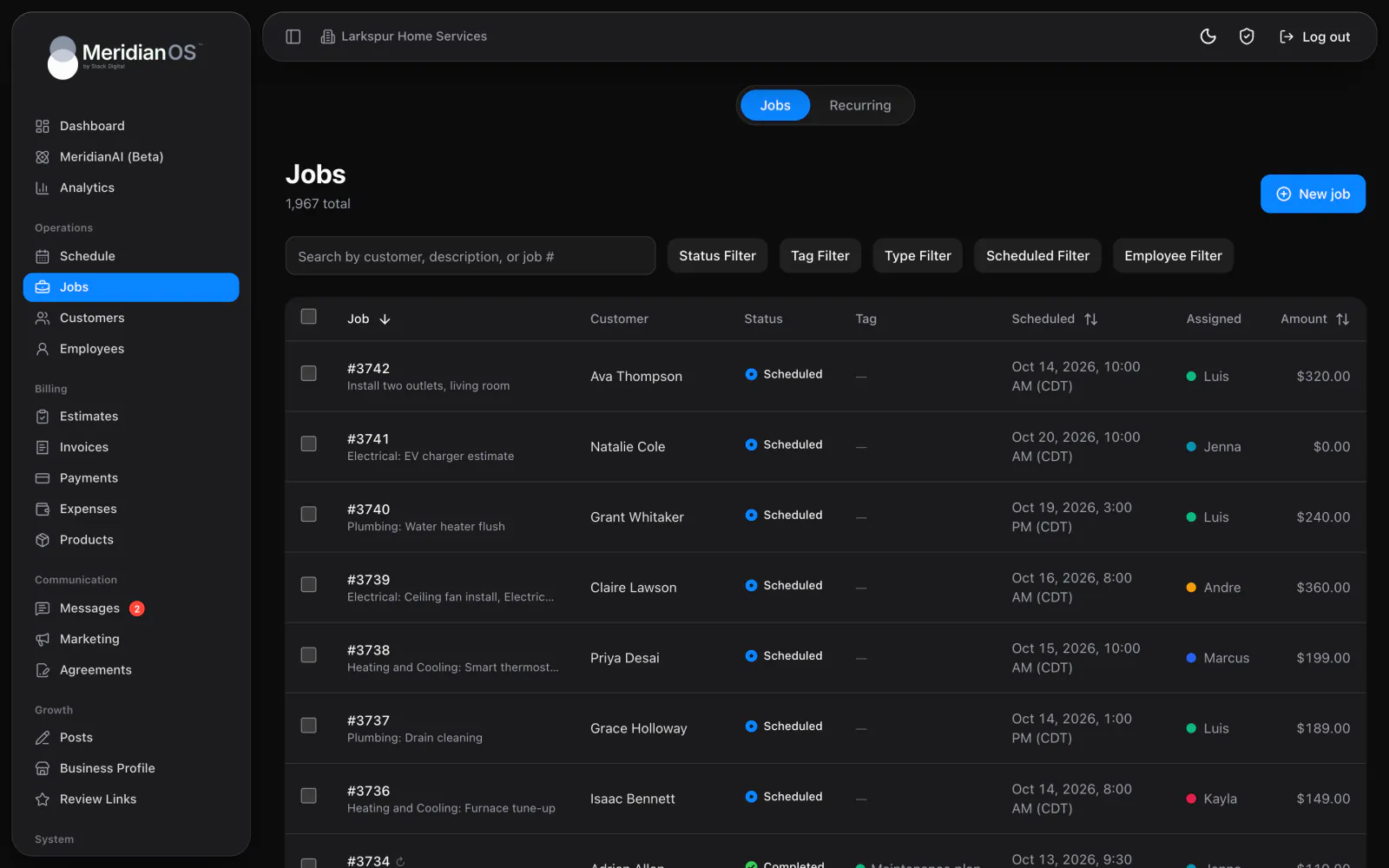
The jobs list
The search box (Search by customer, description, or job #) also matches the address.
| Filter | Options |
|---|---|
| Status | All, or one of the five job statuses: Needs scheduling, Scheduled, In progress, Completed, Cancelled |
| Tag | All, No tag, or any one tag |
| Type | All, Recurring, One-time |
| Scheduled | Anytime, Today, Next 7 days |
| Employee | The employee assigned |
Each row shows the job (number, a recurring icon and the description), customer, status, tag, scheduled date or Unscheduled, the assigned team or Unassigned, and the amount. Sort by Job (the date it was created), Scheduled or Amount. The list shows 50 jobs per page.
Change several jobs at once
- Check the rows you want to change.
- Choose Change status to..., Add tag..., Clear tags or Delete.
- Confirm when asked.
Delete keeps linked invoices and estimates but unlinks them. Deleted repeating visits are recreated automatically unless you also choose Also end recurring series.
Create a job
- Open the New job form.
- Search for the customer, or choose Add new customer without leaving the form.
- Pick a saved customer address, or Custom address for this job..., which has address autocomplete.
- Fill in Tags (pre-filled from the customer's tags), Description, Date, Start time (default 9:00), End time (default 11:00), Amount and Assign employees.
- Under Repeats, keep One-time job or choose a repeat pattern, then save.
The repeat patterns are Daily (all week), Daily (work week), Weekly, Every 2 weeks, Monthly, Quarterly, Twice a year and Yearly.
- Weekly options: choose the weekdays under On days.
- Monthly options: repeat on the date (such as Day 15) or the weekday (such as The third Tuesday), spelled out from the date you chose. A quarterly job reads Day 15 of Jan, Apr, Jul, and Oct.
- Repeat until (optional) sets an end date for the series.
A job saved with no date becomes Needs scheduling. Saved with a date, or given one later, it becomes Scheduled.
Jobs also arrive from online bookings, approved estimates, the customer page and MeridianAI.
The job page
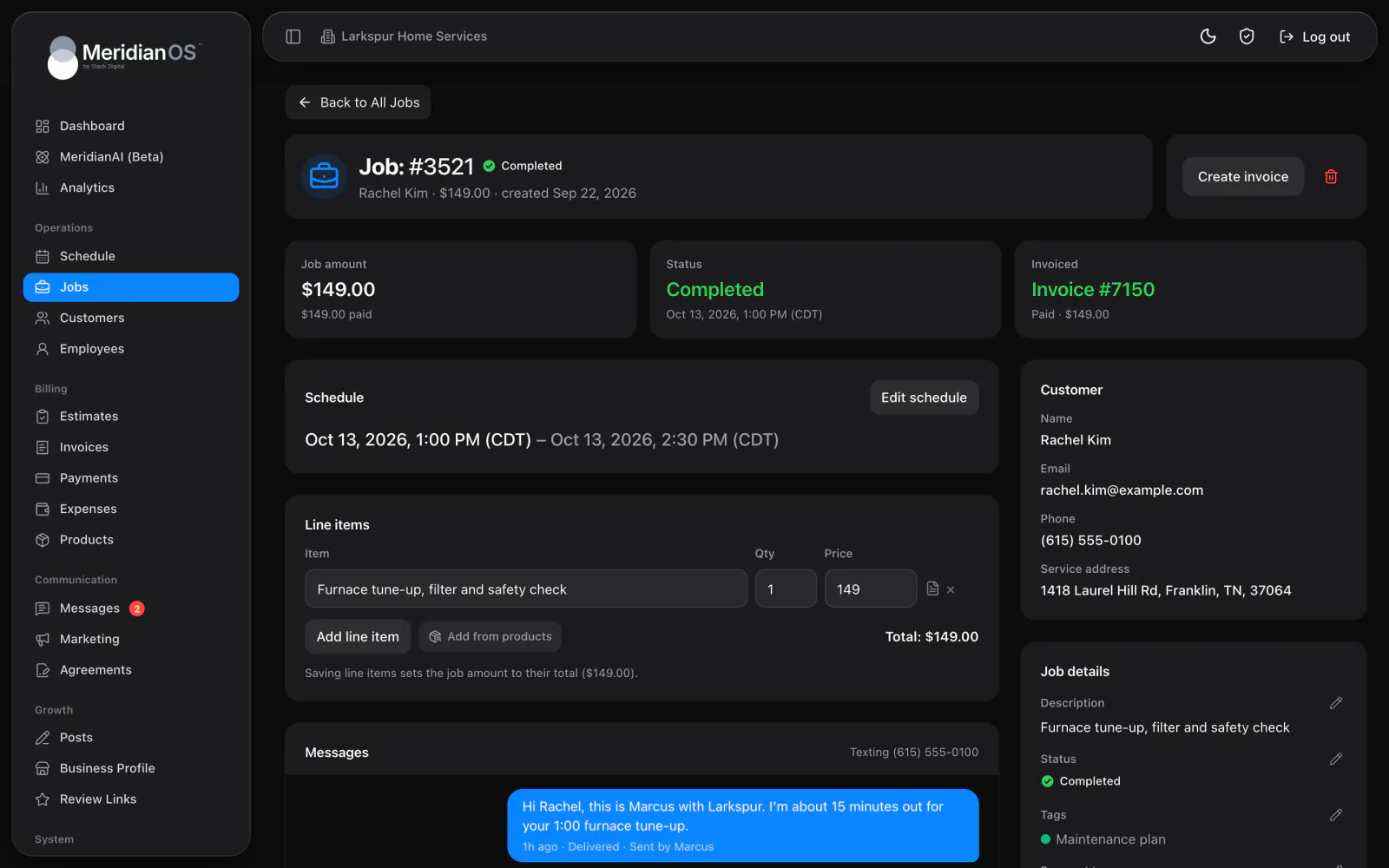
The top of the page shows Job amount and the amount paid, Status, and Invoiced (the latest invoice and its status, or Not invoiced).
| Area | What it holds |
|---|---|
| Schedule | Schedule job or Edit schedule sets the date, start, end and service address. You can turn a one-time job into a repeating one here. A repeating job shows its pattern with Manage and End recurrence. |
| Messages | The text conversation with the customer, with image attachments. |
| Notes | Formatted notes (bold, italic, strikethrough, bullet and numbered lists) with photos. Each note shows its author and time, an (edited) marker after a change, and edit and delete. |
| Invoices | All invoices and estimates linked to the job. |
| Customer | Name, a Booked online badge, email, phone and the service address, which opens maps. |
| Job details | Description, status, tags, Payment terms, job amount and paid. Invoices created from this job use these terms. |
| Photos from booking | Photos the customer attached when booking online. |
| Team | Tick employees to assign them. |
- The same notes feed appears on customers, estimates and invoices, and in the employee job view, where employees can change only their own notes.
- Comments and form answers from an online booking are saved as a job note from Online booking.
- Deleting a repeating job offers Only this visit or This and all future visits.
The Messages card and all customer texts need texting. Stack Digital turns this on for your site. Until then, the card says to reach out to your contact at Stack Digital.
Line items and invoices
- Select Add line item, or use Search products... to pull an item from your Products list.
- Enter the item, quantity, price and an optional formatted description.
- Save. The job amount is set to the total.
- Select Create invoice. One click creates an open invoice from the job's line items.
After you change the amount, the page asks Update invoice #X too? (X is the invoice number) when an open invoice no longer matches. It asks only when the new total is not below what has already been paid. See Invoices.
What happens automatically
- Scheduling or rescheduling a one-time job sends the customer a job scheduled email and text.
- Marking a job Completed sends a completion email and text with any balance and a pay link, then a review request text, once per job even if it is marked complete again. It also updates the customer's last service date and sets the customer to Active.
- When an invoice is paid in full, its job is marked Completed if the job date is today or earlier and no other invoice on it is still open. Prepaid future work stays scheduled. Past jobs with paid invoices are also completed in the background.
- Cancelling a job from an online booking cancels the booking. Restoring it confirms the booking again.
- Assigned employees get a notification in the MeridianOS™ app: New job assigned, Job rescheduled or Job cancelled. Admins get Job completed when an employee finishes a job.
The job scheduled and job completed emails and texts and the review request text all start switched off. See Automatic messages.
Recurring jobs
The Recurring tab lists each series: customer, repeat pattern, next visit, number of upcoming visits, assigned team, amount, tags and status (Active or Ended). Search the list, filter it by Active, Ended or All, or select New recurring job.
MeridianOS™ creates visits about 120 days ahead and tops them up on its own, including when you open the dashboard, the schedule or the recurring list. Each new visit copies the customer, address, description, amount, tags, assigned team and visit length from the latest one.
Edit series changes Repeats, On days, the monthly rule (Same day of the month or Same weekday (e.g. first Monday)), Next visit, Start time, Repeat until, Amount per visit, billing, tags and employees.
- Changing Next visit shifts every upcoming visit to follow from it. A date that is not one of the series' weekdays is refused, with a message naming the allowed days.
- Changes apply to upcoming visits only. Past and completed visits are not affected.
- Changing tags on a repeating job applies to the whole series.
- End removes all upcoming visits and keeps past and completed ones.
- Visits keep the same clock time across daylight saving changes, in your business's time zone.
- A monthly job set on the 31st lands on the last day of shorter months. A fifth Tuesday rule falls back to the last Tuesday.
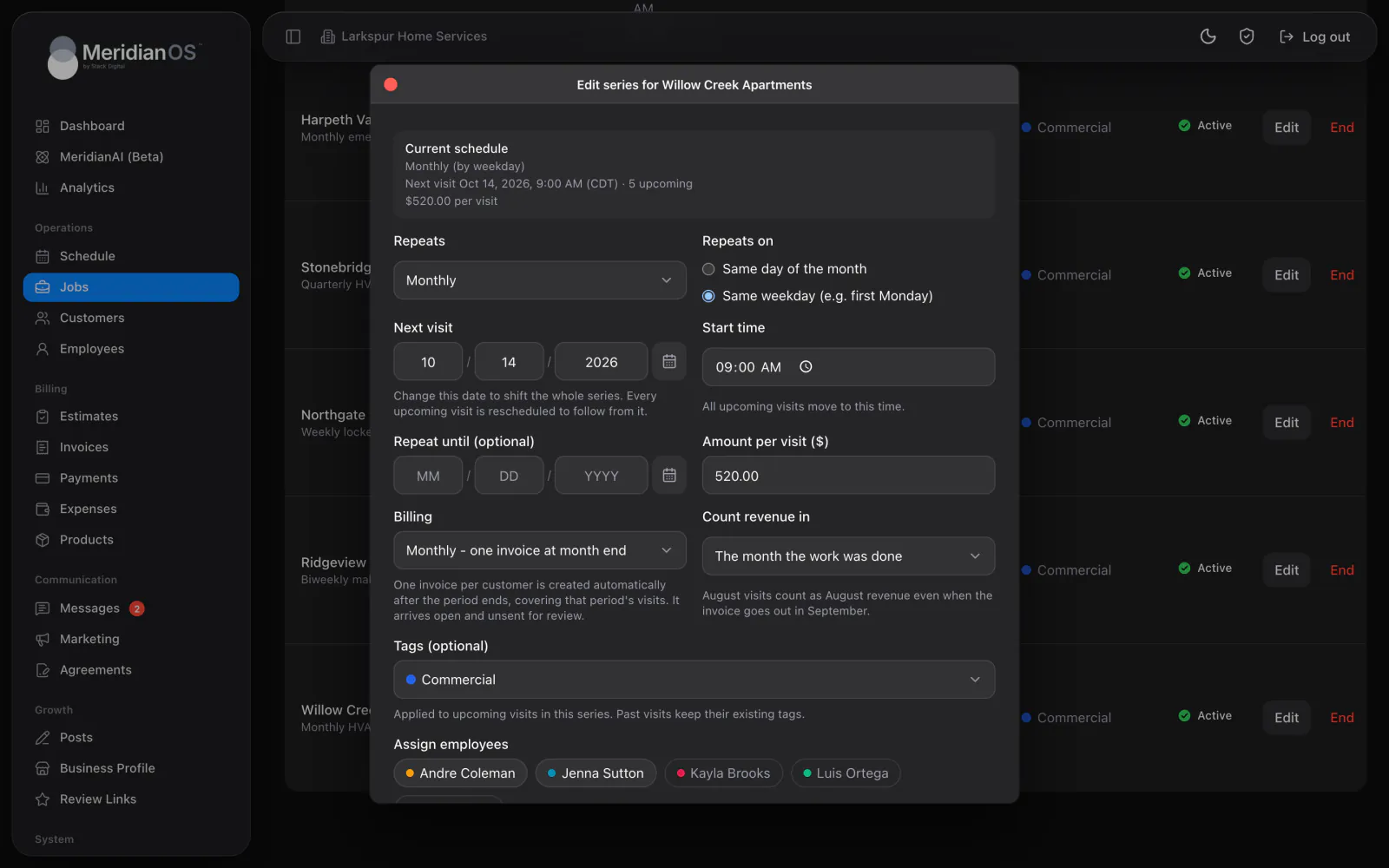
Billing a recurring series
| Billing option | What it does |
|---|---|
| Invoice manually | You create the invoices yourself. |
| Monthly - one invoice at month end | One invoice per customer after the month ends. |
| Weekly - one invoice at week end | One invoice per customer after the week ends. You choose the day the week ends. |
- Each automatic invoice covers that period's visits and arrives open and unsent for review.
- All of a customer's due series go on one invoice. Each line shows the period, the repeat pattern and every visit date. Cancelled visits are left off.
- Automatic billing starts from the current period when you turn it on, so older visits are not back-billed.
- The same visits are never invoiced twice.
- Count revenue in offers The month the work was done or The month it is billed. See KPIs and profit.
Related
- ScheduleHow to read the week and month views of the schedule, what the colors mean, and how to reschedule a job.
- InvoicesCreate and send invoices, set terms, record payments, and see what reminders and recurring billing do on their own.
- CustomersFind, add and edit customers, read a customer page, and use tags, addresses, notes, texting and the notification switch.
- Automatic texts and emailsEvery text and email MeridianOS™ sends on its own, who gets each one, how to switch them on or off, and the Email Log.
- Jobs overviewLine items, notes, photos, texts, and invoices together on one page.
Updated November 10, 2026.