In-person payments
In-person payments are the ways you and your team collect on an invoice while you are with the customer. You collect in the MeridianOS™ app or in a browser, from the employee portal or the dashboard.
Card, bank and Tap to Pay on iPhone payments need your Stripe account connected. Cash, check and other payments can be recorded without it. See Connect your Stripe account.
Who can take payments
Admins can take payments. An employee can take payments only when their Collect payments switch is on. Its description reads Can set job amounts and take payments on assigned jobs, and the app labels the switch Can collect payments. It is the only per-employee permission. See Employees and permissions.
| Switch | What the employee can do |
|---|---|
| On | Use Create invoice and collect and the collect button on an invoice, use every collection method, set up Tap to Pay on iPhone, edit the job amount and invoice line items, and add tips when tipping is on. |
| Off | The job amount is read-only, and the app says Payment collection is not turned on for your account. |
Ways to collect in the app
Open an invoice or a job in the MeridianOS™ app and select Collect payment. From a job, Create invoice and collect bills the customer and opens the payment options in one step.
| Method | How it works |
|---|---|
| Tap to Pay on iPhone | The customer taps their card or phone on your iPhone. Covered in the sections below. |
| Enter card details | Stripe's secure card sheet opens on iPhone and iPad, with a tip and an optional card fee. On Mac, select Open the payment page. |
| Bank (customer pays) | A QR code, plus Text link, Email link and a link to copy. The customer pays by bank transfer on their own phone. It appears when bank payments are on. |
| Record cash or check | Records a payment with its method, amount, tip and note. |
If you change a job's amount after its invoice exists, the app offers to update the invoice too.
Tap to Pay on iPhone
Accept contactless payments right on your iPhone. With Tap to Pay on iPhone, there's no need for additional card readers and terminals. All you need is your iPhone and the MeridianOS app.
Tap to Pay on iPhone accepts physical debit and credit cards as well as Apple Pay and other digital wallets. It is part of the MeridianOS™ app on iPhone. On iPad and Mac there is no Tap to Pay on iPhone button.
Before you start, you need:
- An iPhone XS or later with a device passcode.
- Location access turned on.
- Your site connected to Stripe.
- A full business address in Settings.
- An admin who has accepted the Tap to Pay on iPhone terms once on their own iPhone.
Terms apply. See Tap to Pay on iPhone.
Set up Tap to Pay on iPhone
Each person sets up Tap to Pay on iPhone on their own iPhone. Admins can set it up, and so can employees with Collect payments on.
- Open the MeridianOS™ app on your iPhone.
- Open Settings, then In-person payments.
- Follow the setup screens.
- The app shows a one-time intro screen and setup banners on the dashboard.
- A built-in How to use Tap to Pay on iPhone guide is in the app.
- Error messages are written in plain language, for example when you are on a phone call.
Take a payment with Tap to Pay on iPhone
- Open the invoice or job in the app.
- Select Collect payment, then Tap to Pay on iPhone.
- Change the amount or add a tip if you need to. Both are optional, and you can collect part of the balance.
- Hold the iPhone so the customer can tap their card or phone.
- When Payment approved appears, select Send receipt.
For the receipt, choose Email receipt, Text receipt or Share receipt. You can enter the email address or phone number on the spot, and the sheet shows where a receipt has already gone.
- The payment is recorded on the invoice as Paid in person with Tap to Pay on iPhone, tagged with the person who collected it.
- If a card is declined, the app shows Try another card. The person who took the payment gets a Payment declined notification, and a declined card can get a record saying no money was taken.
- If the iPhone loses its connection during a charge, the payment still lands. MeridianOS™ re-checks in-person payments whenever the invoice is opened.
Manage the iPhones taking payments
Admins see iPhones taking payments in Settings. The list shows each iPhone's owner, model, set-up date and last payment.
- Select Remove to stop an iPhone from taking payments. It takes effect right away.
- Anyone can turn off Tap to Pay on iPhone on their own iPhone.
- On a Mac, admins can still manage the Stripe account and the iPhone list.
- If a person's access to your site is removed, the app signs them out and clears Tap to Pay on iPhone on that device.
Take payment in the employee portal
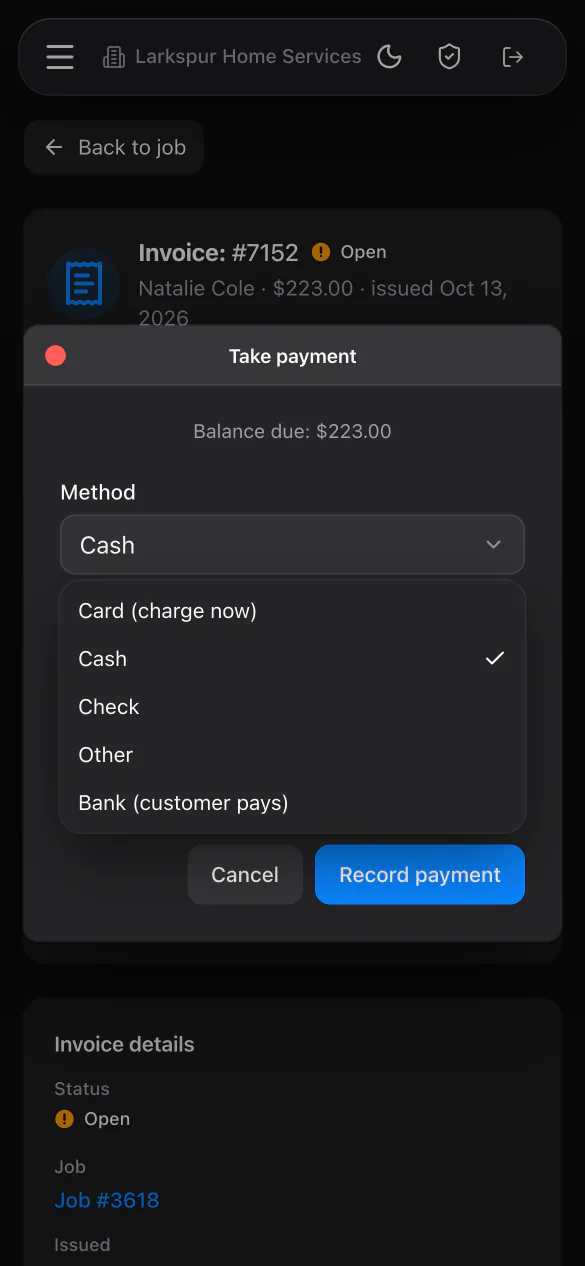
Employees can also collect in the employee portal, in a browser. Anyone on an Android phone works this way. On an invoice, the employee can select Send to customer or Take payment.
| Option | How it works |
|---|---|
| Card (charge now) | The customer enters their card details on this device. |
| Cash, Check or Other | Records the payment on the invoice. |
| Bank payment by QR code | The customer scans the code and pays by bank transfer on their own phone. |
In the dashboard, Bank (customer pays) works the same way. You show the QR code, or copy, text or email the link. For the rest of what employees see, read Employee portal.
Card readers
MeridianOS™ can also take payments on a separate Stripe card reader. Stack Digital turns this on for your site. Until then, the card reader options do not appear.
When it is on, you add a reader with Add a reader and a pairing code, and you take a payment with Collect on reader.
To ask about card readers, text or email Stack Digital at support@stackdigital.com.
Related
- Payments, payouts and refundsConnect Stripe, see how customers pay online, set fees and tips, and handle receipts, refunds, disputes and payouts.
- InvoicesCreate and send invoices, set terms, record payments, and see what reminders and recurring billing do on their own.
- Employees and permissionsAdd employees, edit their details, give them a portal login, decide who can take payments, and see each person's tips.
- The MeridianOS™ apps for iPhone, iPad and MacThe MeridianOS™ app on each device, signing in, what admins and employees can do, and what stays in the browser.
- Tap to Pay on iPhone overviewAccept contactless payments right on your iPhone.
Updated November 10, 2026.