The MeridianOS™ apps for iPhone, iPad and Mac
MeridianOS™ has native apps for iPhone, iPad, and Mac. It is one app from the App Store. Admins and employees sign in to the same app, and the account decides which version each person gets.
There is no Android app. On an Android phone, your team signs in through the browser.
Devices and layouts
The app needs system software version 26 or later and an internet connection, except in the sample business. It is dark on every device, with no light theme.
| Device | Layout |
|---|---|
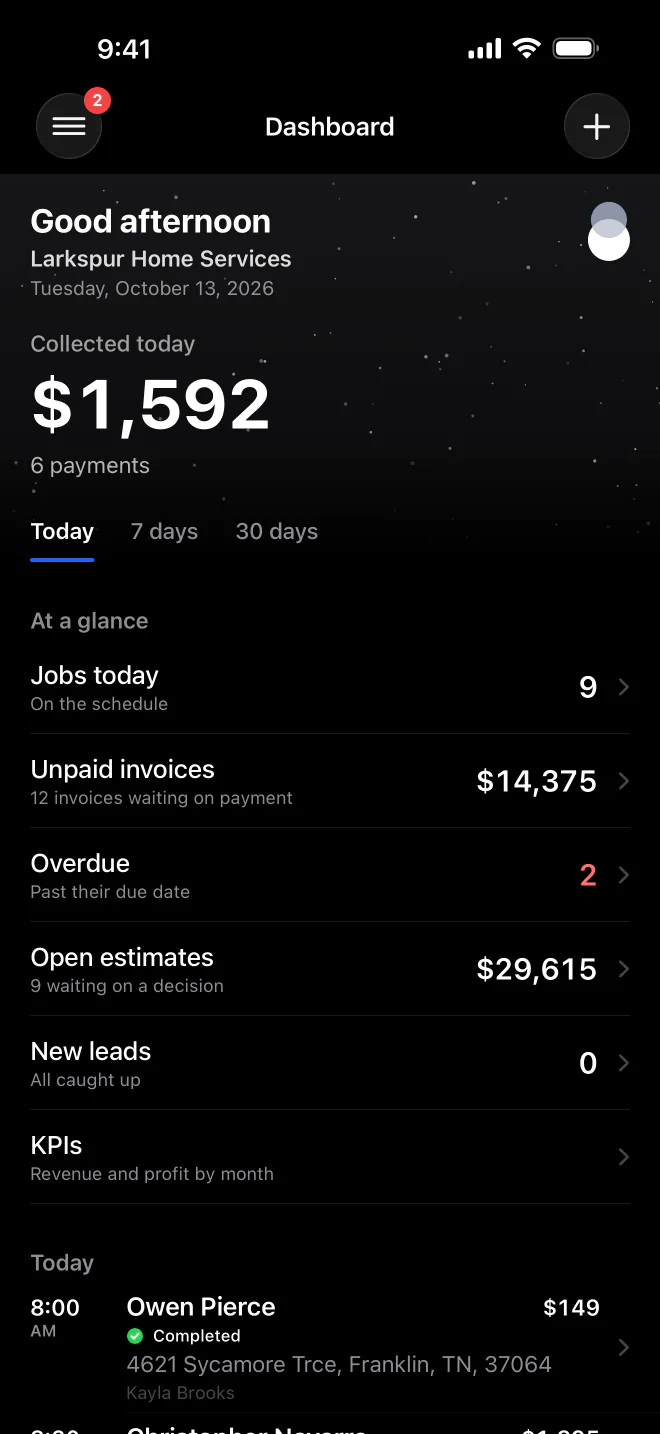
| iPhone | Portrait only. A slide-out menu opens from the menu button or a swipe from the left edge. It has a Search box and the sections Operations, Billing, Communication, Growth and System. |
| iPad | Every orientation. A sidebar sits beside your work, and the app remembers whether you collapsed it. In a narrow split view it switches to the iPhone menu. |
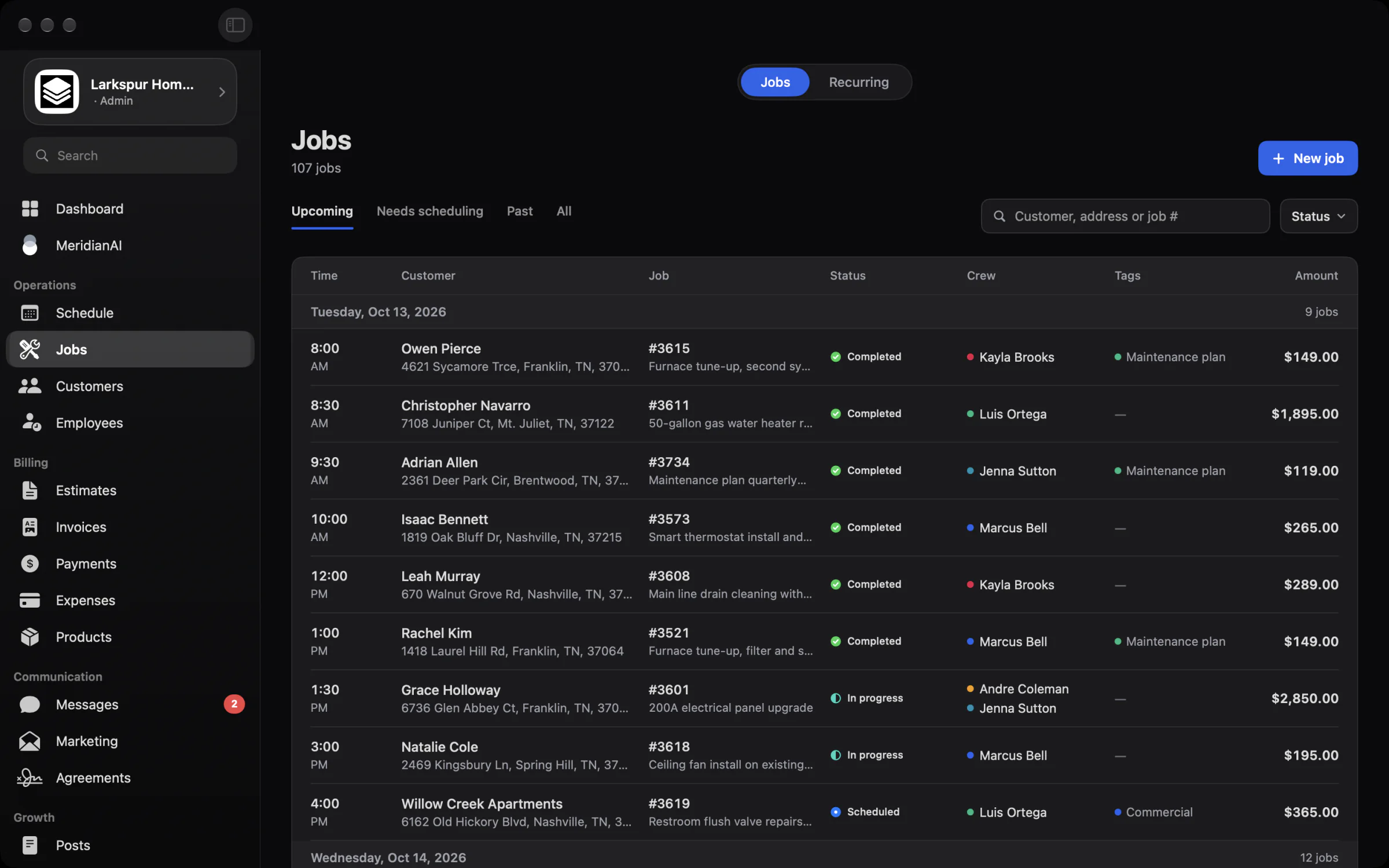
| Mac | A true Mac app with a sidebar, tables, stat cards and two-column detail pages. |
| Mac section | Pill tabs |
|---|---|
| Dashboard | Overview, KPIs |
| Jobs | Jobs, Recurring |
| Customers | Customers, Lead Forms |
| Schedule | Schedule, Booking Setup |
| Employees | Employees, Payroll Settings |
| Messages | Inbox, Bulk Send, Lists, Settings |
Schedule on Mac has Week and Month views, and Messages is a two-pane inbox. On iPad and Mac, a Go menu lists every section, with Command 1 through Command 9 for the first nine.
Finding your site and signing in
- On the welcome screen, select Sign in to your dashboard.
- On Find your dashboard, enter the website address of your business. The app tells you if it cannot find a MeridianOS™ dashboard there.
- Enter your Username and Password.
- If your account uses two-factor, enter the 6-digit code from your authenticator app. It submits itself at the sixth digit.
Depending on your site, the passkey button reads Sign in with a passkey (Face ID, Touch ID or a security key) or Use passkey or saved password, which finishes sign-in in a private browser window. A passkey can also be the second step.
If you are still signed in, Welcome back lets you continue or Sign in with a different account.
Staying signed in and the app lock
- A session lasts 90 days and extends automatically while you use the app.
- Require Face ID (or Touch ID or the passcode) is on by default. It locks the app after 5 minutes away and on every fresh launch. You can turn it off in Account.
- The app rechecks your access whenever it returns to the foreground, and about every minute for employees or five minutes for admins. If access was removed, it signs out at once and clears badges and Tap to Pay on iPhone. You see Sign in again. Your session on this site ended.
- Deactivated employees cannot sign in, and changing your password signs out your other devices.
Several sites and the sample business
Every site you sign in to is saved with its logo and keeps its own sign-in and MeridianAI voice. Switch site is in Account, and Forget this site removes one.
Try a sample business opens a lawn care company with 12 customers and 4 employees, with you as an admin. It runs on the device with no account, and changes stay there until you exit. The sample leaves out MeridianAI, card payments, Analytics, Marketing, Business Profile and Booking Setup.
Admin screens
Lists refresh when you pull down or come back to them. Risky actions open a popup that spells out What stops and What stays, then asks you to Type Confirm to continue.
| Screen | What you can do |
|---|---|
| Dashboard | Collected for Today, 7 days or 30 days. At a glance rows open the matching list: Jobs today, Unpaid invoices, Overdue, Open estimates, New leads, KPIs. Also today's schedule, your Stripe balance, a Create menu, and a red alert for a disputed payment. |
| KPIs | Revenue, collected, outstanding, profit, average ticket, lead conversion and a monthly Revenue goal. |
| Analytics | View only: a Website tab and a Google Ads tab. |
| Schedule | A week strip with a dot on busy days, Pick a date, Today, Add a job on this day. |
| Booking Setup | Accept online bookings, Copy link, approve or decline Booking requests, and edit services, Weekly hours, Scheduling rules and Questions. |
| Jobs | Filter by Upcoming, Needs scheduling, Past or All. On a job: change status, Reschedule, Assign crew, Edit amount and line items, Create invoice, Delete job, and notes with photos. |
| Recurring | Active and Ended series, Edit series, End series, and invoicing per visit, at week end or at month end. |
| Customers | Sort by Name, Lifetime value, Last service or Newest. Addresses with Property notes, open balance, and history under Jobs, Estimates, Invoices, Payments. |
| Lead Forms | All and Unread, Convert to customer, Delete lead, and a New lead entered by hand. |
| Employees | Who is on the clock. Add and edit employees, including Can collect payments. Time for the last 14 days: Add shift, Approve shift, Undo approvals, Void shift. Overnight shifts and daylight saving changes are handled. |
| Payroll Settings | Pay schedule, payday rules, rounding, Admins approve hours, locking past periods, overtime rules. |
| Estimates | Create with line items, Send to customer, Convert to job, View PDF, copy or share the estimate link. |
| Invoices | Filter by Unpaid, Overdue, Paid, Drafts or Void. Save as draft, Set a due date, Collect payment, Send to customer. Per payment: Edit payment, Refund, Resend receipt. |
| Payments | Payments, disputes, payouts and settings. Refund payment, Respond to dispute with Submit evidence, Recent payouts. |
| Expenses, Products | Monthly expense amounts by category. Products to add, edit, deactivate or delete. |
| Messages | Inbox with search and swipe actions. Up to 5 photos per text, with Delivered or Not delivered on each message. Bulk Send and Lists. Group texts are read-only. |
| Marketing | Email campaigns and lists, a block editor, Send a test, Send now, Schedule for later, a per-recipient delivery report. |
| Agreements | Create from a template, Send for signature, Share the signing link, View signed PDF, Void agreement. |
| Posts | Create a draft, edit the title, Publish or Unpublish, set up Automatic blog posts. |
| Business Profile | Reviews with Draft a reply with MeridianAI and Auto-reply rules, Posts, Business Info, Integrations. |
| MeridianAI | Voice and Text modes, with charts and a map of the day's jobs in the answers. |
| Settings | Company info, time zone, Pass card fees to customers, Allow tips on invoices, invoice reminders, tags, In-person payments. Review Links, Email Log and Policies are separate screens. |
| Account | Notifications, Security (Change password, two-factor setup, passkeys), app lock, MeridianAI credits, Switch site, Sign out. |
Collect payment offers Enter card details (on Mac, Open the payment page), Bank (customer pays) when bank payments are on, and Record cash or check. From a job, Create invoice and collect bills the customer and opens payment in one step. After a job amount change, the app offers to update the invoice.
Invoices, estimates and agreements send by Email, Text message or both.
Employee screens
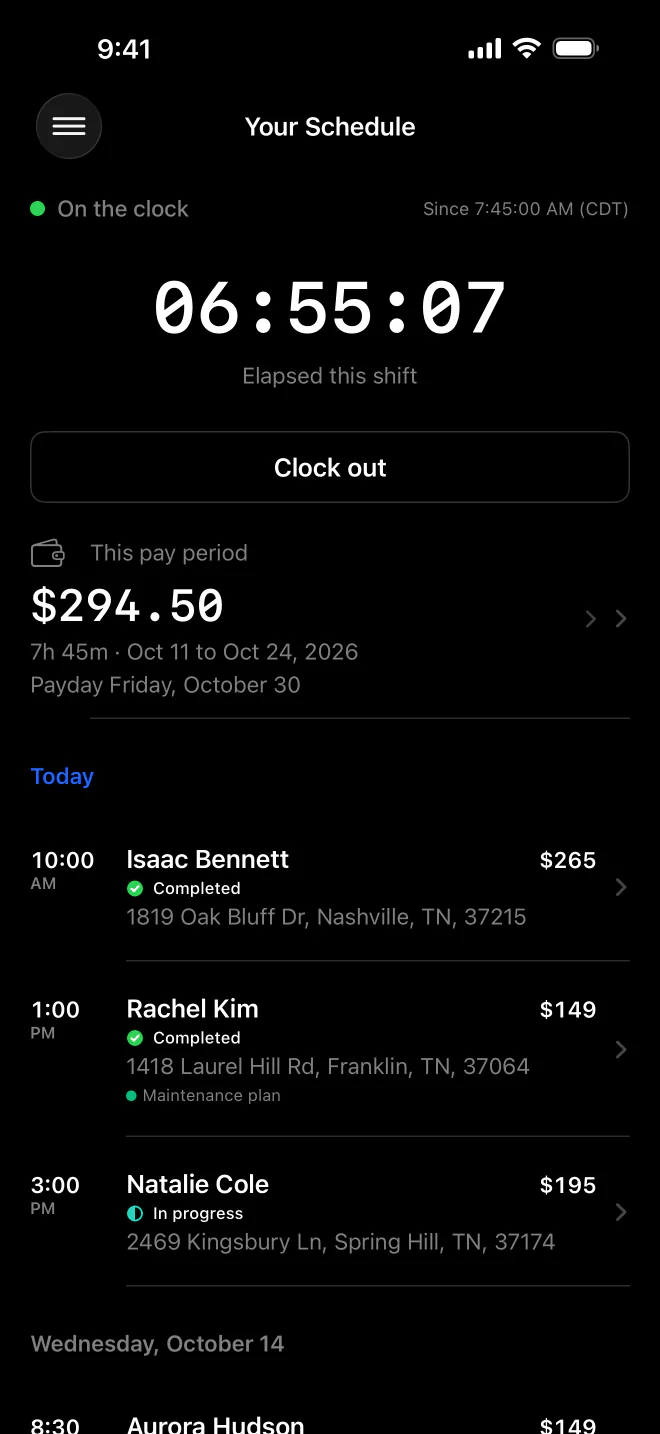
Employees get a shorter menu: My Schedule, Time & Earnings, Review QR Code and Account.
| Screen | What it shows |
|---|---|
| My Schedule | Assigned jobs for the next two weeks, grouped by day. |
| Time & Earnings | Clock in and Clock out with a live timer. This pay period shows Regular, Overtime and Double time, the payday date, and shifts marked Edited or Needs approval. Pay amounts appear only when an hourly rate is on file. |
| Job page | Customer, status, Contact, Directions, Mark complete, Property notes, Customer notes, notes with up to 6 photos each, and invoices to view, create or send. |
| Review QR Code | A personal QR code for the company review page, a scan count and Share link. |
The Can collect payments switch on each employee decides the rest. On, it adds Create invoice and collect, every collection method, Tap to Pay on iPhone setup, edits to the job amount and invoice line items, and tips when tipping is on. Off, the job amount is read-only and the employee sees Payment collection is not turned on for your account.
Only in the app
Push notifications reach iPhone, iPad and Mac with their own chime, even while the app is open. Under Notify me about, each admin picks from New leads, New bookings, Text messages, Payments, Signed agreements and Jobs completed. Employees get Job assignments and Schedule changes. Tapping an alert opens the exact record. If it belongs to another site you are signed in to, the app switches there first. See Notifications.
- The Face ID lock described above.
- The app icon badge counts unread leads plus unread texts for admins, refreshed about every 30 seconds.
- A red Action needed warning with Open Settings appears when notifications or location are off.
- Share PDFs, estimate links, signing links and receipts through the device share menu.
- Contact offers Call, a text from the business number, Text (Your Phone) and Email. Directions opens Apple Maps or Google Maps.
- MeridianAI monthly credits refresh on the first of each month. Packs of 1,000, 5,000, 10,000 or 50,000 credits are bought through the App Store and never expire.
- The app offers Update when a newer version is on the App Store.
Tap to Pay on iPhone works on iPhone for admins and for employees with Can collect payments. Each person sets it up on their own iPhone. iPad and Mac have no button for it. See In-person payments.
Done in the browser
These are not in the app. Do them in the browser.
- The SEO report.
- Blog post body text and images.
- Agreement templates.
- Adding a passkey.
- Video blocks in an email.
- First-time connection to Google Business Profile or Google Ads.
Some screens appear only with the right setup.
- MeridianAI: admins only. Stack Digital turns this on for your site.
- Analytics, Marketing, Business Profile, Booking Setup and Google Ads: each depends on your site's setup.
- Without the texting add-on, Messages shows Text messaging is not turned on for your website and text options disappear from send sheets.
- Without Stripe, cash and check still work. Admins can Connect Stripe inside the app. Card entry, bank payments, refunds, disputes, payouts and Tap to Pay on iPhone all need it.
Related
- Signing in and securityHow to sign in, set a password, add two-factor or a passkey, manage admin accounts, and use the app lock.
- Notifications and alertsEvery alert MeridianOS™ sends your business: dashboard badges and sounds, push notifications in the app, and alert emails.
- In-person paymentsCollect on an invoice while you are with the customer, including Tap to Pay on iPhone, bank QR codes, cash and check.
- Employee portalWhat your employees see and can do when they sign in: schedule, jobs, invoices, payments, time clock, earnings and review QR code.
- iPhone overviewYour schedule, customers, invoices, and payments, wherever you are.
Updated November 10, 2026.