Notifications and alerts
MeridianOS™ tells you when something needs attention in the dashboard, in the MeridianOS™ app and by email. This chapter lists each alert, what triggers it, how it arrives and where you turn it on.
These are alerts for you and your team. The emails and texts that go to customers are covered in Automatic messages.
Every alert at a glance
| Alert | What triggers it | How it arrives |
|---|---|---|
| New lead | A lead form is submitted on your website. | Badge on Customers, push notification, email. |
| New booking | A customer books online or sends a booking request. | Push notification, email. |
| Booking change | A booking is cancelled or rescheduled. | Email. |
| Text message | A customer texts your business number. | Badge on Messages, sound on the Messages page, push notification, email. |
| Payment | A payment is received. | Push notification. Email if Invoice paid is on. |
| Payment declined | An in-person payment fails. | Push notification to the person who ran it. |
| Bank payment failed | A bank payment fails. | Email. |
| Payment disputed | A customer disputes a payment. | Email with the respond-by date, and a banner on the dashboard. |
| Dispute won or lost | A dispute is decided. | Email. |
| Signed agreement | A customer signs an agreement. | Push notification, email. |
| Job completed | An employee finishes a job. | Push notification. |
| New Google review | A new review comes in. | Email. |
| Job assignment | An employee is put on a job. | Push notification to that employee. |
| Schedule change | An employee's job is rescheduled or cancelled. | Push notification to that employee. |
Text message alerts need text messaging. Stack Digital turns this on for your site.
Badges and sounds in the dashboard
- A red badge on Customers in the sidebar counts unread leads. The Lead Forms tab beside it has a red unread count too.
- A red badge on Messages counts unread texts. It refreshes every 30 seconds.
- While you are on the Messages page, a sound plays when a new text arrives.
- When a customer disputes a payment, the dashboard shows a banner with the date to respond by.
There are 12 sounds to choose from: Chime, Ding, Tri-tone, Pop, Droplet, Marimba, Glass, Knock, Pluck, Bell, Soft and Digital. You can preview each one, or choose Off. See Text messaging.
Push notifications in the app
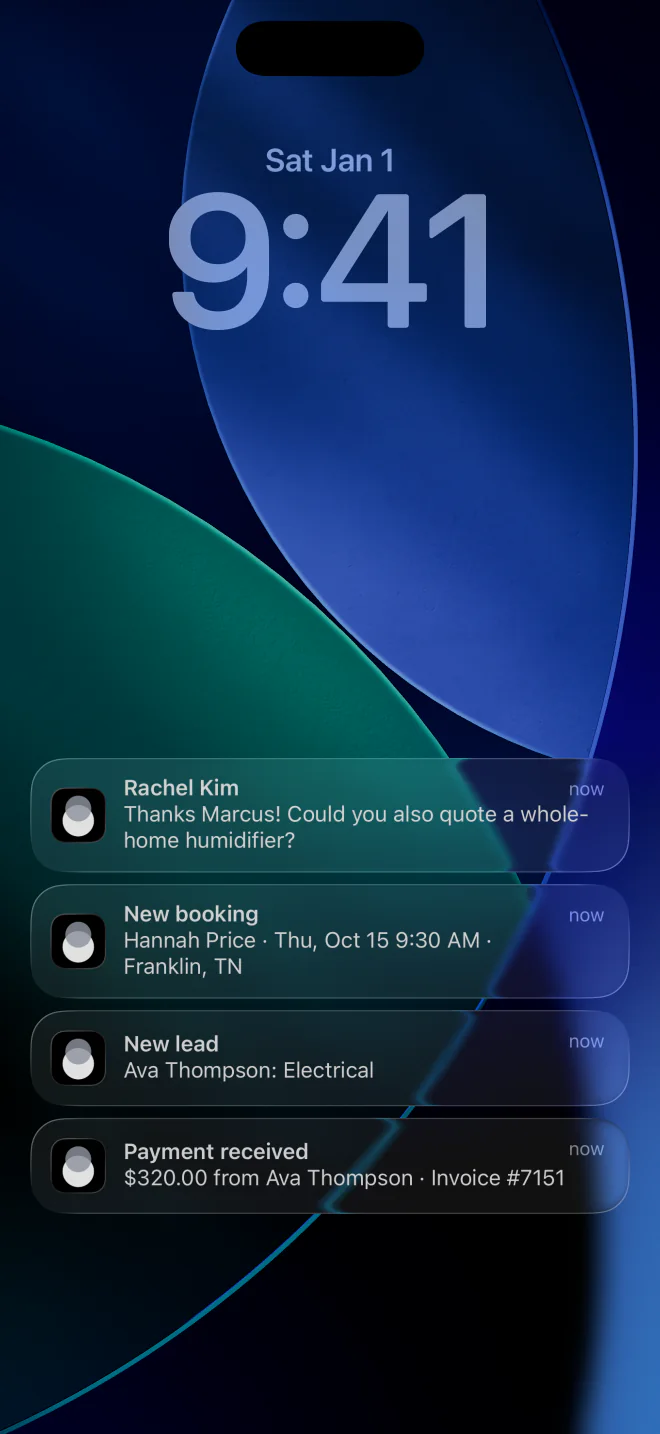
Push notifications come from the MeridianOS™ app on iPhone, iPad and Mac. They play a MeridianOS™ chime and also appear while the app is open.
| Notification | Who gets it | What it tells you |
|---|---|---|
| New leads | Admins | A new lead has come in. |
| New bookings | Admins | A new booking or a booking request. |
| Text messages | Admins | A customer texted your business number. |
| Payments | Admins | The amount, tip, customer, invoice and who collected the payment. |
| Signed agreements | Admins | A customer signed an agreement. |
| Jobs completed | Admins | Which employee finished which job. |
| Job assignments | Employees | New job assigned, with the customer, time and address. |
| Schedule changes | Employees | Job rescheduled or Job cancelled. |
- Payment declined goes to the person who ran an in-person payment that failed. It has no switch.
- The app also sends a one-time announcement about Tap to Pay on iPhone, with no switch.
Choosing your push notifications
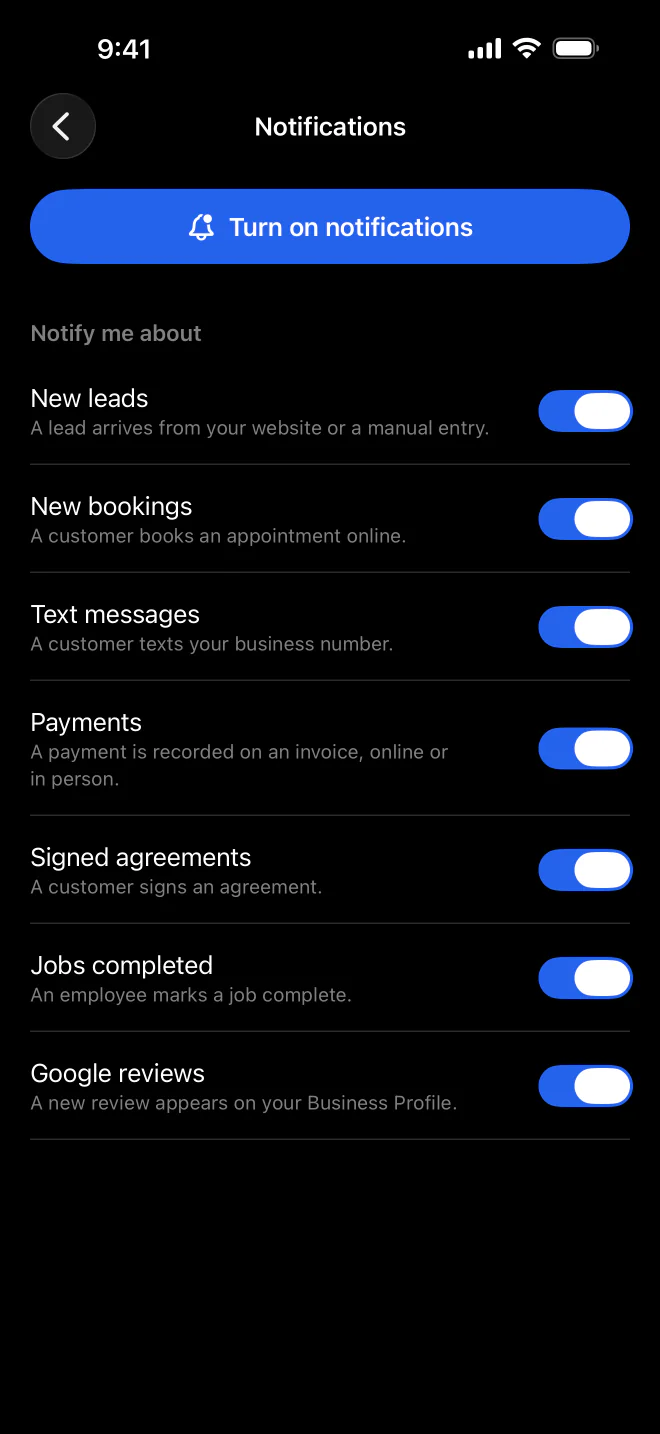
- In the MeridianOS™ app, open Account.
- Open Notifications.
- Under Notify me about, turn each notification on or off.
- Switches are saved per person, so each admin and employee makes their own choices.
- If notifications are turned off for the app on your device, the app shows a red warning and Action needed, with Open Settings to take you to the right place.
Push notifications need the MeridianOS™ app. In a browser you still get the sidebar badges, the text sound and the alert emails.
What a notification opens
Tap a notification and the app opens the exact record it is about: the job, the invoice, the agreement, the specific lead, or the text thread (including a group thread). A booking request opens Booking Setup.
- If the notification is for another site you are signed in to, the app switches to that site first.
- For admins, the app icon badge and the red badges in the app menu show unread leads plus unread texts. Counts refresh about every 30 seconds.
- If your access is removed, the app signs out and clears its badges.
Email alerts to your business
| Email alert | When it is sent | Who gets it and where it is set |
|---|---|---|
| Invoice paid | A payment is applied to an invoice. | Every admin with an email on file. Off by default. Turn it on under Admin notifications in Settings. |
| Bank payment failed | A bank payment fails. | Always on. |
| Payment disputed | A customer disputes a payment. The email gives the respond-by date. | Always on. |
| Dispute won and Dispute lost | A dispute is decided. | Always on. |
| Incoming text | A customer texts your business number. | A list of up to 20 addresses, set on the Messages page. If the list is empty, no alert emails are sent. |
| Booking alerts | A booking is requested, booked, cancelled or rescheduled. | The New booking emails list in Booking Setup, up to 10 addresses. |
| New Google review | A new review comes in from Google. | A list of up to 20 addresses under Email alerts in Auto-reply rules. Each address is set to All reviews, 4-5 stars or 1-3 stars. |
| Agreement signed | A customer signs an agreement. | All admins with an email on file. |
| New lead | A lead form is submitted. Replying to the email goes straight to the lead. | The recipient is set for your site by Stack Digital. It is not a Settings option. |
To change who gets the new lead email, text or email Stack Digital at support@stackdigital.com.
Related
- The MeridianOS™ apps for iPhone, iPad and MacThe MeridianOS™ app on each device, signing in, what admins and employees can do, and what stays in the browser.
- Text messagingText customers from your business number: the shared inbox, photos, alerts, bulk sends, lists, opt-outs and monthly limits.
- Automatic texts and emailsEvery text and email MeridianOS™ sends on its own, who gets each one, how to switch them on or off, and the Email Log.
- SettingsEvery card on the Settings page and what each setting controls, plus the Policies page for your terms and privacy policy.
- Notifications overviewAn alert the moment a lead, booking, text, or payment comes in.
Updated November 10, 2026.