Text messaging
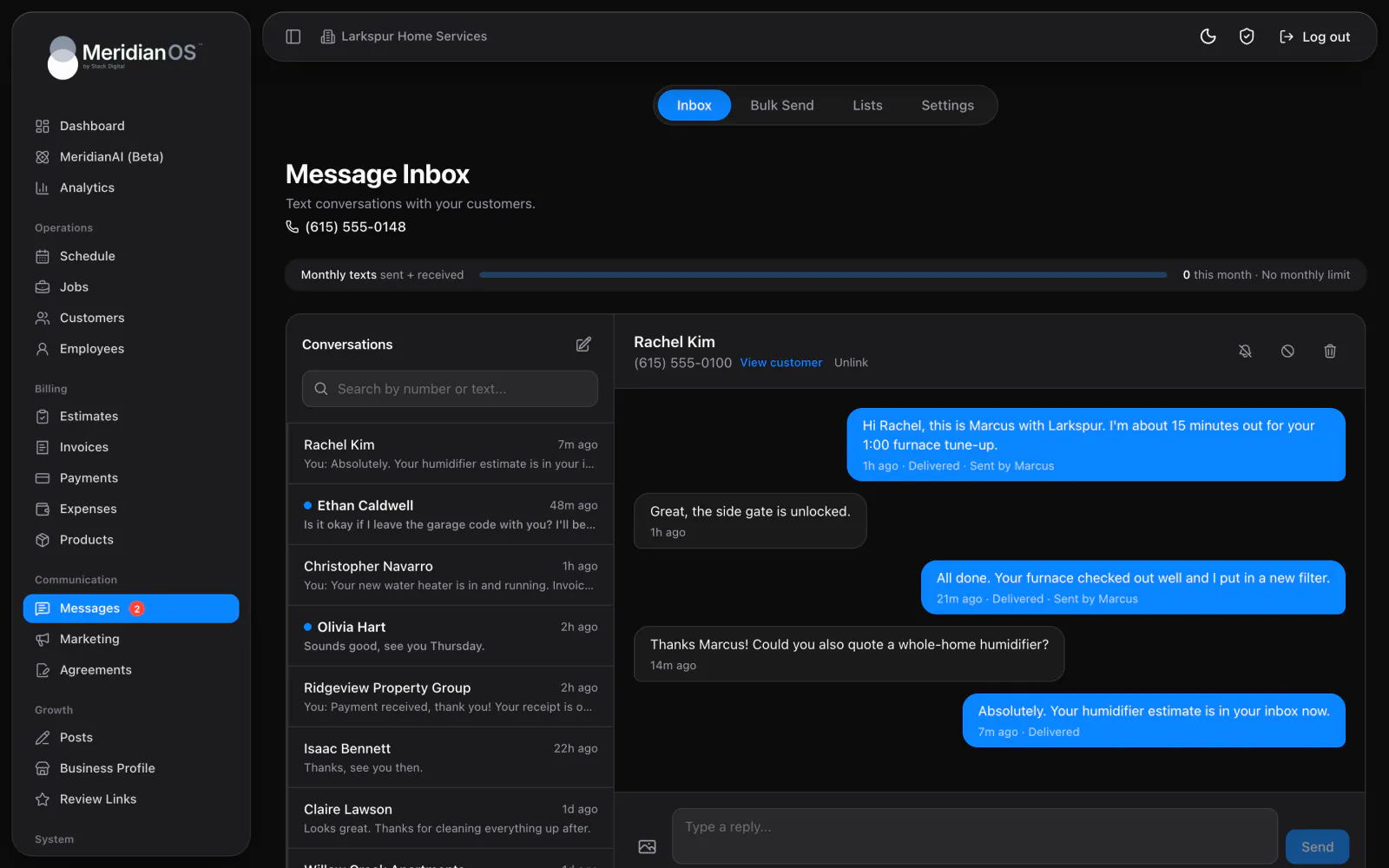
Text messaging gives your business one shared inbox that your whole team can see. Texts and photos go both ways from your business number, and each conversation is saved on the customer's record.
Open Messages in the Communication group of the sidebar. Your texting number shows in the page header.
Turning texting on
Texting is an add-on. Stack Digital turns this on for your site.
Until then, the Messages page shows a card that reads Text messaging is not enabled on your website. Customer notifications go out by email only. The card lists what the add-on includes and shows its monthly pricing by number of messages.
To turn texting on, text or email Stack Digital (support@stackdigital.com).
The Messages page and your monthly limit
| Tab | What it is for |
|---|---|
| Inbox | Text conversations with your customers. |
| Bulk Send | Send one text to a group of customers at once. |
| Lists | Saved groups of customers you can bulk text. |
| Settings | Who gets alerted about new texts and which numbers are blocked. The automatic customer texts are set here too. |
Every tab shows a usage bar labeled Monthly texts sent + received. It shows how many texts you have used out of your limit and how many are left this month, or it reads No monthly limit. Texts you send and texts you receive both count.
At the limit, the bar reads Limit reached, sending resumes next month. Replies still arrive. Stack Digital sets the monthly limit for your site.
The inbox and two-way conversations
The Inbox tab lists your conversations. Use Search by number or text... to find one. Each row can show:
- A dot and a bold name when the conversation is unread.
- You: in front of the last message when your business sent it.
- How long ago the last message arrived.
- A muted icon, an Opted out tag or a group icon.
The open conversation refreshes about every 8 seconds. Each message shows its time and a delivery status: Sent, Delivered, Undelivered or Failed. A failed text gives a plain reason, such as Landline or unreachable carrier or Carrier filtered (spam). A text sent by an employee is marked Sent by with their name.
To start a conversation:
- Select New Message.
- In Name or phone number, search your existing conversations, your customers (Mobile, Home and Work numbers) and lead form submissions. You can also type any number.
- Write your text and send it.
| Kind of text | Length rule |
|---|---|
| Text only | Must fit in a single text message. A live counter shows your count, for example 42 / 160. |
| Text with photos | Up to 1600 characters. |
Emojis are removed as you type, and curly quotes and dashes are converted. This keeps one text from quietly turning into several.
Unknown numbers, muting and blocking
When a number is not linked to a customer, a banner may suggest who it is, shown as Maybe: with a name. It comes from matching your customers and lead form submissions, and it is a suggestion only.
The banner offers Link, Use Name, Add Contact and Link Customer. Link Customer can also create a new customer with the phone number filled in. A linked conversation shows View customer and Unlink.
| Action | What it does |
|---|---|
| Mute | Stops email alerts for texts from this number. Messages still arrive in the inbox. |
| Block or Block & Delete | Blocks the number. A blocked number cannot be texted or included in bulk sends. Its texts are still recorded and counted, but they never raise an alert. |
| Delete conversation | Deletes the conversation. |
The Settings tab lists your Blocked numbers, each with Unblock.
Picture messages and group texts
- Attach up to 10 images to one message.
- Photos you send are resized and converted so they deliver.
- Photos a customer sends appear inside the conversation and are copied into your site's own storage.
- Other kinds of incoming attachments show View attachment.
A group text appears as one read-only conversation. It names each participant and shows who said what. The page reads Replies can't be sent to a group text. To reply, text one of these people directly. and gives a one-tap button for each person.
Stack Digital turns this on for your site, and it depends on the type of texting number you have.
Alerts when a customer texts
| Alert | How it works |
|---|---|
| Sidebar badge | A red badge on Messages in the sidebar shows unread texts. |
| Sound | Plays while you are on the Messages page. Choose Off, Chime, Ding, Tri-tone, Pop, Droplet, Marimba, Glass, Knock, Pluck, Bell, Soft or Digital. You can preview each one. |
| Alert emails | Up to 20 addresses each get an email for every incoming text. The subject begins New text message from, followed by the name or number. The email includes the message and a View & Reply button. |
| App notification | The MeridianOS™ app sends a push notification in the Text messages category when a customer texts your business number. |
Set the sound and the Alert emails list on the Settings tab. For app alerts, see Notifications.
If the Alert emails list is empty, no alert emails are sent.
Bulk Send and Lists
Bulk Send sends one text to a group. It is text only, and everyone receives the same message.
- Open the Bulk Send tab.
- Under Who should get this text?, type or paste numbers, choose Add a list, or choose Upload CSV. A CSV upload uses the first column. Contacts you already have show by name.
- Under What should it say?, write the text. Reply STOP to opt out. is added to the end automatically, and the whole text must fit in a single text message.
- Under Review and send, check the phone preview, then select Send to N recipients, where N is the number of people.
- Keep the window open while the progress dialog counts sent, failed and remaining texts. It reads Please keep this window open while we send your messages. If the connection drops, select Try again to resume.
- Duplicate, invalid, opted-out and blocked numbers are skipped.
- A bulk send larger than the texts you have left this month is refused before anything sends, and you see the exact shortfall.
Lists are named groups you can reuse. Add people from Customers, Leads, Texted (people who have texted you) or Manual (numbers you paste). You can search, use Select all, rename a list, remove people and delete a list. Numbers that replied STOP are hidden, and the list tells you how many.
Opt-outs
MeridianOS™ recognizes opt-out and opt-in replies and enforces them on every text it sends.
| Reply | Result |
|---|---|
| STOP, STOPALL, UNSUBSCRIBE, CANCEL, END or QUIT | The contact is opted out. |
| START, UNSTOP or YES | The contact is opted back in. |
- An opted-out conversation has an Opted out tag. Its reply box is replaced with This contact has opted out of messages. You cannot text them again unless they reply START.
- Bulk sends skip opted-out numbers, and lists hide them.
Texting in the rest of MeridianOS™
- A Messages card on each customer page and job page shows the conversation with that customer.
- Employees have a Messages card on their job page in the employee portal. They can text only the customers on jobs assigned to them. See Employee portal.
- The send dialogs for invoices, estimates and agreements, and the employee invoice view, offer Email, Text message or both.
- Each customer has an Automatic notifications switch. On, it reads Gets job, invoice, and payment updates. Off, it reads Gets no automatic updates.
- For the texts MeridianOS™ sends on its own, see Automatic texts and emails.
- MeridianAI can work with your conversations, text settings and text templates. See MeridianAI.
Related
- Automatic texts and emailsEvery text and email MeridianOS™ sends on its own, who gets each one, how to switch them on or off, and the Email Log.
- CustomersFind, add and edit customers, read a customer page, and use tags, addresses, notes, texting and the notification switch.
- Employee portalWhat your employees see and can do when they sign in: schedule, jobs, invoices, payments, time clock, earnings and review QR code.
- Notifications and alertsEvery alert MeridianOS™ sends your business: dashboard badges and sounds, push notifications in the app, and alert emails.
- Two-way texting overviewOne shared inbox for customer texts and photos from your business number.
Updated November 10, 2026.