Customers
The Customers page is your customer list in MeridianOS™. Each customer has a page of their own that holds contact details, addresses, jobs, estimates, invoices, payments, notes and the text thread.
The Lead Forms tab beside Customers holds the messages sent through your website form. See Leads.
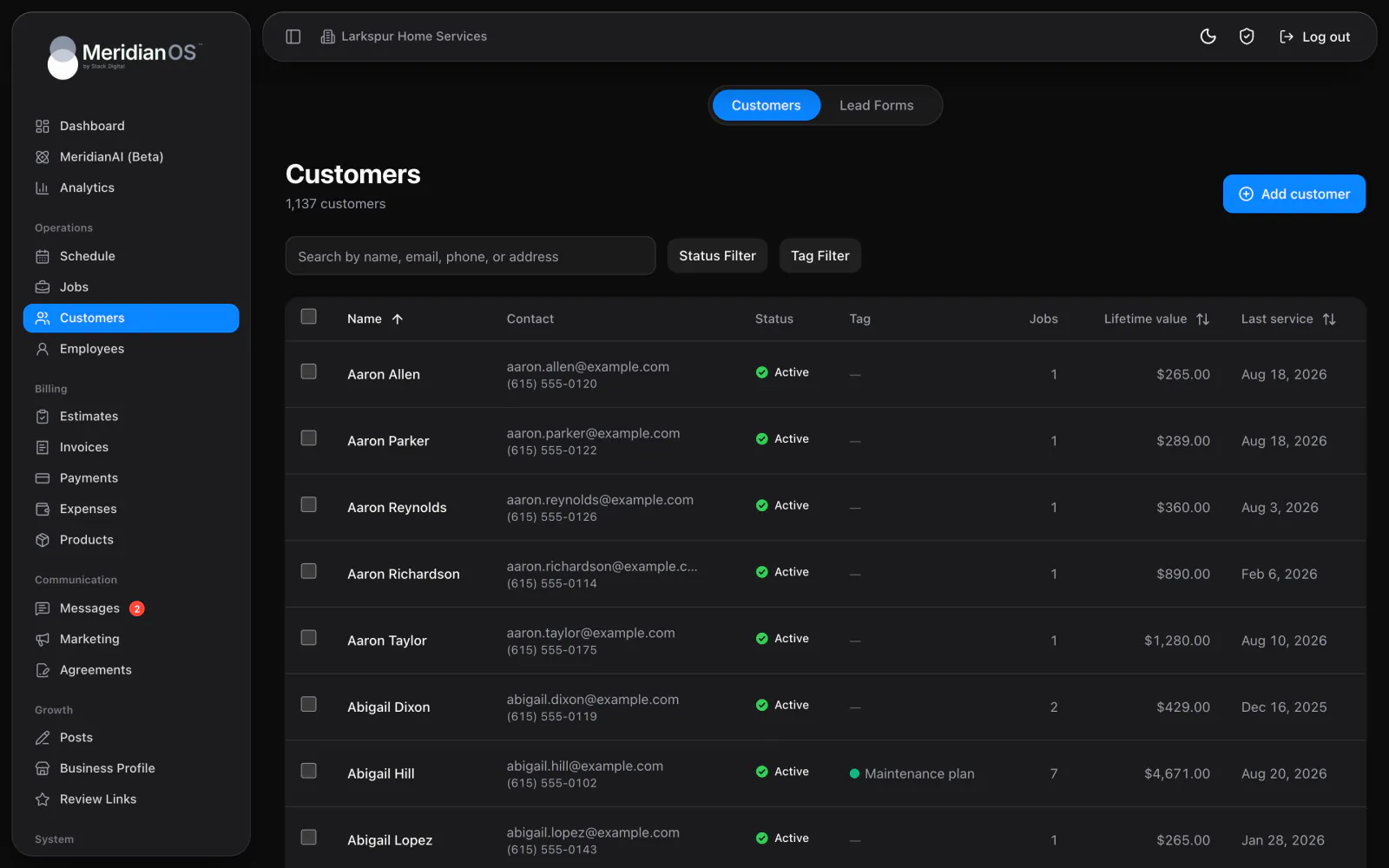
The customer list
The page shows a live count of your customers and an Add customer button.
The search box reads Search by name, email, phone, or address. It matches the display name, first and last name, company, email, street address and any of the customer's three phone numbers. A phone search starts matching at 3 digits.
| Filter | Choices |
|---|---|
| Status | All, Lead, Active, Inactive, Do not service |
| Tag | All, No tag, or any one tag |
Each row shows Name (with the company underneath), Contact (email and phone), Status, Tag, Jobs, Lifetime value and Last service. You can sort by Name, Lifetime value or Last service. The list shows 50 customers per page.
- To change several customers at once, check their rows. You can check up to 500.
- Choose Change status to..., Add tag..., Clear tags or Delete.
- Confirm. Every bulk action asks before it runs.
Add or edit a customer
- Select Add customer.
- Fill in the fields described below.
- Save the customer. A new customer starts with the status Lead unless you pick another.
| Field | What to know |
|---|---|
| First name, Last name, Company | Who the customer is. |
| Display name | The form notes Defaults to name or company, so you can leave it empty. |
| Checked for a valid format and for a domain that can receive mail. | |
| Mobile phone, Home phone, Work phone | Numbers format themselves as you type, like (123) 456-7890. |
| Status | Lead, Active, Inactive or Do not service. |
| Type | The list starts with Homeowner and Business. Edit it in Settings under Customer types. Removing a type clears it from the customers who had it. |
| Tag | A colored tag. See Tags. |
| Lead source | The list starts with eight defaults, such as Phone Call, Google Search, Website and Flyer. Edit it in Settings under Lead sources. Other... always lets you type a source of your own. |
| Street, Unit, City, State, Zip | An optional service address. |
If an email domain cannot receive mail, you see That email domain can't receive email. Check the address for typos. The domain is checked only when the address changes, so an older record still saves normally.
To edit a customer later, open their page and click any field. Every field edits in place.
The customer page
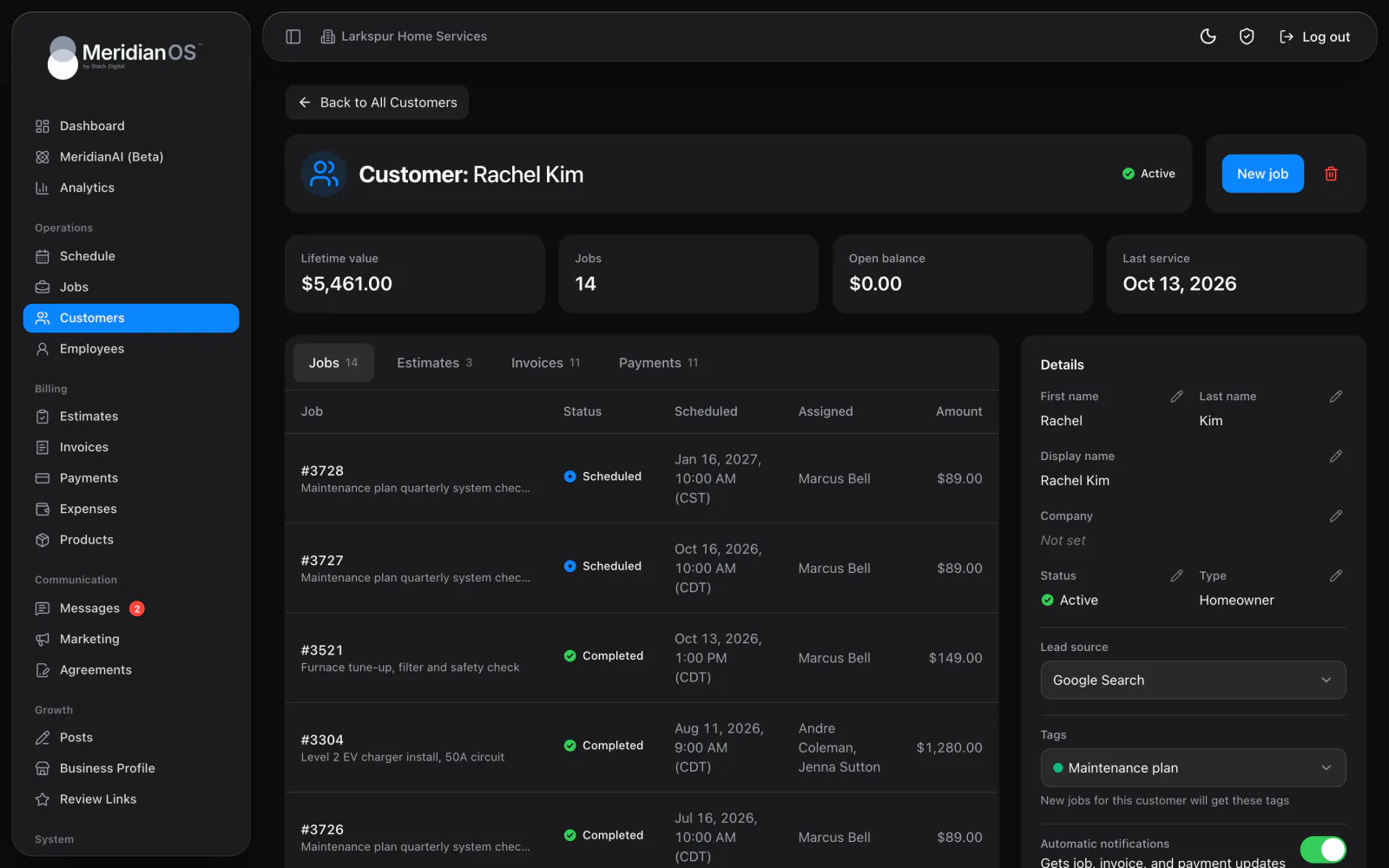
Each customer page opens with four summary cards. Numbers that update themselves explains how they stay current.
| Card | What it shows |
|---|---|
| Lifetime value | The payments recorded for this customer. |
| Jobs | How many jobs this customer has. |
| Open balance | The total of their open invoices. It turns red when it is above zero. |
| Last service | When a job for them was last completed. |
History tabs for Jobs, Estimates, Invoices and Payments each show a count. Select a row to open that record. Each tab holds the latest 100 records, 10 per page. Payment rows show the method, any tip, and a status note for a refund, failure or dispute.
New job opens the job form with this customer already filled in.
| Card | What it holds |
|---|---|
| Lead forms | Every website form this person submitted, with a dot on unread ones. Select one to see the message, its source and SMS consent. Opening it marks it read. |
| Details | Names, company, Status, Type, Lead source, Tags, the Automatic notifications switch and the Customer since date. |
| Contact | Email (click to email) and three phone numbers (click to call). |
| Addresses | Every address on file. See Addresses. |
| Notes, Messages | Described later in this chapter. |
Deleting a customer also removes their jobs, estimates and invoices, after you confirm. A customer with payments on record cannot be deleted. Mark them Inactive instead.
Numbers that update themselves
- Lifetime value goes up with every payment recorded: card, cash, check, other, or an invoice marked paid. It comes back down on refunds, removed payments and lost disputes.
- Last service updates when a job is completed. The customer's status changes to Active at the same moment.
- Open balance is the total of the customer's invoices in Open status.
Open balance adds up the full total of each open invoice. It does not subtract partial payments, so the exact amount a customer owes can be lower than the figure shown.
Addresses and address suggestions
A customer can have as many addresses as you need. Each address has a Unit, Notes and a Billing flag. Address notes reach the employees on a job as Property notes.
When you type 3 or more characters in a street field, MeridianOS™ suggests up to 6 real US street addresses. Choose one and City, State and Zip fill in. The arrow keys and Enter work too. Suggestions favor addresses within about 50 km (roughly 30 miles) of the company address in Settings.
If nothing matches, you see No matches. Keep typing or enter it manually.
Address suggestions depend on a connection to Google. Stack Digital turns this on for your site.
Choosing a customer on a job, estimate or invoice
The job, estimate and invoice forms share one customer picker.
- Type at least 2 characters. The picker shows the top 8 matching customers, each with their address.
- Choose the customer you want.
- If the person is new, choose Not found. Add new customer? The add form opens with what you typed already in the right field.
| What you typed | Where it goes |
|---|---|
| An email address | |
| Digits | Mobile phone |
| Words | First name and Last name |
Notes and photos
The Notes card holds notes about the customer. Jobs, estimates and invoices have the same kind of notes.
- Formatting covers bold, italic, strikethrough, bullet lists and numbered lists.
- Each note takes up to 12 photos of 5 MB each, in PNG, JPEG, WebP or GIF format.
- Each note shows its author and time, plus (edited) if it was changed later.
- Admins can edit or delete any note.
Employees see every note on the customer record, read only, on the jobs assigned to them. See Employee portal.
Texting and automatic notifications
The Messages card shows the two-way text thread with the customer and refreshes every 8 seconds.
- Send text and up to 10 images. Large images are resized automatically.
- Each message shows Delivered, Undelivered or Failed, along with Sent by and the sender's name.
- Ask for a review drops the review request text into your message. It is blocked for 90 days after the last request.
- A notice appears when the customer's number is blocked, opted out or missing. An opted-out customer stays opted out unless they reply START.
Texting is set up per site. Stack Digital turns this on for your site. Until then the card reads Text messaging is not enabled on your website. To turn it on, reach out to your contact at Stack Digital.
The Automatic notifications switch on the Details card applies to one customer. When it is off, that customer gets no automatic emails or texts: the job scheduled, job completed, payment receipt and review request messages all stop. Your team can still message them by hand either way.
Related
- LeadsHow website form submissions become leads, how to work the Lead Forms page, and how a lead becomes a customer.
- Jobs and recurring jobsHow to find, create and manage jobs, what the job page holds, and how recurring jobs, their billing and tags work.
- Text messagingText customers from your business number: the shared inbox, photos, alerts, bulk sends, lists, opt-outs and monthly limits.
- Automatic texts and emailsEvery text and email MeridianOS™ sends on its own, who gets each one, how to switch them on or off, and the Email Log.
- Customers overviewEvery customer's history and conversations on one record, with what they have spent.
Updated November 10, 2026.