Automatic texts and emails
MeridianOS™ sends some texts and emails on its own, at set moments such as a new booking or a payment. Some go to your customers. Others alert your business.
You control the customer texts on the Settings tab of Messages and the customer emails in Settings. The Email Log, under System in the sidebar, records every email your website sends.
Messages to your customers
This table lists each automatic message a customer can receive. The texts need the texting add-on. See Text messaging.
| Message | When it is sent | Who receives it |
|---|---|---|
| Lead form confirmation (email, text) | When someone submits the lead form on your website. | The person who filled out the form. |
| Booking confirmation (email, text) | When an appointment is booked or requested. Emails also go out when a request is confirmed or declined, and when an appointment is moved or cancelled. | The customer who booked. |
| Appointment reminder (email, text) | At the reminder times set in Booking Setup. | The customer with the appointment. |
| Estimate (email, text) | When you send an estimate. | The customer on the estimate. |
| Invoice (email, text) | When you send an invoice. | The customer on the invoice. |
| Invoice reminder (email) | Once a day, for invoices that have gone unpaid past the number of days you set. Reminders repeat until the invoice is paid. | The customer on the invoice. |
| Agreement (email, text) | When you send or resend an agreement. | The signer. |
| Signed agreement copy (email) | When the signer finishes signing. | The signer. |
| Job scheduled (email, text) | When a one-time job is scheduled or rescheduled. | The customer on the job. |
| Job completed (email, text) | When a job is completed. | The customer on the job. |
| Payment receipt (email, text) | After a successful card, cash or check payment. | The customer who paid. |
| Review request (text) | When a job is completed, or when you select Ask for a review. | The customer, at most once every 90 days. |
| In-person payment receipt or declined payment notice (email or text) | After an in-person payment, on request. | The customer. |
Alerts to your business
| Alert | When it is sent | Who receives it |
|---|---|---|
| New contact form submission | When someone submits the contact form on your website. Replying to the email goes straight to the lead. | Your business. |
| Booking alerts | On a New appointment, New booking request, Appointment moved or Appointment cancelled. | Your business. |
| New text message | Each time a customer texts your business number. | Up to 20 addresses you list under Alert emails. |
| Invoice paid | When a payment is applied to an invoice. This alert is off until you turn it on in Settings, under Admin notifications. | Every admin with an email on file. |
| Payment alerts | On Bank payment failed, Payment disputed, Dispute won or Dispute lost. These are always on. | Your business. |
| Agreement signed | When a signer finishes signing. | Every admin. |
| New Google review | When a new Google review arrives. | Your business. |
These alerts are emails. New texts and signed agreements can also arrive as push notifications in the MeridianOS™ app. See Notifications.
Customer texts and their wording
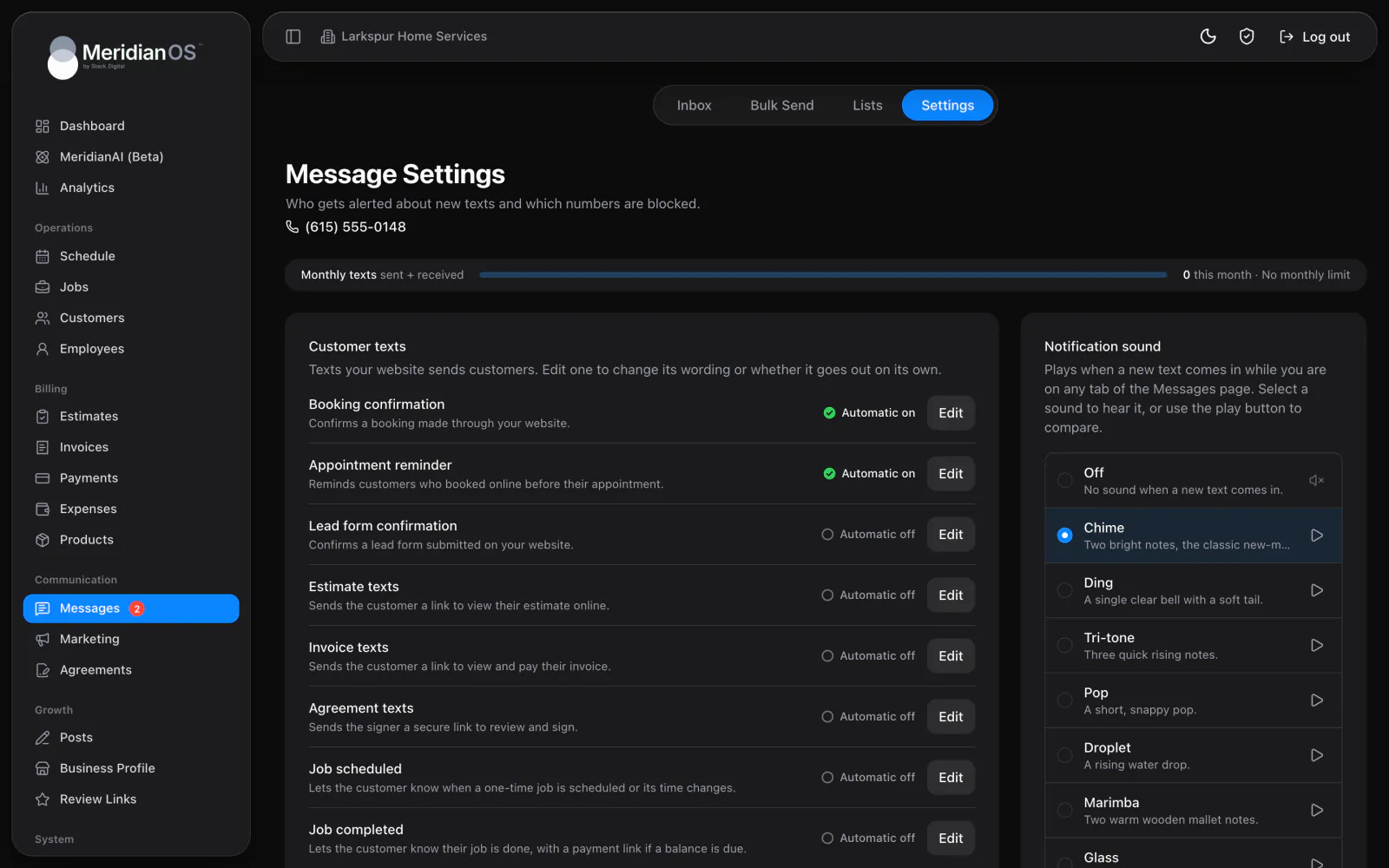
On the Settings tab of Messages, the Customer texts card lists the texts your website sends customers. There are ten kinds. Each row shows whether Automatic is on or off, and every one starts off.
- Booking confirmation has two templates: Booking confirmation text and Booking request text.
- Invoice texts have two templates, Invoice sent text and Overdue reminder text. Both carry a pay link.
- Estimate texts link to the estimate online. Agreement texts carry a secure link to review and sign.
- The job completed text adds a payment link when a balance is due.
- When a text with a link runs long, MeridianOS™ falls back to shorter wording so the pay or signing link is never cut off.
Open a text to edit it. The editor has these options:
| Option | What it does |
|---|---|
| Automatic | Sets whether the text goes out on its own. You confirm the change. |
| Template | The wording of the text. Insert placeholders such as {company}, {firstName}, {date}, {time} and {link}, and the real details are filled in for each customer. |
| Preview | A live preview of the finished text with a character count. |
| Reset to default | Brings back the original wording. |
Estimates, invoices and agreements are sent by you, one at a time. For these, Automatic means Text message starts checked each time you send. You can always check Text message by hand in the send dialog.
There is no automatic text that tells a customer you are on the way. Send that one yourself from the inbox or the Messages card on the job.
Customer emails
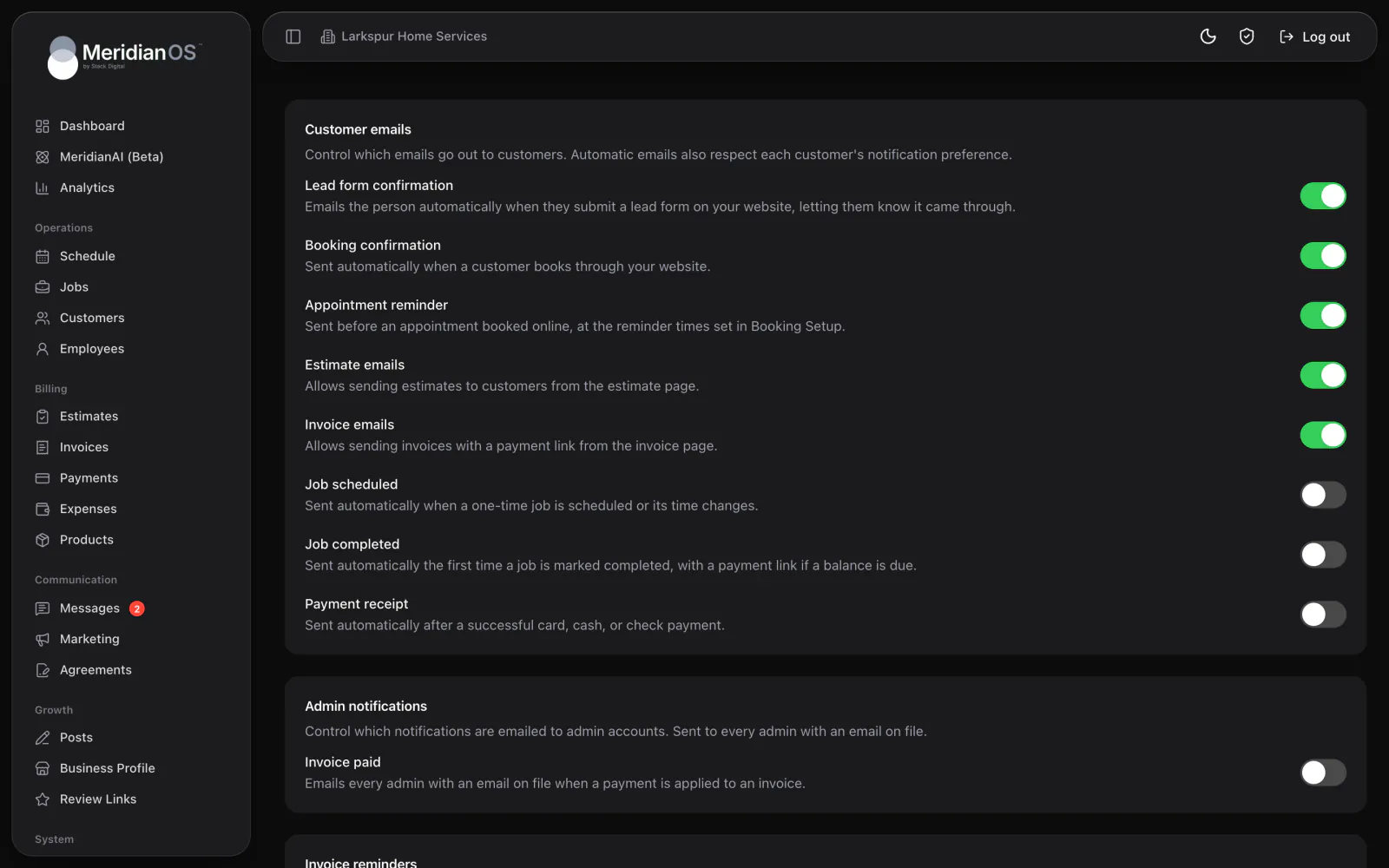
In Settings, the Customer emails card has a switch for each automatic email.
| Starts | |
|---|---|
| Lead form confirmation | On |
| Booking confirmation | On |
| Appointment reminder | On |
| Estimate emails | On |
| Invoice emails | On |
| Job scheduled | Off |
| Job completed | Off |
| Payment receipt | Off |
- The lead form confirmation is a We received your message email.
- Booking emails cover an appointment that is booked, requested, confirmed, declined, moved or cancelled. Each has a button: Reschedule or cancel, View your appointment or Book another time.
- Estimate emails list the line items, attach the PDF and include a View Estimate button.
- Invoice emails list the line items, attach the PDF and include a View & Pay Invoice button. A paid invoice sends as Paid invoice.
- The job completed email has a pay button when a balance remains. The payment receipt itemizes any tip and processing fee.
The Invoice reminders card automatically emails customers about unpaid invoices and repeats until each one is paid. Set Remind after (days unpaid) and a Send at time. Reminders go out once a day.
Automatic emails use a fixed layout with your business name and phone number. Their wording cannot be edited. Only the texts have wording you can change.
Rules for who gets a message
- Each customer page has an Automatic notifications switch. On, it reads Gets job, invoice, and payment updates. Off, it reads Gets no automatic updates.
- Automatic texts respect each customer's notification preference, and every text respects STOP replies.
- Booking and lead form texts go only to people who agreed to texts on the form.
- A customer gets at most one review request every 90 days, even if someone on your team types the review link into a text by hand. Review requests go by text only. See Review requests.
- An email address on a domain that cannot receive mail is caught before sending.
- Without the texting add-on, customer notifications go out by email only.
The Email Log
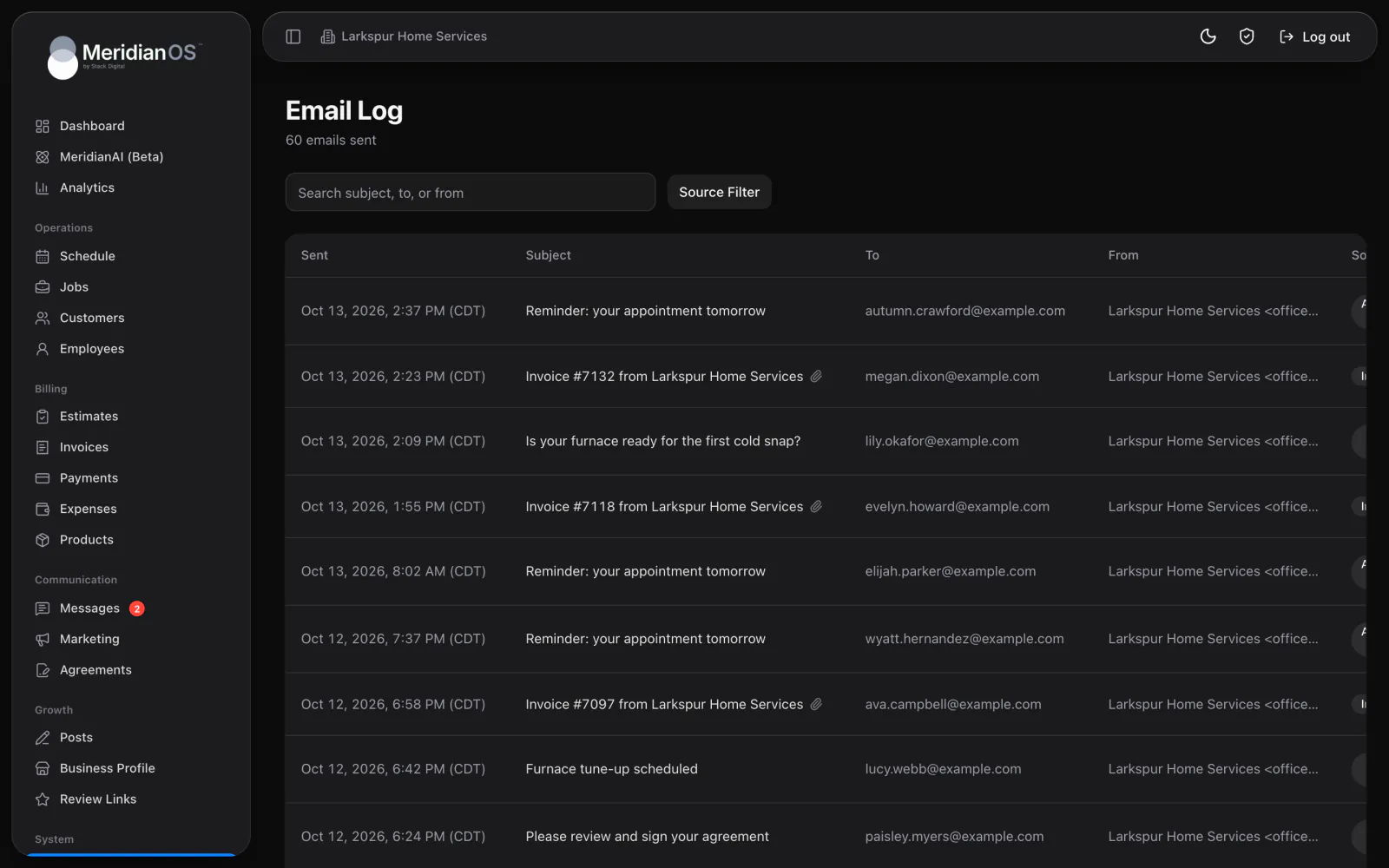
Email Log records the emails your website sends, including alerts to your own team. The page shows how many emails have been sent. Before the first one, the page reads Emails sent from your website will appear here.
- The columns are Sent, Subject, To, From, Source and Preview.
- Search with Search subject, to, or from, or narrow the list with the Source filter. More rows load as you scroll.
- Select a row to preview the exact email, with the file names of any attachments.
Source tells you what kind of email each one is. The labels are Contact form, Contact confirmation, Booking confirmation, Appointment reminder, Booking alert, Estimate, Invoice, Invoice reminder, Job scheduled, Job completed, Payment receipt, In-person payment receipt, Declined payment record, Invoice paid alert, Payment alert, Agreement invite, Agreement signed alert, Agreement signed copy, Marketing campaign, Marketing test, SMS alert and Review alert.
The log records what was sent. It does not show whether an email was delivered, opened or bounced.
Related
- Text messagingText customers from your business number: the shared inbox, photos, alerts, bulk sends, lists, opt-outs and monthly limits.
- Online bookingSet up your booking page, see what customers do on it, and learn how each booking becomes a job on your schedule.
- InvoicesCreate and send invoices, set terms, record payments, and see what reminders and recurring billing do on their own.
- Review requests and QR codesBuild your review page, send review requests by text, and track scans of each employee's review QR code.
- Automatic texts and emails overviewConfirmations and reminders that send themselves in your wording.
Updated November 10, 2026.