Social posting
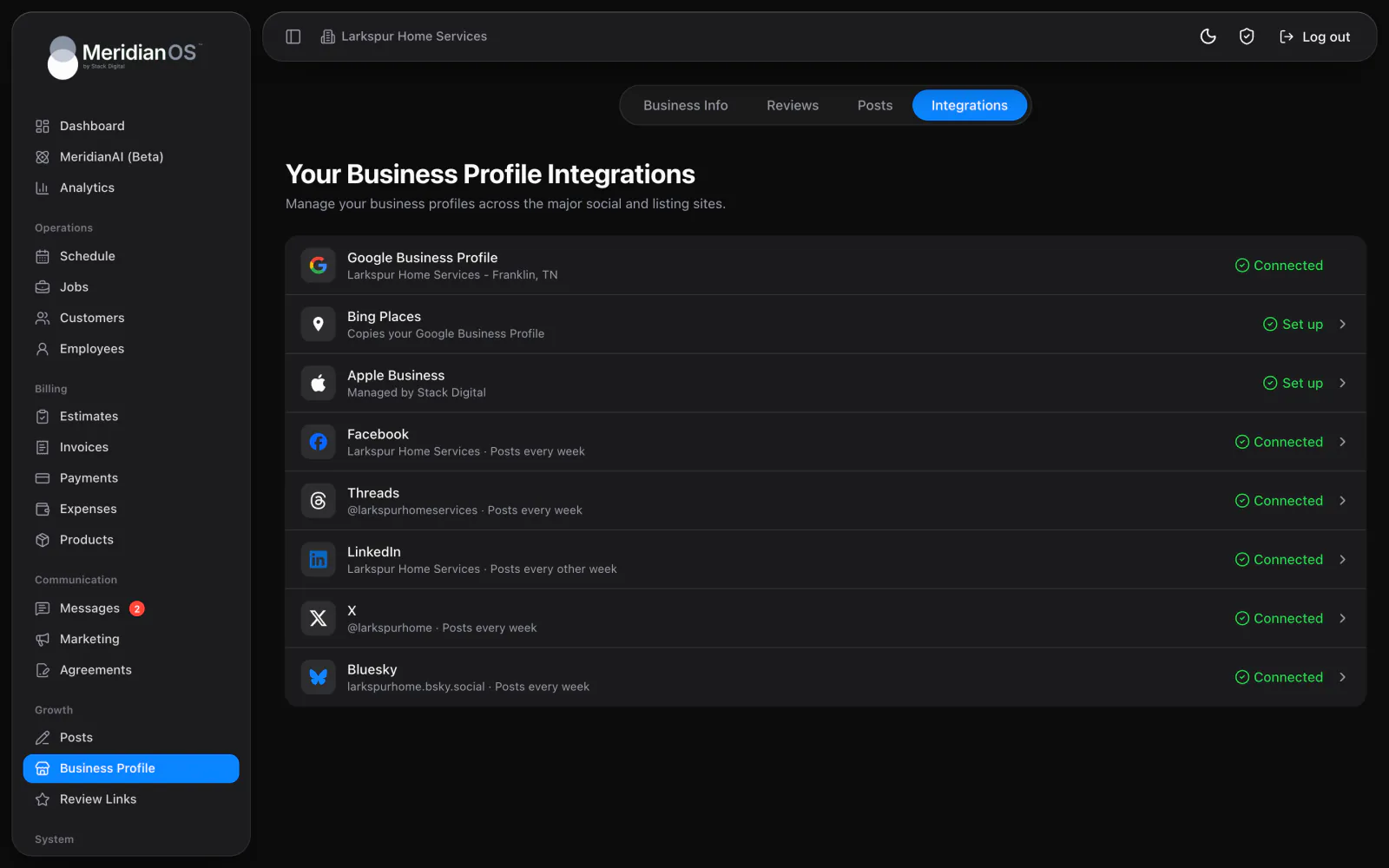
MeridianOS™ posts to five social networks: Facebook, Threads, LinkedIn, X and Bluesky. Posts are text with an optional link. You write them yourself or have MeridianAI write them for each network.
Each network has its own page, which you reach from the Integrations tab of Business Profile. Posts to Google itself are covered in Google Business Profile, reviews and listings.
The five networks and their limits
Each network posts to one place and has its own character limit and hashtag cap.
| Network | Posts to | Limits |
|---|---|---|
| Your Page | 1,500 characters. No hashtags. | |
| Threads | Your profile | 500 characters. No hashtags. |
| Your company page | 3,000 characters. Up to 3 hashtags. | |
| X | Your account | 280 characters. Up to 2 hashtags. |
| Bluesky | Your account | 300 characters. No hashtags. |
Each network also handles links in its own way. When a post runs past the limit, it is trimmed at the end of a sentence, so it does not stop mid-word.
Before you connect
- Connect Google first. Every network requires it. See Connect Google.
- Stack Digital turns each network on for your site. Until then, that network shows Coming soon.
- You need an admin login.
Connect a network
- Open Business Profile and select the Integrations tab.
- Open the page for the network you want.
- Connect the network and pick the account to post to.
If a login expires or is revoked, MeridianOS™ detects it and explains what happened in plain language. The page gives you a Reconnect button and a help link.
What each network's page has
Once a network is connected, its page is where you do everything for that network.
| Part of the page | What it is for |
|---|---|
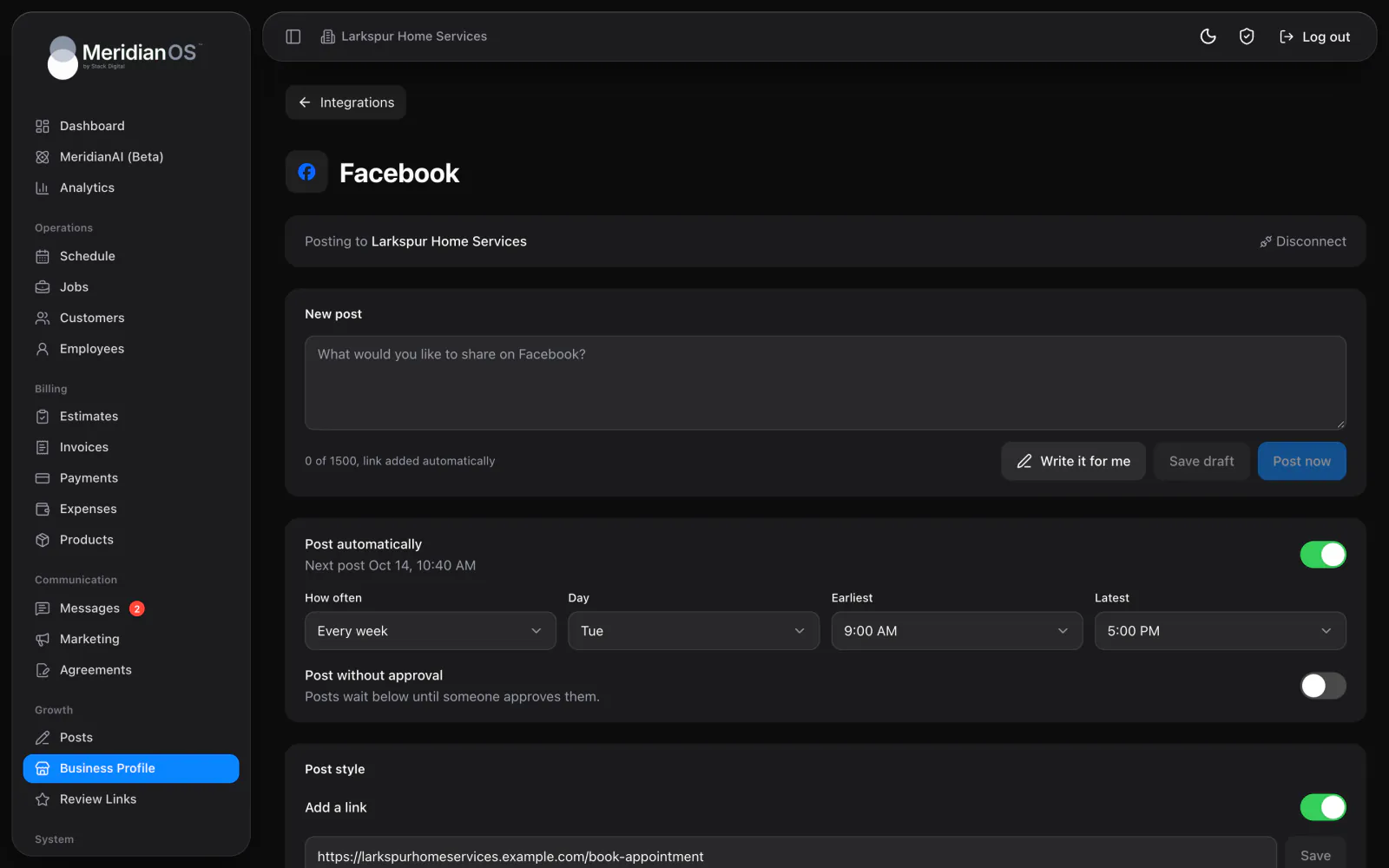
| New post | Write a post, with Write it for me to have MeridianAI draft it. |
| Post automatically | Scheduled posts for this network, on a schedule of its own. |
| Waiting to post | Drafts that have not gone out yet. |
| Posted | The history of what went out. Each post has a link to see it on the network, for example View on Facebook. |
Write and send a post
- On the network's page, select New post.
- Write the post yourself, or select Write it for me.
- Post it, and confirm when asked.
Posting right away always asks you to confirm first.
Post automatically
Post automatically has MeridianAI write posts for a network on a schedule. Every network has its own schedule and its own approval switch, so you can run each one differently.
| Option | What it does |
|---|---|
| Post without approval | Off by default. While it is off, automatic posts wait for your approval before they go out. |
| Add a link | Adds an optional link to posts. |
| Hashtag count | How many hashtags a post carries, within the network's cap. |
| Extra instructions | Your own notes that steer what MeridianAI writes for this network. |
Automatic social posts wait for approval by default. They go out on their own only after you switch on Post without approval for that network.
How MeridianAI writes for each network
- Each post is written for that network's own style and length, so two networks do not get an identical post.
- MeridianAI avoids repeating your recent posts.
- When a network limits how fast posts can be sent, MeridianOS™ retries automatically.
Write it for me and automatic posts need MeridianAI set up on your site. Stack Digital turns this on for your site.
Related
- Google Business Profile, reviews and listingsConnect Google, edit your listing, keep other listings matched, reply to reviews and publish Google posts.
- Blog and automatic postsWrite and publish blog posts on your website, draft them with MeridianAI, and schedule automatic posts.
- MeridianAIHow to talk or type to MeridianAI, what it can look up and change, how it asks first, and how credits work.
- Social and Google posting overviewPosts written for each network and published on the schedule you pick.
Updated November 10, 2026.