Signing in and security
Admins and employees sign in to MeridianOS™ with a username and password on the same sign-in form. You can add a second step at sign-in, either a code from an authenticator app or a passkey.
You manage your own sign-in on the Security page, which opens from the shield icon in the top bar. The MeridianOS™ app has its own sign-in screens and an app lock, covered at the end of this chapter.
Signing in on the web
- Open the sign-in page for your website and enter your username and password.
- If you have a second step set up, complete it. Select Use your passkey, or enter the 6-digit code from your authenticator app.
- The form runs an invisible bot check when you submit it. There is nothing for you to do.
- If you have a passkey, you can also sign in with the passkey alone from the sign-in page.
- A sign-in on the web lasts 7 days. After that, you sign in again.
- To sign out, select Log out in the top bar.
A second step is optional. When you sign in with only a password and have no second step, a Secure your account prompt offers Set up a passkey, Use an authenticator app or Not now.
Failed sign-ins and lockouts
MeridianOS™ counts failed sign-in tries over 15 minutes and pauses sign-in when a limit is reached.
| What is counted | Limit in 15 minutes |
|---|---|
| Failed tries for one username | 8 |
| Failed tries from one network address | 20 |
At the limit, the form shows Too many sign-in attempts and the number of minutes to wait before you try again.
The network limit counts every failed try from the same network address, whichever username was typed.
The Security page
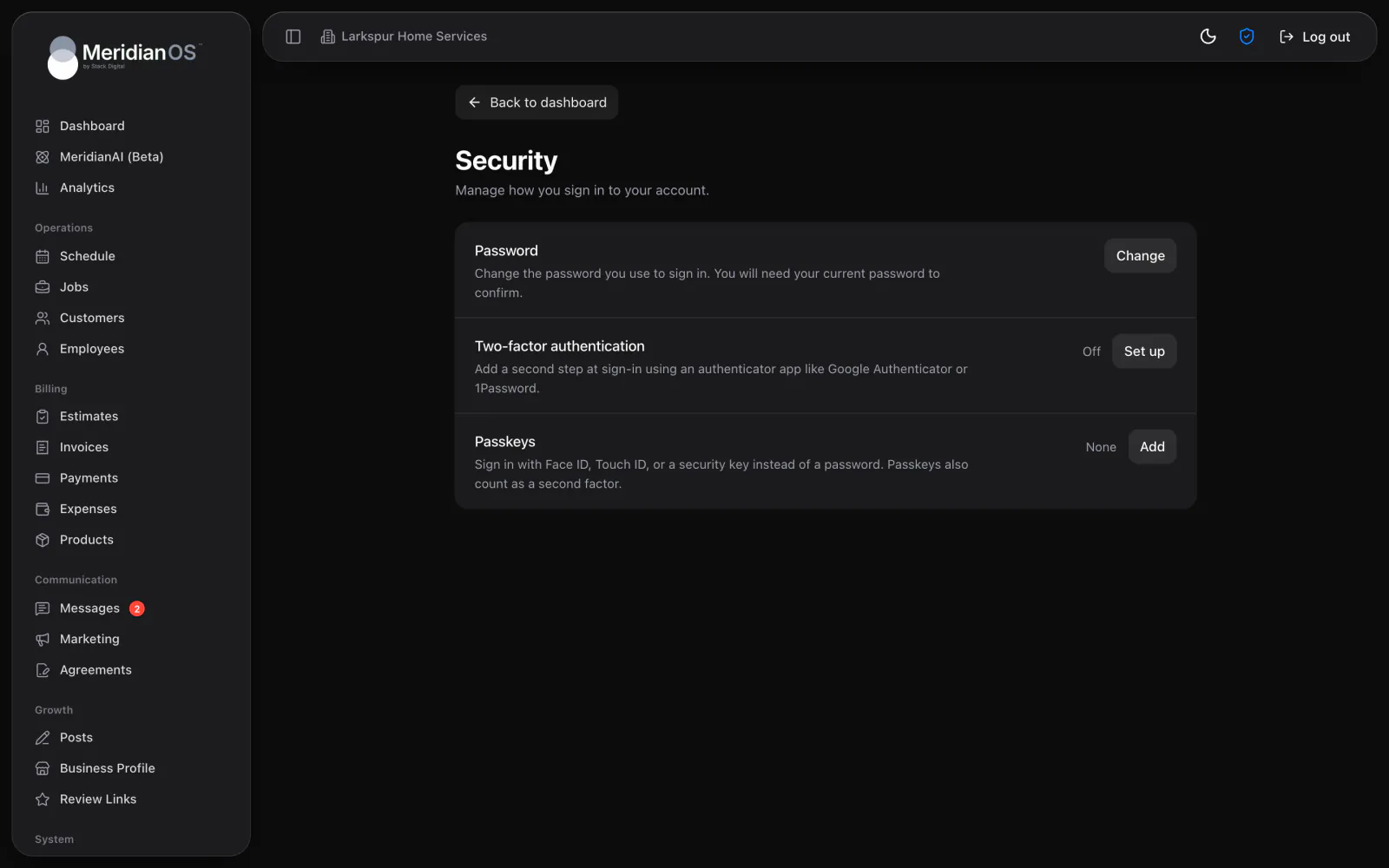
Select the shield icon in the top bar to open the Security page. Its opening line reads Manage how you sign in to your account. Admins and employees get the same page.
| Section of the page | What you do there |
|---|---|
| Password | Change your password. You need your current password to do it. |
| Two-factor authentication | Add a second step at sign-in using an authenticator app. |
| Passkeys | Add, rename and remove the passkeys that sign you in with Face ID, Touch ID, or a security key. |
Changing your password
- Open the Security page from the shield icon in the top bar.
- Under Password, select Change.
- Enter your current password.
- Enter a new password. A live checklist marks each rule as you meet it.
- Save the new password.
A new password has to meet every rule on the checklist:
- At least 12 characters
- 1 uppercase letter
- 1 number
- 1 special character
- You cannot reuse your current password.
- The same rules are checked again when the password is saved, so a password that fails the checklist is refused.
- In the MeridianOS™ app, Change password is under Security in Account.
Changing your password signs out every other device on your account. That includes the MeridianOS™ app on your other devices.
Two-factor authentication
Two-factor authentication adds a 6-digit code from an authenticator app as a second step at sign-in.
- Open the Security page and go to Two-factor authentication.
- Scan the QR code with your authenticator app, or enter the manual setup key in the app.
- Enter the code the app shows to verify the setup.
- After setup, the sign-in form asks for a code after your password.
- Turning two-factor off also needs a current code from the app.
- In the MeridianOS™ app, you can set up two-factor with a QR code under Security in Account.
If you are an admin and lose access to your authenticator app, text or email Stack Digital to have two-factor authentication reset. For an employee, an admin can use Reset 2FA on the employee's page. See Employees and permissions.
Passkeys
A passkey lets you sign in with Face ID, Touch ID, or a security key. You can use it by itself from the sign-in page, or as the second step after your password. Passkeys also count as a second factor.
- You can have more than one passkey, and each one has a name.
- The list shows the date each passkey was added and when it was last used. A passkey can also carry a Synced label.
- You can rename or remove a passkey.
- You add a passkey on the web. In the MeridianOS™ app, Security in Account lists your passkeys and lets you remove them.
Admin accounts
There are two admin roles, admin and super admin. Stack Digital holds the super admin account for your site and manages admin accounts on the Admins page, which appears only for a super admin. To add an admin, remove one or reset an admin sign-in, text or email Stack Digital at support@stackdigital.com. The page lists each admin account with Username, Email, Role, 2FA and Created, and offers these actions.
| Action | What it does |
|---|---|
| Create admin | Adds an admin account. The form has a password generator and a copy button. |
| Edit email | Changes the email address on the account. |
| Reset password | Resets the password on the account and signs that person out everywhere. |
| Reset 2FA | Resets two-factor authentication on the account. |
| Remove passkeys | Removes the passkeys on the account. |
| Delete account | Deletes the admin account. |
- A super admin account can only be changed by its owner.
- The super admin role cannot be granted from the page.
- MeridianAI cannot create admins or change passwords, two-factor or passkeys.
- Because the page is for the super admin, Admins does not appear in your own menu.
Signing in to the app
The MeridianOS™ app for iPhone, iPad and Mac uses the same username and password as the web. Your account decides whether you get the admin screens or the employee screens.
- On the welcome screen, select Sign in to your dashboard.
- Enter the website address of your business. Your sign-in lives at that address. If the address is not a MeridianOS™ site, the app says it could not find a dashboard there.
- Enter your Username and Password. Passwords saved on your device can fill the form.
- If two-factor is on, enter the 6-digit code from your authenticator app. The code submits itself at six digits.
Depending on your site, the passkey button reads Sign in with a passkey or Use passkey or saved password. The second one finishes sign-in in a private browser window. A passkey can also be your second step, with Confirm with your passkey.
- When you come back, the app says you are still signed in and offers Continue as with your name, or Sign in with a different account.
- Every site you sign in to is saved with its logo under Your sites, and each site keeps its own sign-in. Switch site is in Account. Forget this site removes one.
- The app session lasts 90 days and is extended automatically while you use the app.
- Sign-in details are stored securely on that device only.
- The app rechecks your access when you return to it and on a timer, about every minute for employees and every five minutes for admins. If your access was removed, it signs out at once and shows Sign in again. Your session on this site ended.
- A deactivated employee cannot sign in.
The app lock
The app locks after 5 minutes away and on every fresh launch. You open it again with Face ID, or with Touch ID or your device passcode, depending on the device.
- The setting is Require Face ID in Account. The name follows what your device supports, such as Touch ID or a passcode.
- The lock is on by default. You can turn it off in Account.
- The lock screen also offers Sign out.
Related
- Getting startedWhat MeridianOS™ is made of, what Stack Digital sets up for you, and a sensible order for your first days.
- Employees and permissionsAdd employees, edit their details, give them a portal login, decide who can take payments, and see each person's tips.
- The MeridianOS™ apps for iPhone, iPad and MacThe MeridianOS™ app on each device, signing in, what admins and employees can do, and what stays in the browser.
- Employee portalWhat your employees see and can do when they sign in: schedule, jobs, invoices, payments, time clock, earnings and review QR code.
- Security and sign-in overviewPasskeys and two-factor codes on every login.
Updated November 10, 2026.