Leads
A lead is a message someone sent through the contact form on your website, or an inquiry you entered by hand. MeridianOS™ saves each one and alerts you. It can also add the person to your customers on its own.
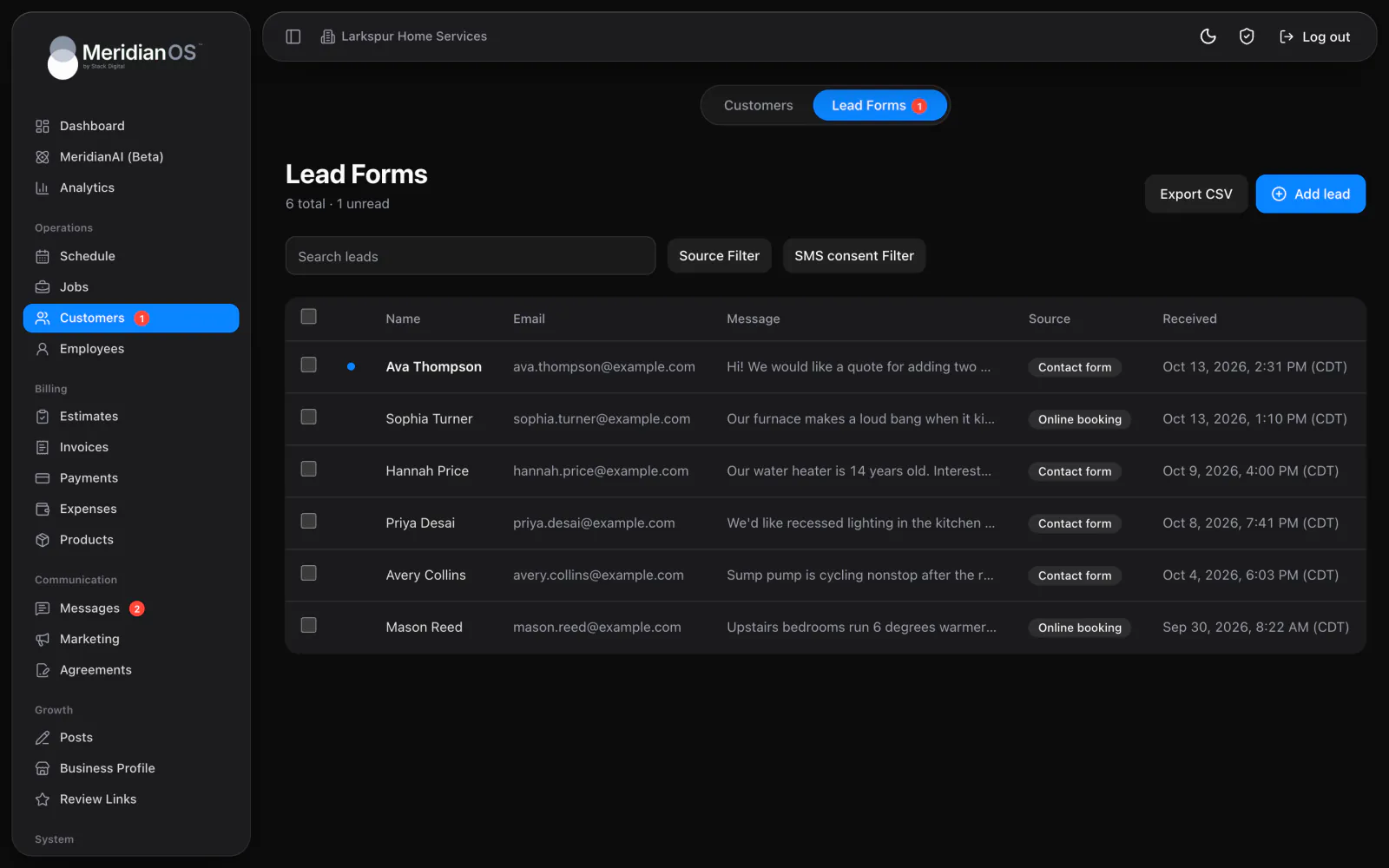
Leads live on the Lead Forms tab, which sits beside Customers. A red badge on the tab counts the leads nobody has opened.
What happens when someone submits your form
The contact form on your website collects a name, email, subject and message. A phone number and a checkbox agreeing to text messages are optional. Once the visitor submits it, MeridianOS™ works through these steps on its own.
- An invisible bot check must pass.
- A built-in spam filter scores the submission. Spam stops here.
- The email domain is checked to confirm it can receive mail, and the phone number format is validated.
- The lead is saved and appears under Lead Forms as unread.
- A New lead push notification goes to admins who use the MeridianOS™ app. Each admin can turn that alert off. See Notifications.
- If Add new leads to customers is on, the lead is attached to a matching customer, or a new customer is created with the status Lead.
- If the visitor agreed to texts and the lead confirmation text is switched on, they get a confirmation text.
- An alert email, New contact form submission, goes to the business with every detail. Replying to it replies to the lead.
- The visitor gets a We received your message confirmation email. This is a setting, and it is on by default.
The bot check is set up per site. Stack Digital turns this on for your site. Confirmation texts need texting, which Stack Digital also turns on for your site.
Spam and abuse protection
The spam filter looks for these signs in a submission:
- A gibberish name or a subject made of random characters.
- A message that is only a link.
- Links written as markup.
- 3 or more links.
- A message with no letters in it.
Spam is dropped silently and never appears under Lead Forms. The sender still sees a success message, so they get no signal to adjust and try again.
Confirmations are capped at 10 per contact per day and 100 per hour across your site, so your form cannot be used to flood someone's inbox.
The Lead Forms page
The header shows how many leads you have in total and how many are unread. The page has two buttons, Export CSV and Add lead.
| Tool | What it does |
|---|---|
| Search | Looks across name, email, phone and message. |
| Source filter | Narrows the list to one source. |
| SMS consent filter | All, Consented or Not consented. |
- Unread leads are bold with a dot. Opening a lead marks it read.
- Check several leads and choose Mark as read or Mark as unread to change them together.
- The page loads your most recent 1,000 leads.
Open and convert a lead
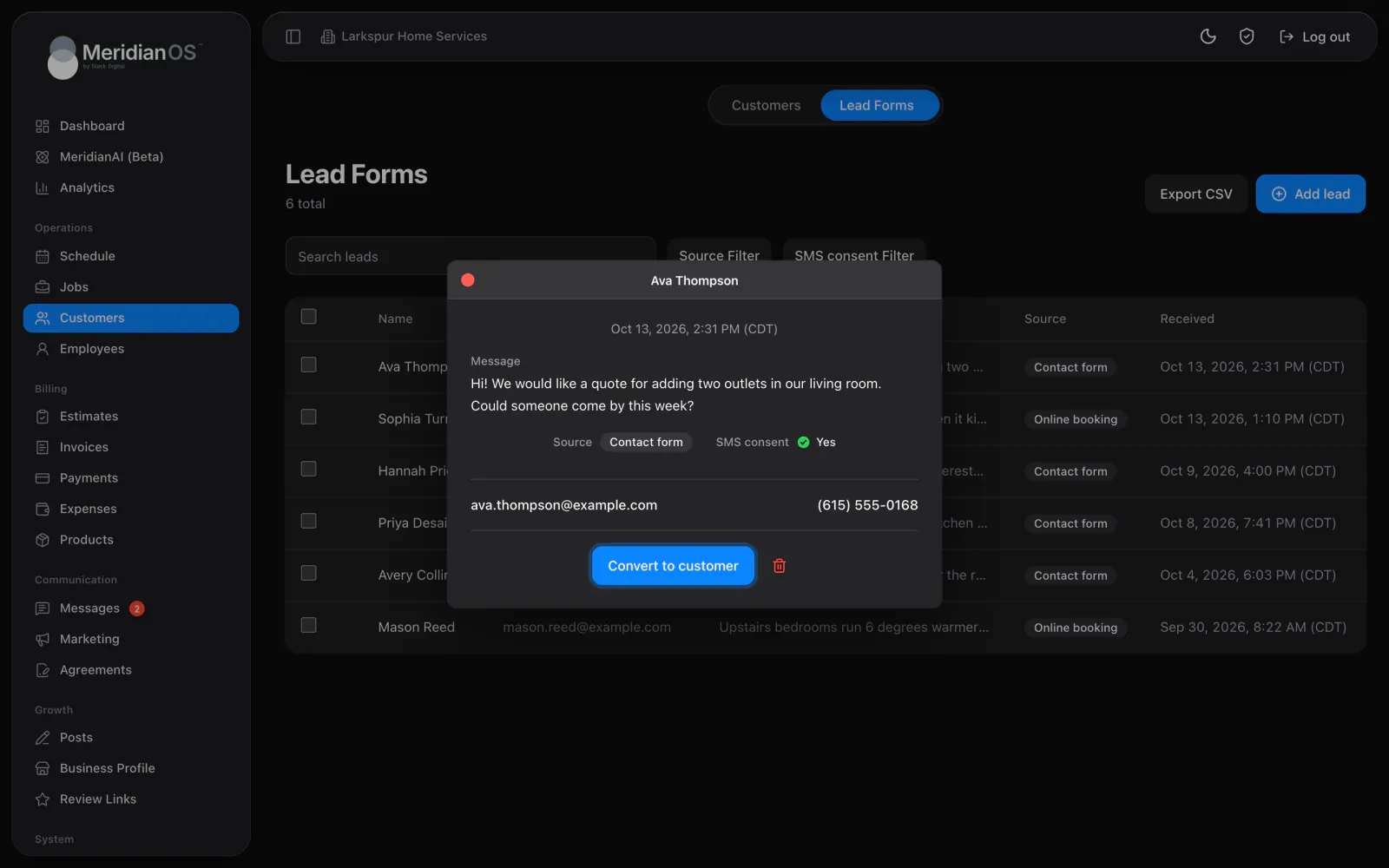
Select a lead to open it. The dialog shows the message, the Source, and SMS consent as Yes or No. Click the email address to write to the person, or the phone number to call.
- Open the lead.
- Select Convert to customer.
- MeridianOS™ checks your customers first. If the lead's email or any phone number matches someone you already have, the lead joins that customer and fills in a missing phone or email. With no match, a new customer is created with the lead's source.
- The button now reads View customer. Select it to open the customer's page.
You can also delete a lead from the dialog. MeridianOS™ asks you to confirm first.
Add a lead by hand
Use Add lead for inquiries that arrive by phone or in person.
- Select Add lead.
- Enter the person's name, email and phone.
- Choose a Source. It defaults to Manual entry.
- Type the Message.
- Set Consented to SMS if the person agreed to receive texts.
A lead you add by hand is saved as already read, so it does not raise the unread count.
Export leads
Export CSV downloads the list as it is currently filtered. Set your search and filters first if you want only part of the list.
The file has these columns: First Name, Last Name, Email, Phone, Message, Photos, SMS Consent, Source, Received.
The Add new leads to customers setting
In Settings, under Leads, the Add new leads to customers switch decides whether website leads join your customer list on their own. It is on by default. Changing it shows a confirmation that explains the effect.
| Switch | What happens to a new website lead |
|---|---|
| On | The lead is attached to an existing customer matched by email or phone. If nobody matches, a new customer is created with the status Lead. |
| Off | The submission stays on the Lead Forms page until someone converts it. |
How leads connect to the rest of your account
- Matching checks the email and all three phone numbers on your existing customers before anyone new is created. A match also receives any contact detail it was missing.
- Every website form a person submitted is listed on their customer page under Lead forms. See Customers.
- Your KPIs count a lead as converted when its customer later gets a job. See KPIs and profit.
- Online bookings use the same email and phone matching. A booking is attached to an existing customer, or a new one is created with the lead source Online booking. See Online booking.
Related
- CustomersFind, add and edit customers, read a customer page, and use tags, addresses, notes, texting and the notification switch.
- Online bookingSet up your booking page, see what customers do on it, and learn how each booking becomes a job on your schedule.
- Notifications and alertsEvery alert MeridianOS™ sends your business: dashboard badges and sounds, push notifications in the app, and alert emails.
- KPIs and profitHow to read revenue, collected, outstanding, profit, labor and lead conversion for any period, and how each number is counted.
- Lead capture overviewWebsite inquiries arrive as leads and become customers in one click.
Updated November 10, 2026.