Jobs. Line items, notes, photos, texts, and invoices together on one page.
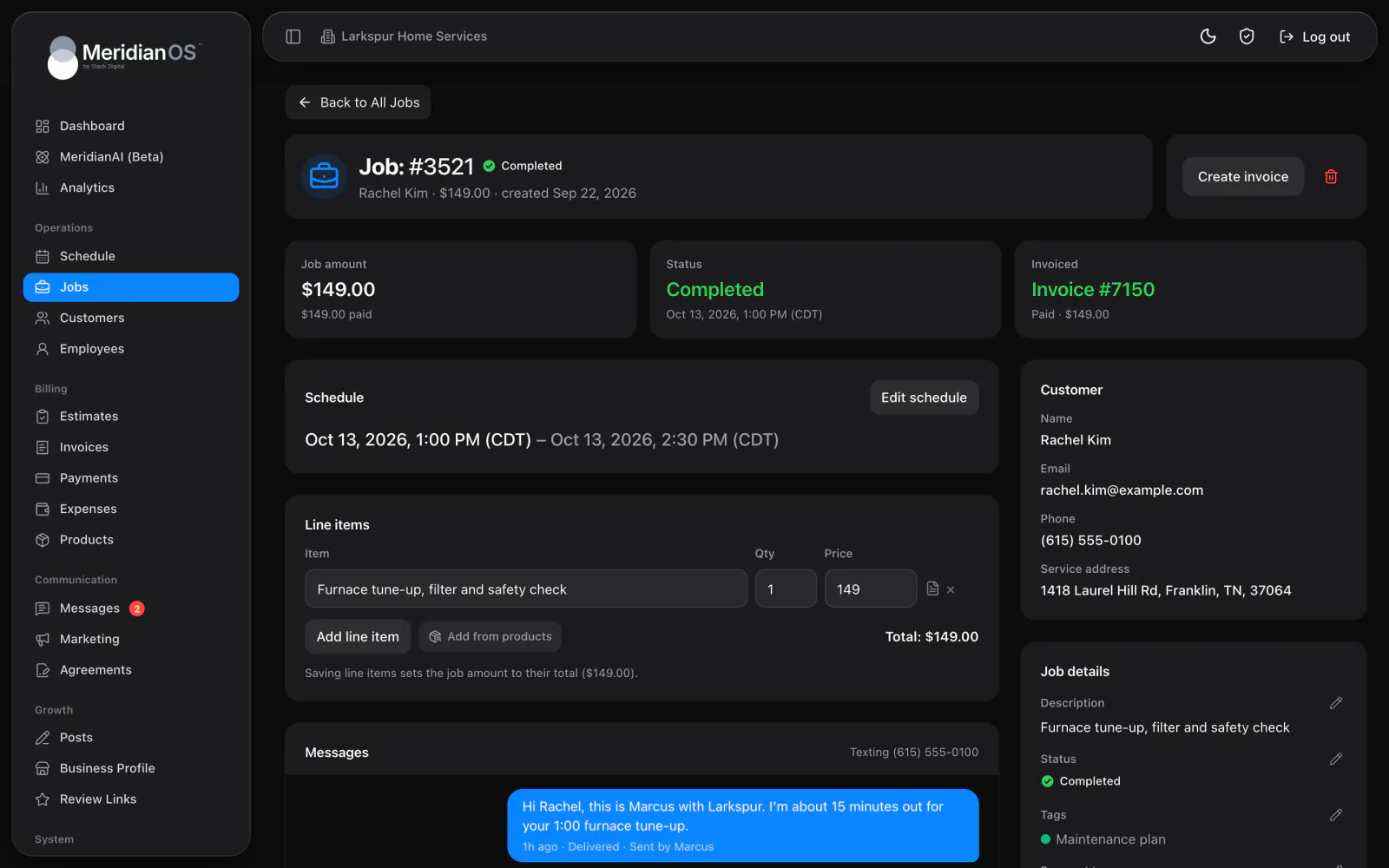
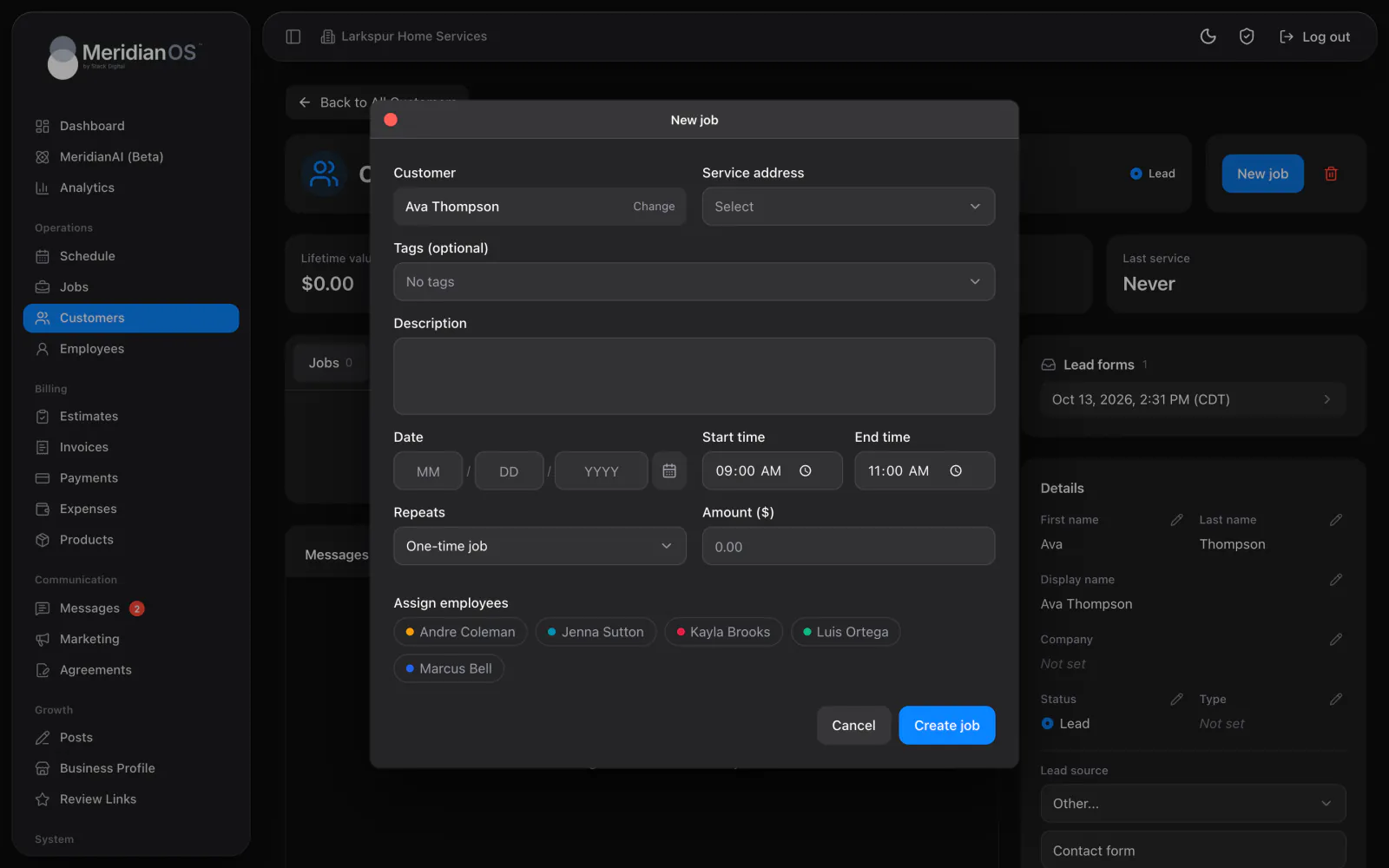
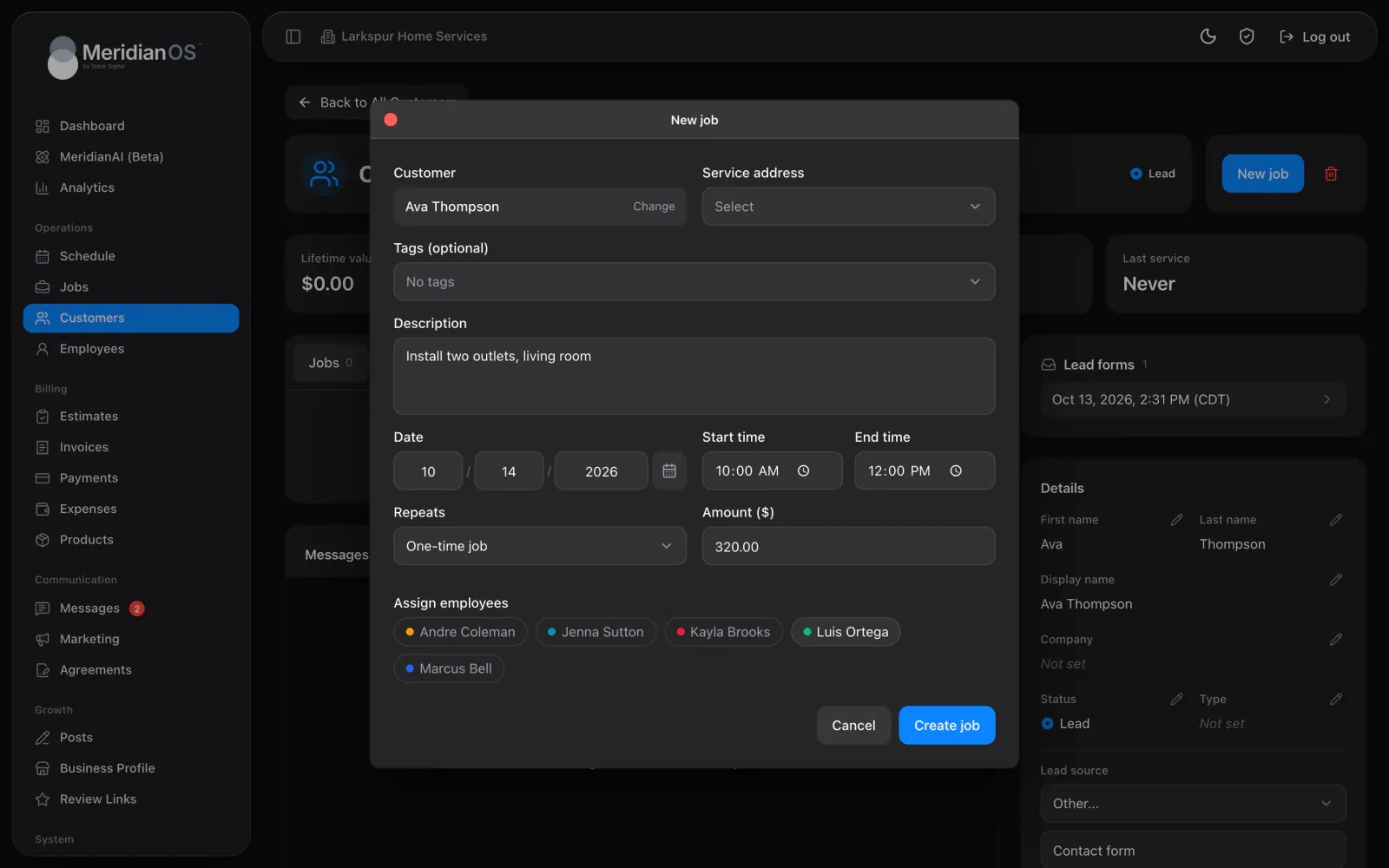
Add a job with a date, time, amount, and the people assigned, and it lands on the week view in MeridianOS™. Everyone assigned gets an alert in the app, and every card has the address and phone one tap away.
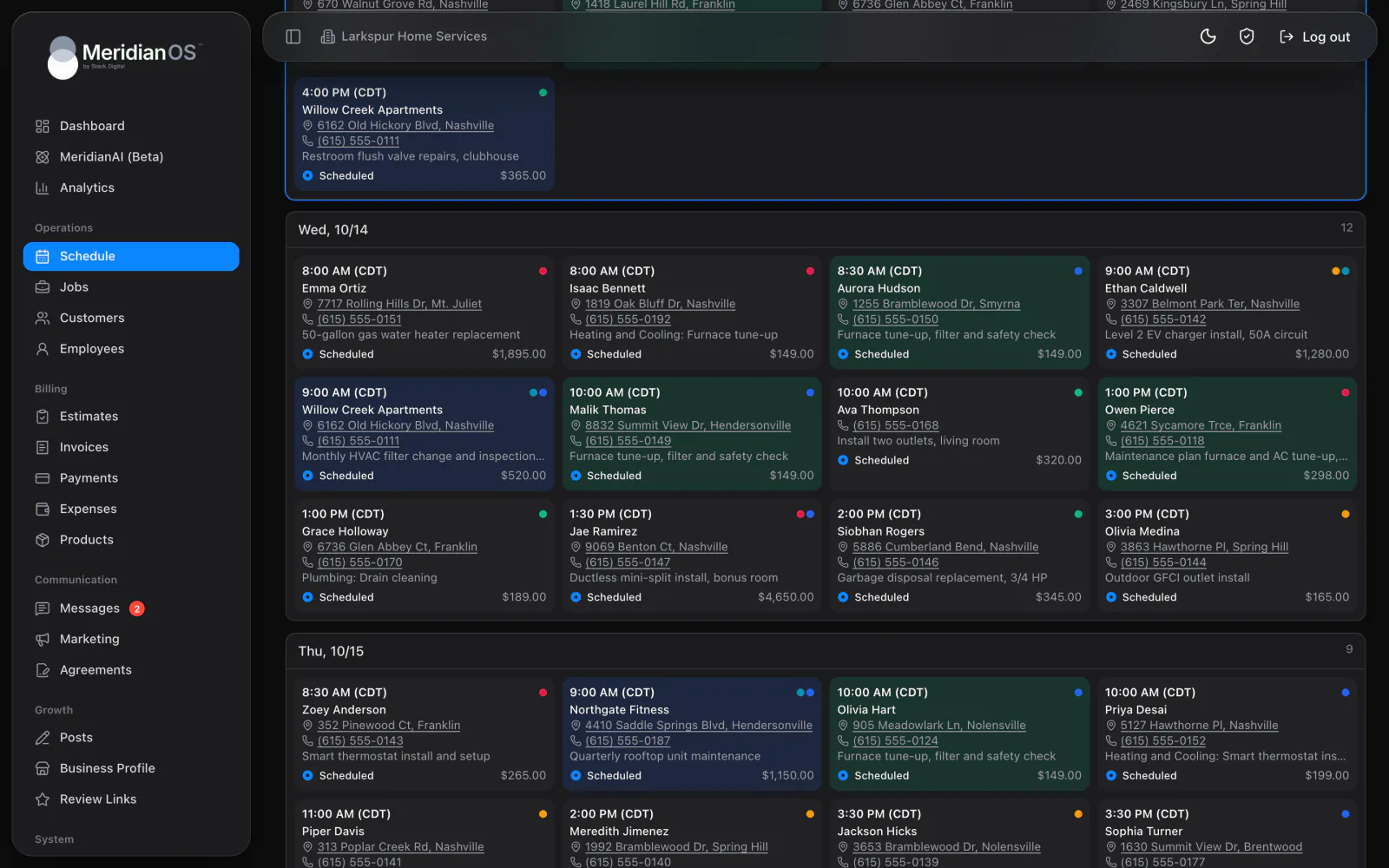
Week and month views. Switch between them, with a Today button to jump back.
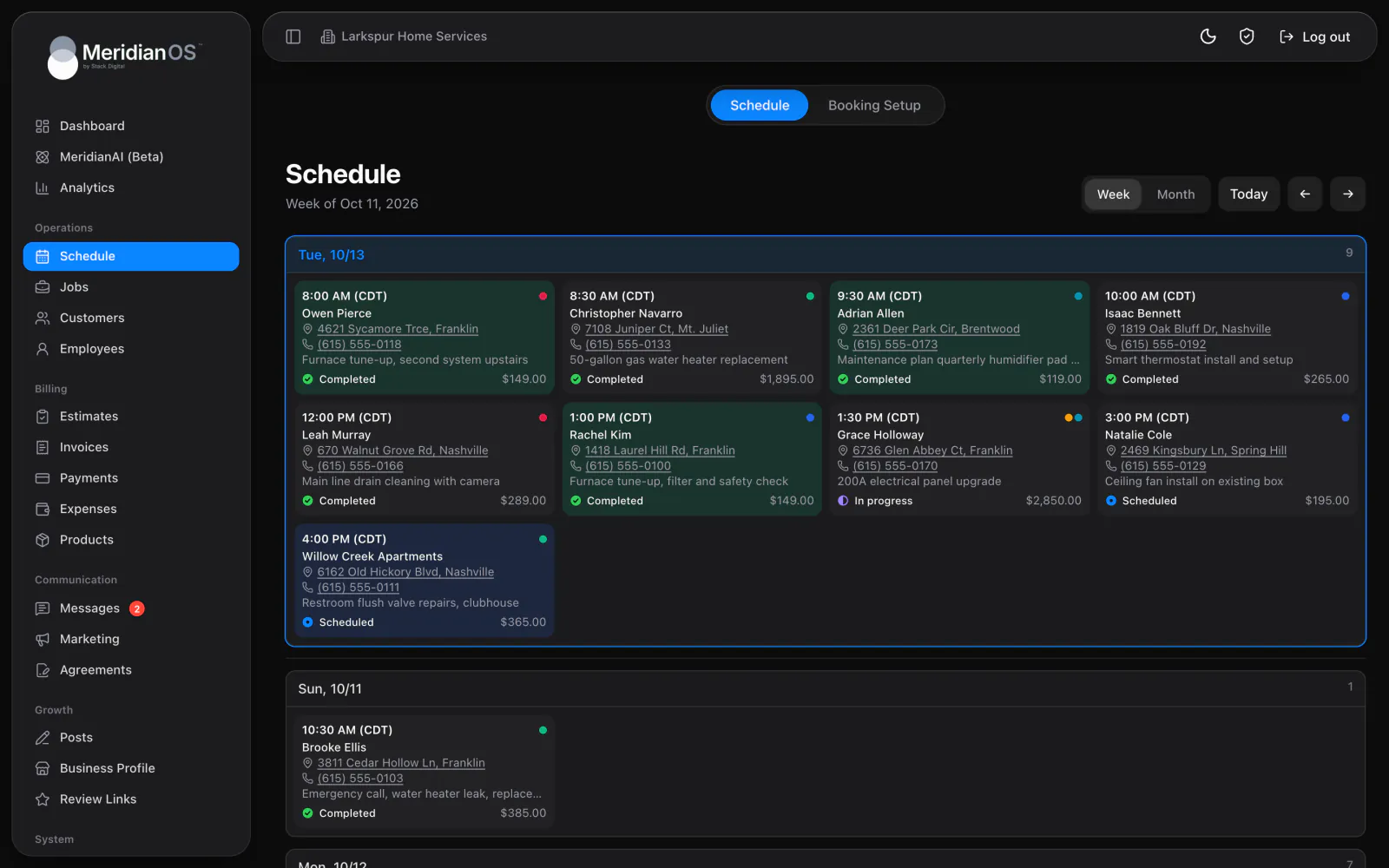
Color by tag. Each job takes the color of its first tag.
A dot per employee. Each person on the job shows in their own color.
One tap to go. Tap the address for directions or the phone number to call.
The week view in MeridianOS™ gives every day its own card, Sunday to Saturday, with a job count. Today is highlighted and pinned to the top. Each job card shows the start time, customer, address, phone, description, status, and amount, with a colored dot for each employee assigned.
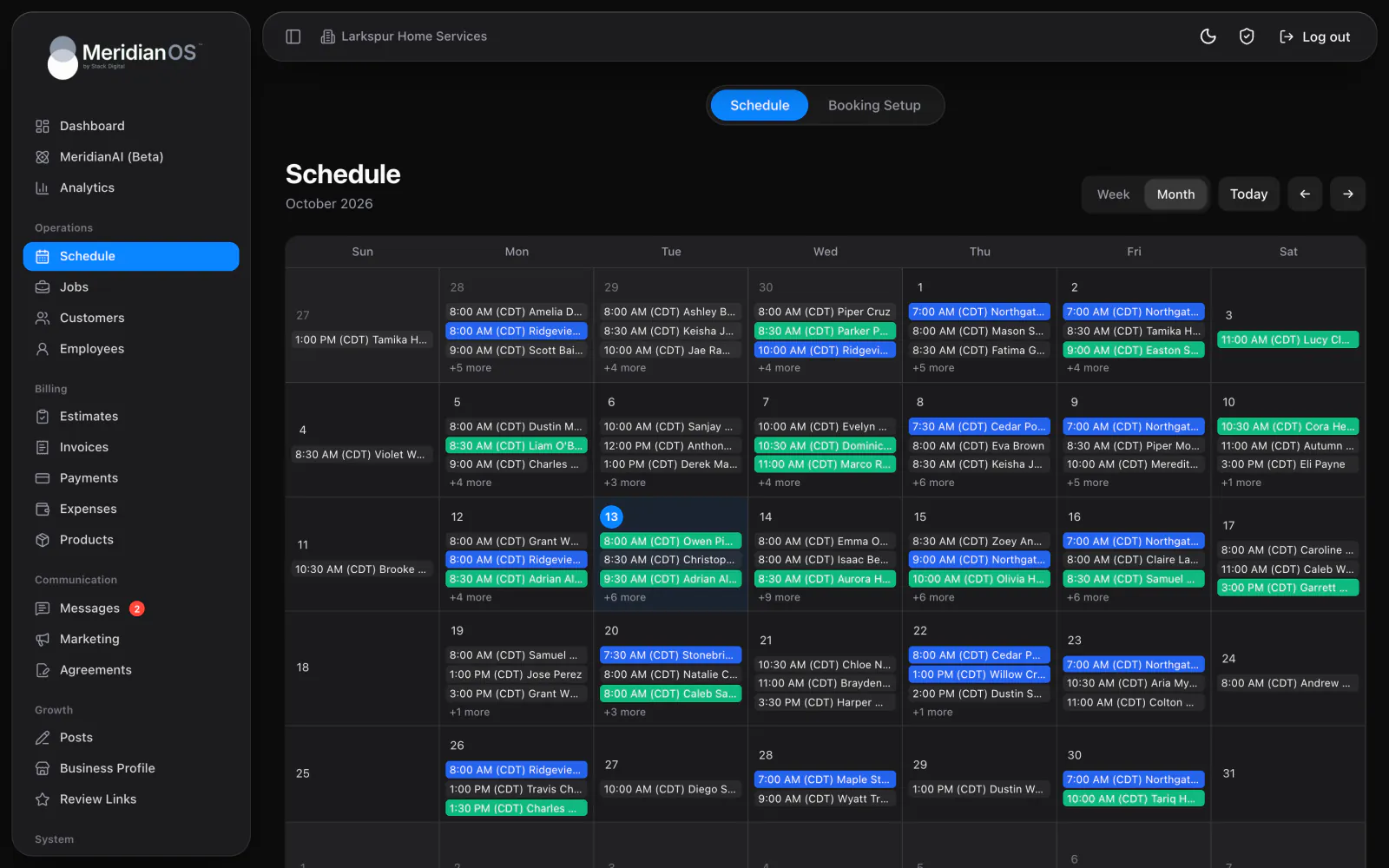
The month view lays out six weeks at once, with up to three jobs per day by time and customer and a count of the rest. Click any day to open that week. Cancelled jobs and jobs still waiting for a date stay off the schedule, so what you see is work that is booked.
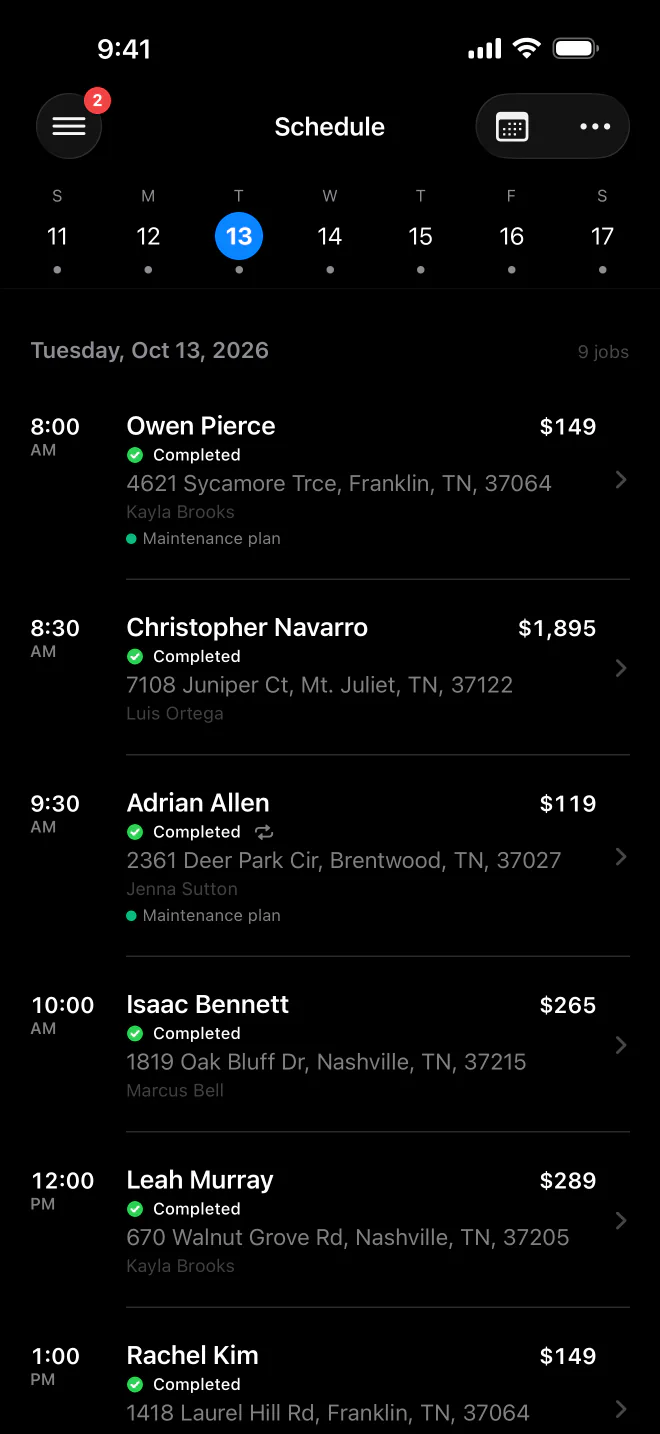
In the MeridianOS™ app, you swipe through a week strip with a dot on busy days and tap a day to see its jobs. Employees sign in to the same app and see only their assigned jobs for the next two weeks, grouped by day.
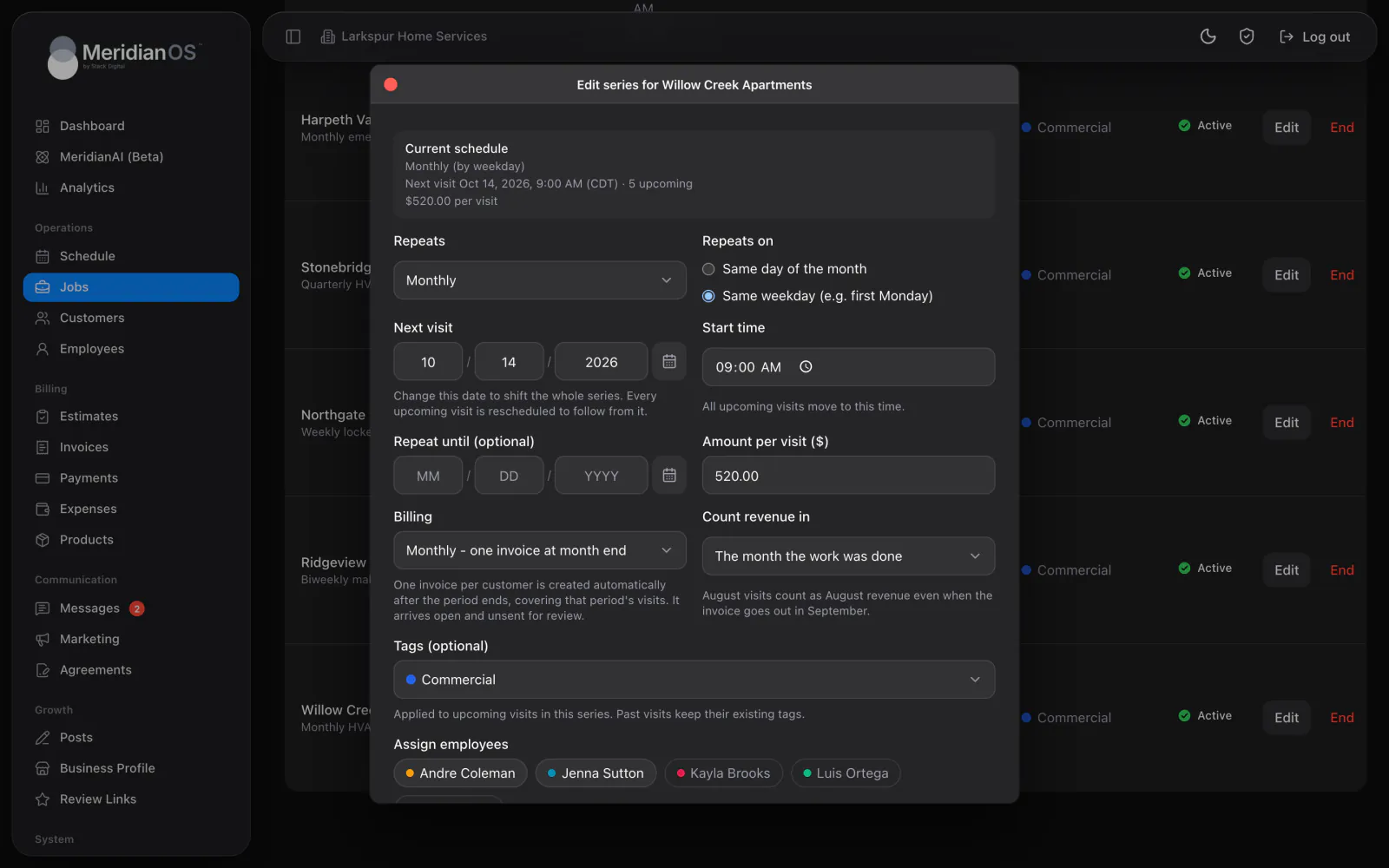
Repeating visits keep the same clock time when daylight saving starts or ends, always in your business's own time zone. A 9:00 visit stays at 9:00 all year.
Give a Needs scheduling job a date and it flips to Scheduled on its own. Leave the date off and it waits on the jobs list until you are ready to book it.
When you schedule or reschedule a one-time job, MeridianOS™ can send the customer a job scheduled email and text. Each message has its own switch in your settings.
Cancel a job that came from an online booking and the booking is cancelled too. Restore the job and the booking is confirmed again.
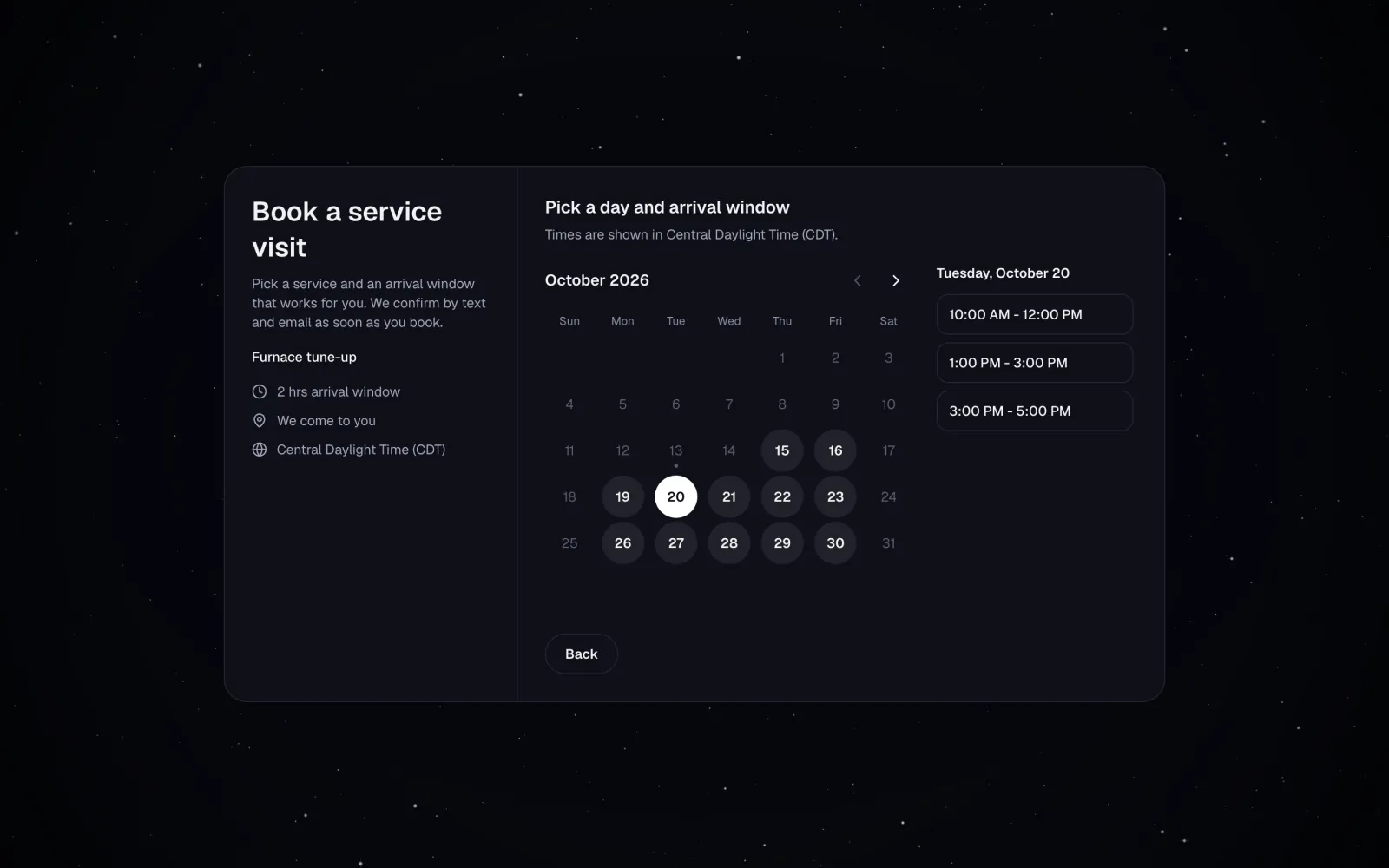
Open the job and choose Edit schedule to change the date, start time, end time, or service address. When job scheduled messages are turned on, the customer gets a job scheduled email and text.
No. Employees see only the jobs assigned to them, covering the next two weeks, in the MeridianOS app. Admins see every job on the week and month views.
Yes. Create tags in Settings with one of 20 colors, and each job takes the color of its first tag. Every employee also has their own color dot on the job cards.
Yes. Repeating visits are created months ahead and appear on the week and month views like any other job. Looking further ahead creates visits for that range on its own.
We will walk you through a live schedule and the alerts your team would get. Tell us what you do and we will reply within the hour.