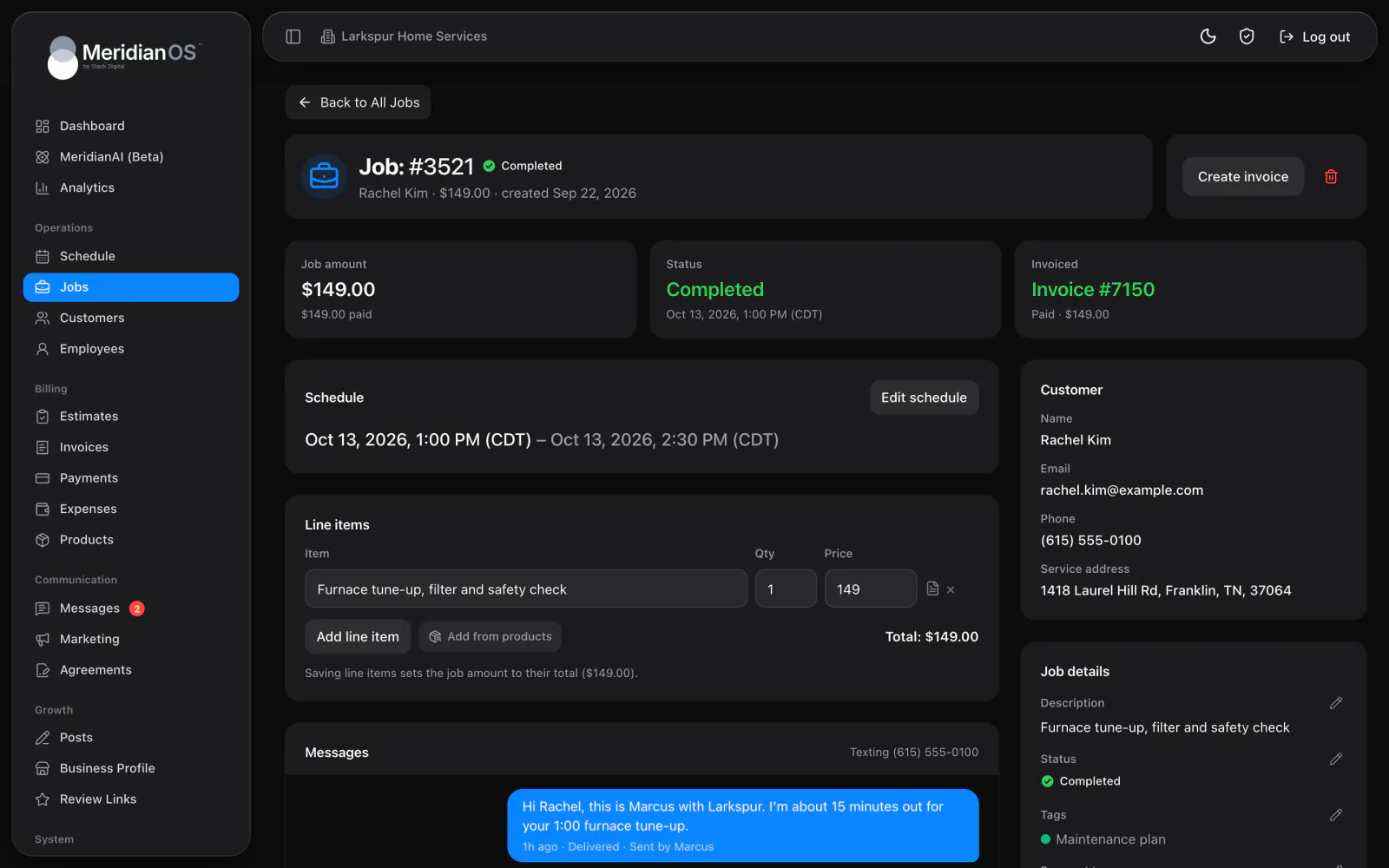
Jobs. Line items, notes, photos, texts, and invoices together on one page.
Build an estimate from your price list and send it by email or text with a link to a private page. When the customer says yes, Convert to job creates the job with the total and the customer already attached.
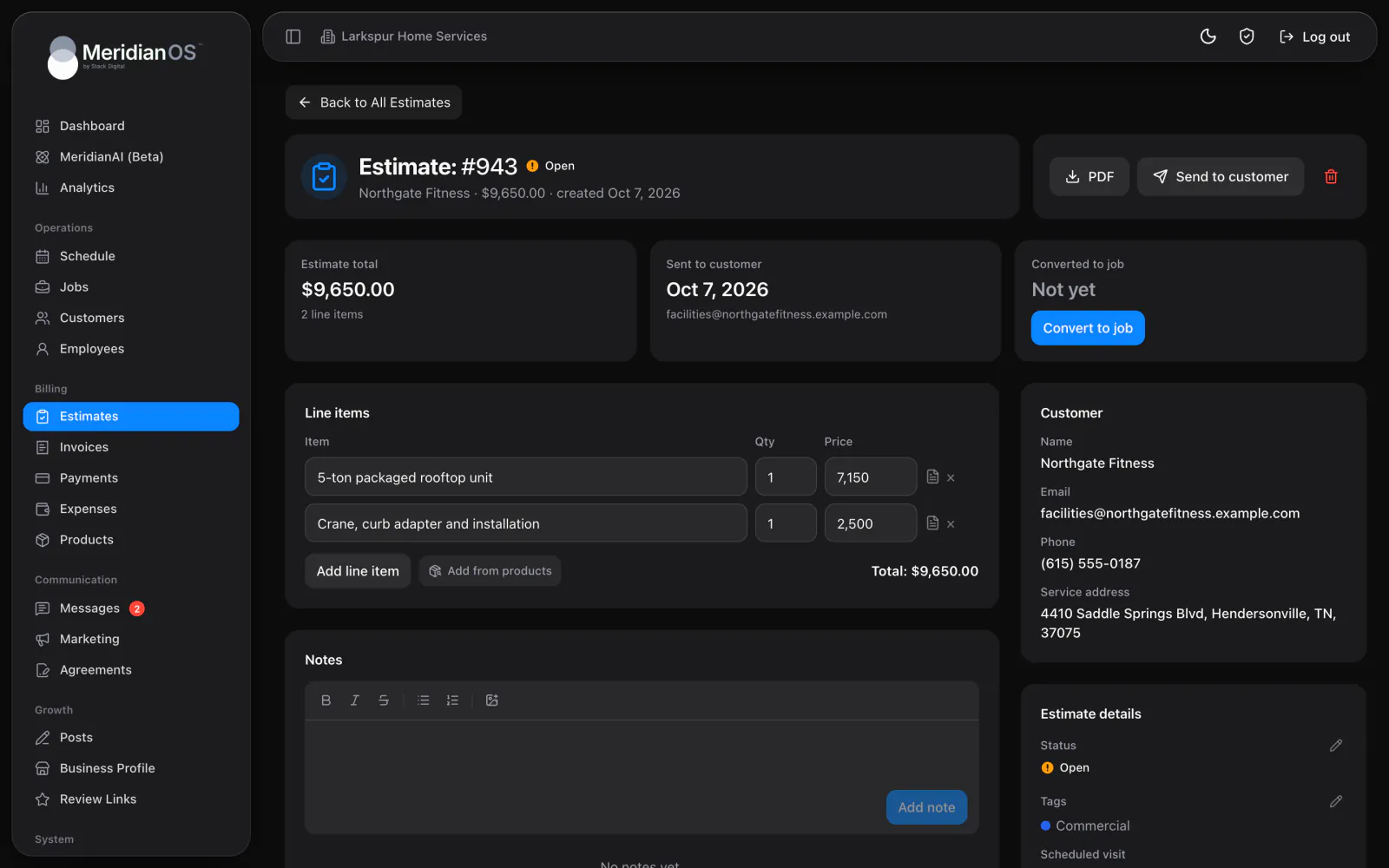
From your price list. Add from products fills each line, and every line stays editable.
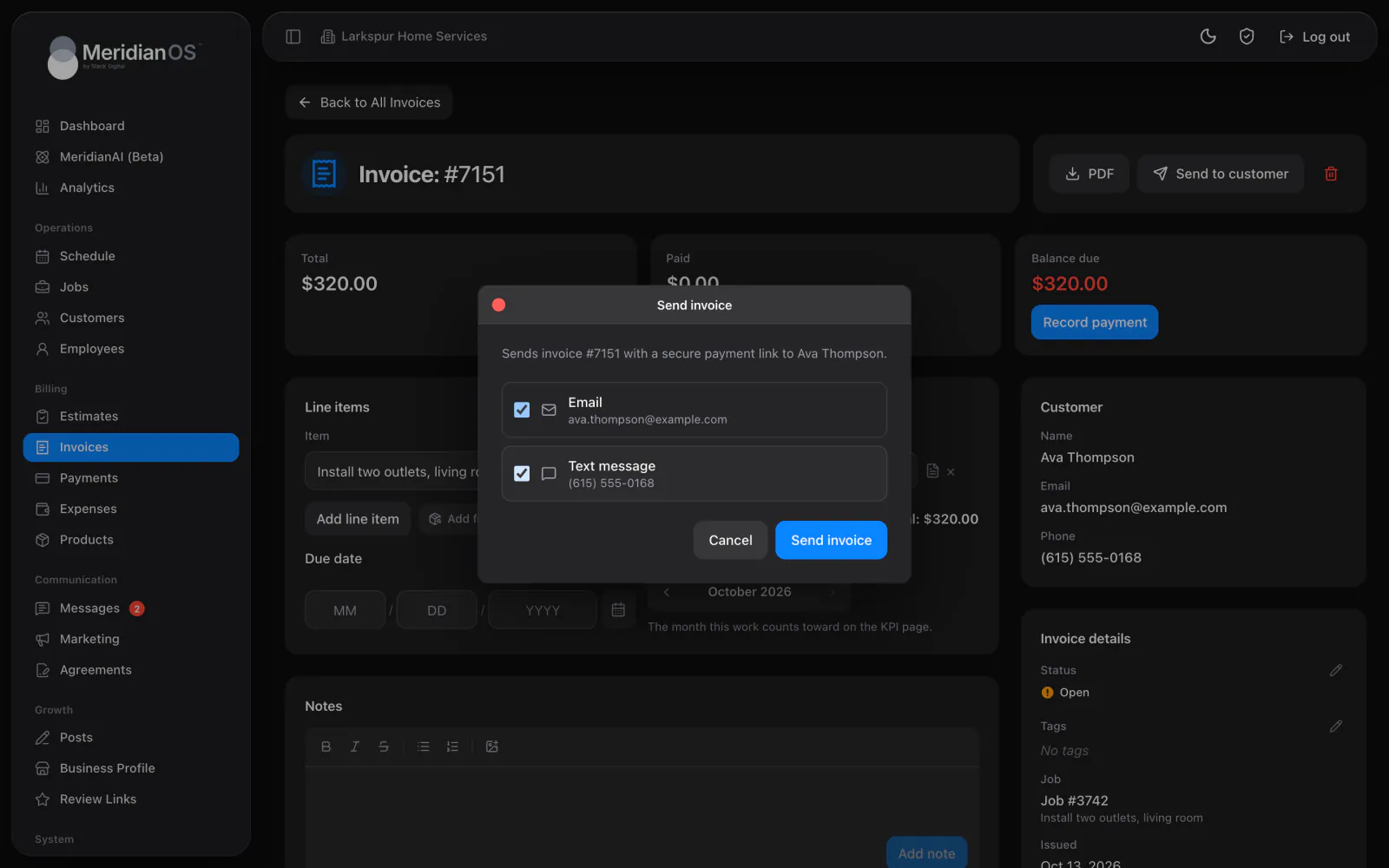
Email or text. The email attaches the PDF, and the text carries a short link.
Convert in one click. Convert to job marks it Approved and creates the job to schedule.
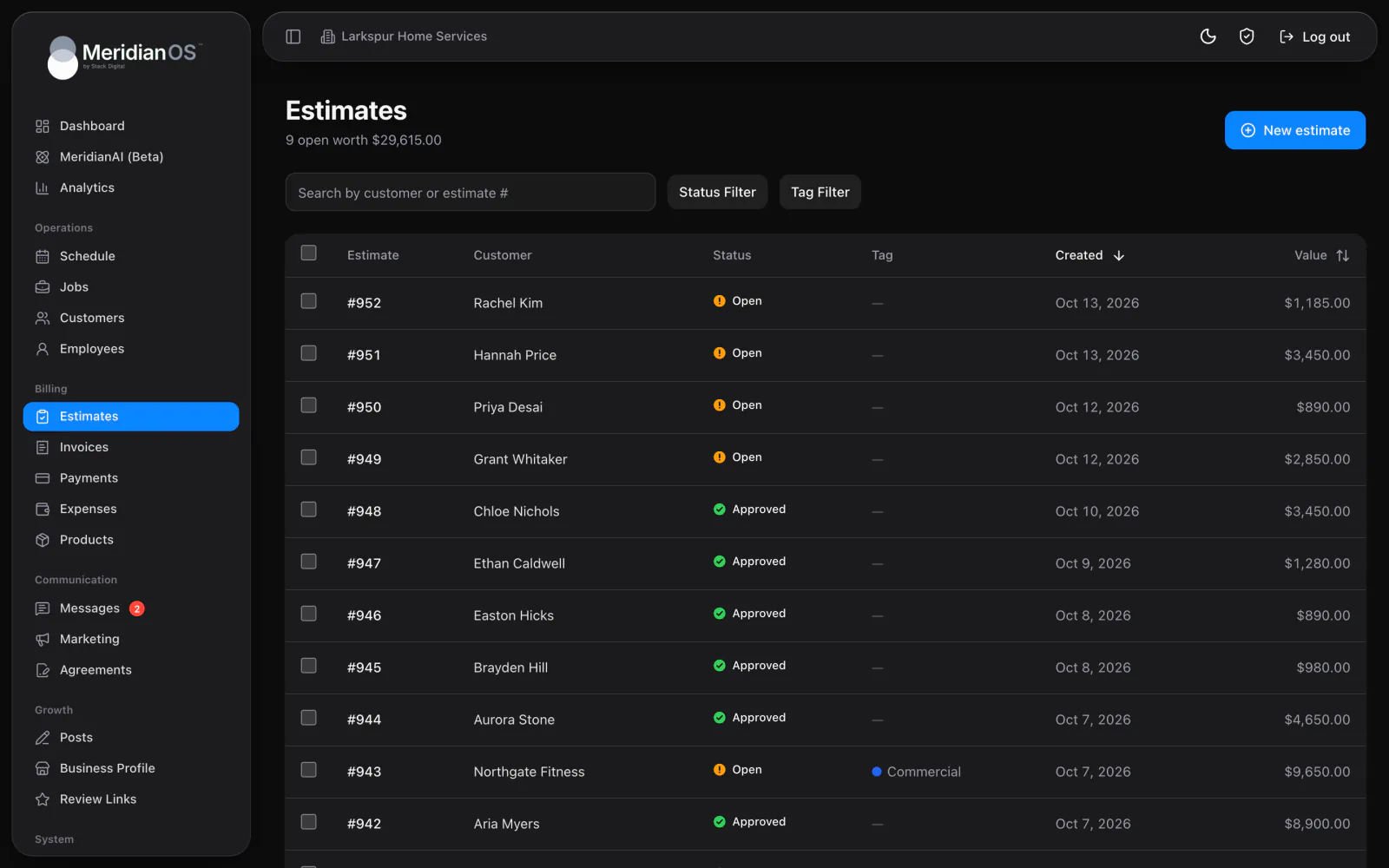
Total open value. The list shows how many estimates are open and what they are worth.
Start a new estimate by choosing the customer, and their tags come along. Add from products fills each line from your price list with its description and price, and every line stays editable for this customer. Descriptions keep their formatting and print on the PDF and on the customer's page.
Send by email with the PDF attached, or by text with a short link. Your customer opens a private page with every line item and the estimated total, and replies to your message when ready. Set the status yourself, or press Convert to job and MeridianOS™ marks it Approved and creates the job.
The estimate list opens with a live count of open estimates and what they are worth. Filter by status or tag, then sort by date created or by value. Bulk actions change the status or tags on many estimates at once, and each one asks you to confirm first.
Items from your price list are copied onto each estimate, where they stay editable. Deleting a product later never changes an estimate that already uses it.
Mark an estimate Approved and its page thanks the customer. Once it is no longer active, the page asks them to reach out if they would like an updated one.
Emails and texts carry a short link, so the text stays compact. The estimate page it opens is private and kept out of search engines.
Tags on a customer fill in on each new estimate and follow the work all the way to the invoice. Estimates and invoices both filter by the same tags.
Press Convert to job on the estimate. MeridianOS marks it Approved and creates a job for the same customer and address, ready to schedule. You can also change the status by hand in the estimate details.
Yes. When texting is turned on for your website, choose email or text each time you send, or use both. The text carries a short link to the estimate in wording you can edit.
Convert to job first, which creates the job with the estimate's total. When you are ready to bill, press Create invoice on the job and the invoice is built from it, payment terms included.
Yes. The PDF shows your logo and company details at the top, then each line with its quantity and price. Add a Terms & Conditions link in Settings and it prints on the PDF as well.
We will show you an estimate going out and coming back as a job on a live system. Tell us what you do and we will reply within the hour.